Skip to content

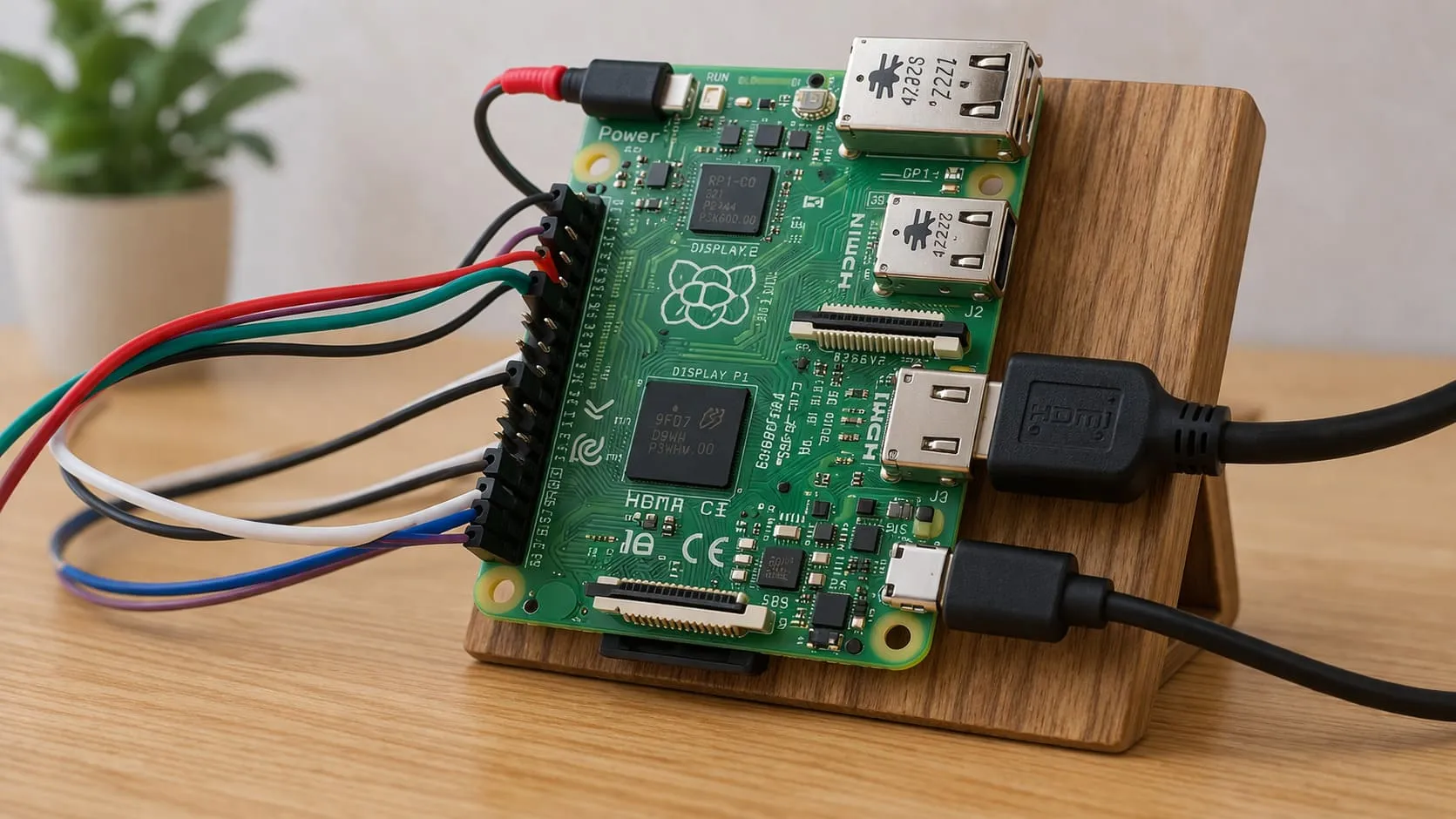
Walk into any makerspace or small workshop and you’ll probably spot it—a Raspberry Pi Zero blinking quietly in the corner, pushing data over Wi-Fi to a cloud dashboard or controlling a light strip from a phone. It doesn’t take much room, barely sips power, and handles more tasks than you'd expect for its size.
But here’s the thing: none of that works without a stable Wi-Fi connection. Whether you're building a remote weather sensor, an IoT dashboard for a small factory, or a wireless controller for smart lighting, the Pi Zero's ability to hold a connection is what holds your whole project together.
Both the Raspberry Pi Zero W v1.1 and Zero 2 W come with 2.4 GHz 802.11n built-in Wi-Fi. They look similar on the outside but handle workloads differently—so choosing the right board and setup method is where it all begins.
Understanding the Raspberry Pi Zero’s Wireless Hardware
Built-in Cypress/Broadcom chip capabilities & limits
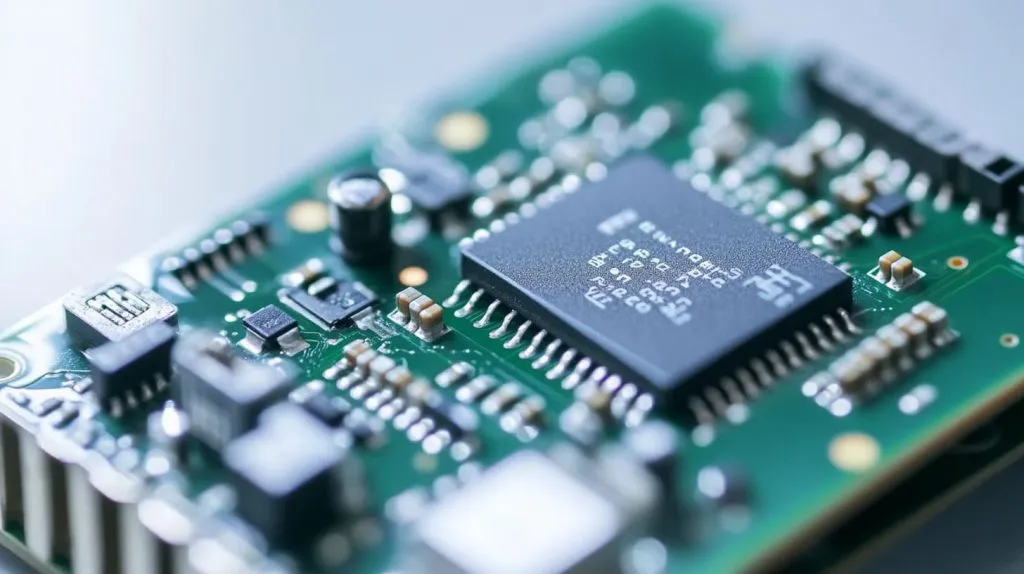
The little metal can beside the GPIO header hides a Cypress CYW43438 (Zero W) or CYW43439 (Zero 2 W). They handle Wi-Fi 4 (2.4 GHz only) and Bluetooth 4.2. Throughput tops out around 50 Mb/s in perfect conditions—fine for sensors and dashboards, not 4K video.
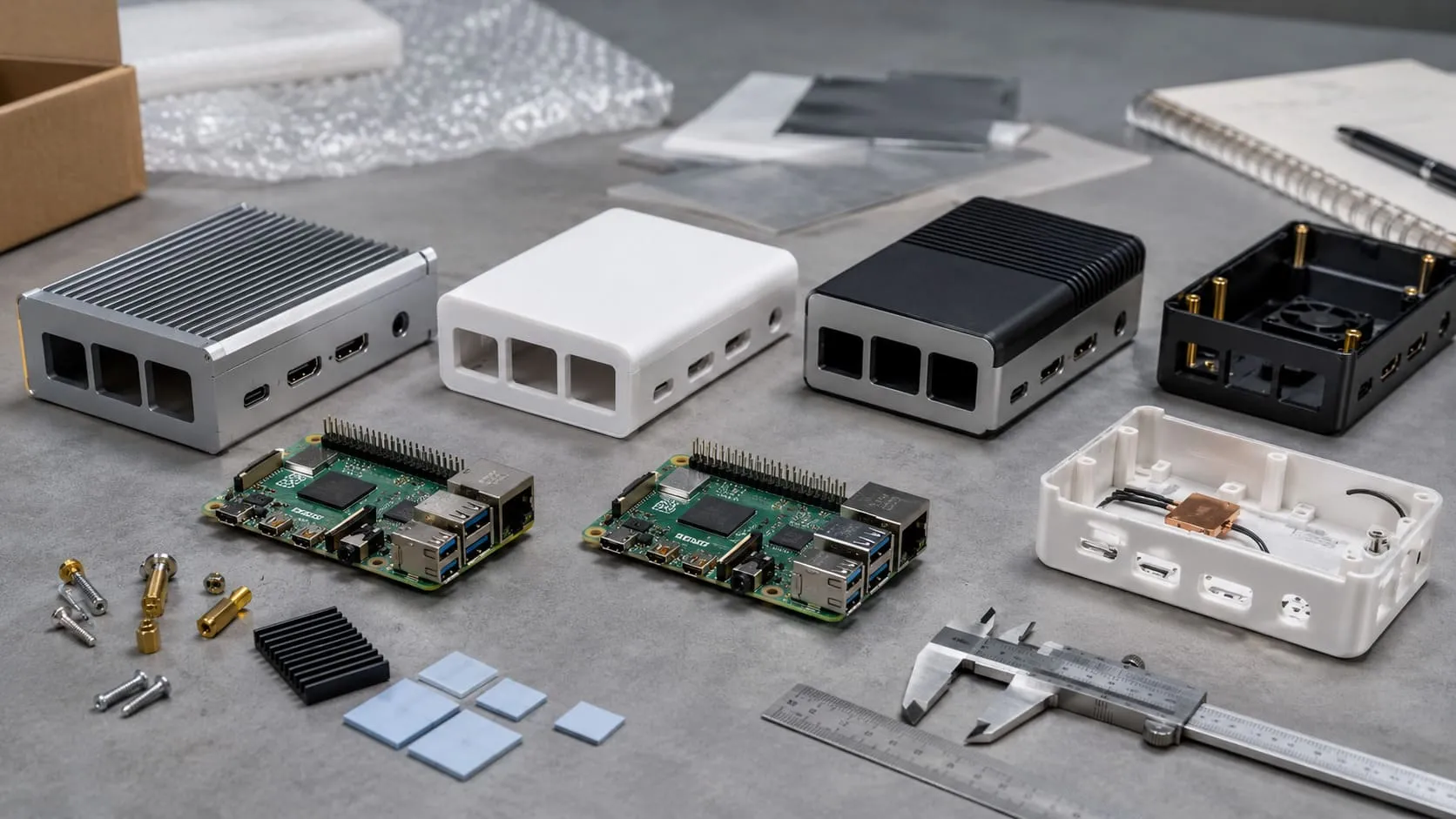
Antenna design considerations and enclosure effects
The etched PCB antenna loves open space. Slip the board inside an aluminum case and the signal drops like a stone. I test every prototype by placing the Pi in its final enclosure, then walking 10 m away with a phone running WiFi Analyzer. A 10 dB loss means I redesign the vents or switch to plastic.
When to add an external USB Wi-Fi dongle (for 5 GHz or stronger signal)
If your warehouse is packed with 2.4 GHz chatter or you need 802.11ac speeds, plug in a dual-band dongle. I favor the RTL8812BU-based adapters: they draw <250 mA, fit a zero-clearance USB OTG hub, and bump throughput past 200 Mb/s.
Ready for the hands-on part? Let’s gather the gear first and avoid the classic “why won’t it boot” panic.
Prerequisites & Setup Checklist
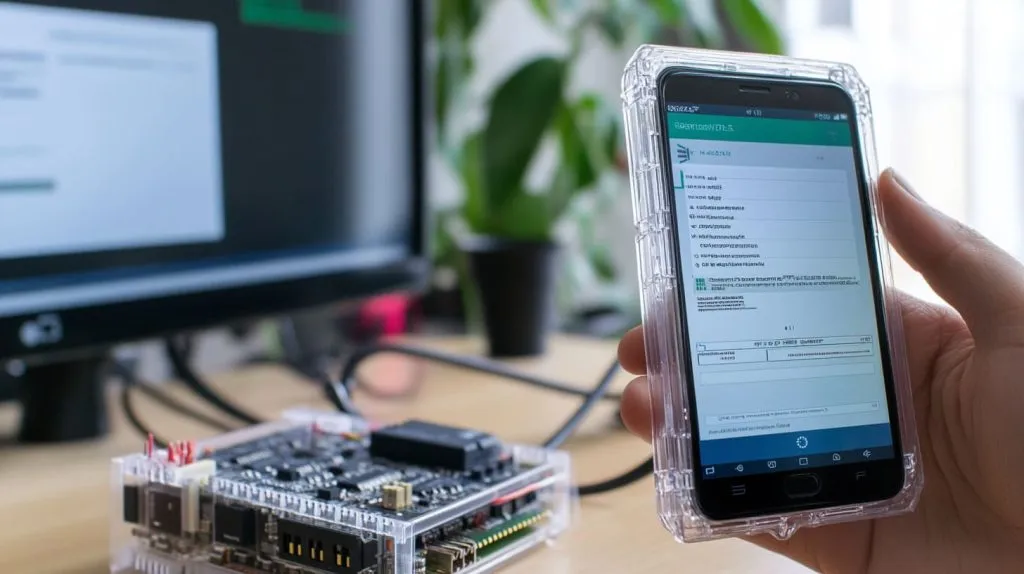
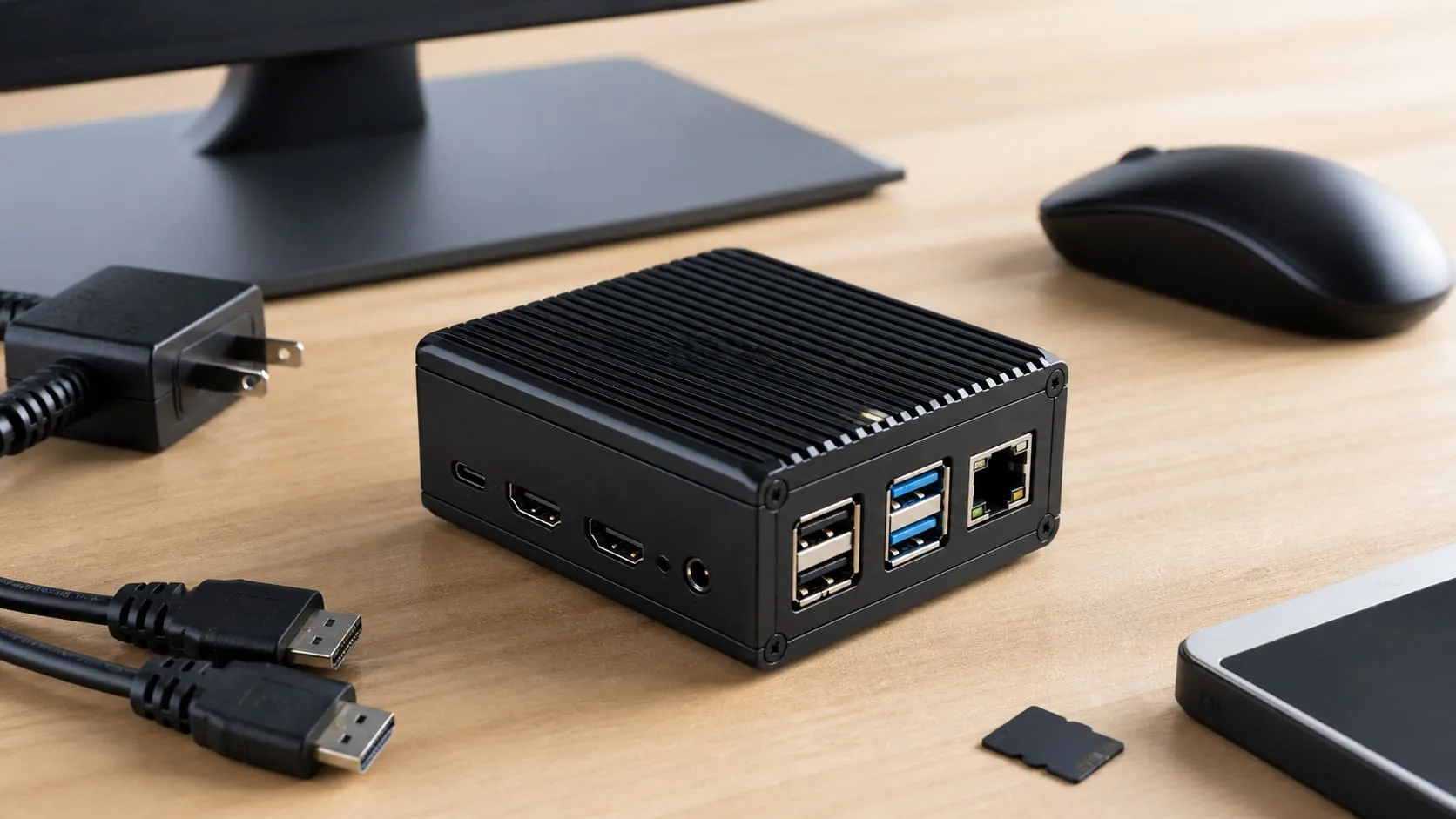
Hardware you’ll need (Pi Zero/Zero 2 W, micro-SD, 2.5 A PSU, etc.)
| Item | Minimum Spec | My Field Notes |
|---|---|---|
| Raspberry Pi Zero W / Zero 2 W | Genuine board | Clone radio IDs fail in corporate WLANs |
| micro-SD card | 8 GB Class 10 | Use industrial-grade cards for kiosks |
| Power supply | 5 V 2.5 A | Undervoltage = random Wi-Fi drops |
| Micro-USB OTG cable | Quality shielded | Cheap cables add 200 mV of loss |
| Optional USB dongle | 5 GHz / external antenna | For metal cases or long range |
Latest Raspberry Pi OS options: Bookworm (NetworkManager) vs Legacy Bullseye (wpa_supplicant)
Bookworm ships with NetworkManager and a /boot/network-config.toml wizard. Bullseye sticks with wpa_supplicant. Match the OS to your provisioning script—mixing them causes midnight support calls.
Enable SSH or serial console for headless work
Drop an empty ssh file in /boot or connect pins 6–8 to a USB-TTL adapter. I keep one in my laptop bag because someone always forgets to enable SSH before sealing the case.
A checklist is nice, but choosing the right workflow saves more coffee than any hardware tweak.
Choosing the Best Connection Method
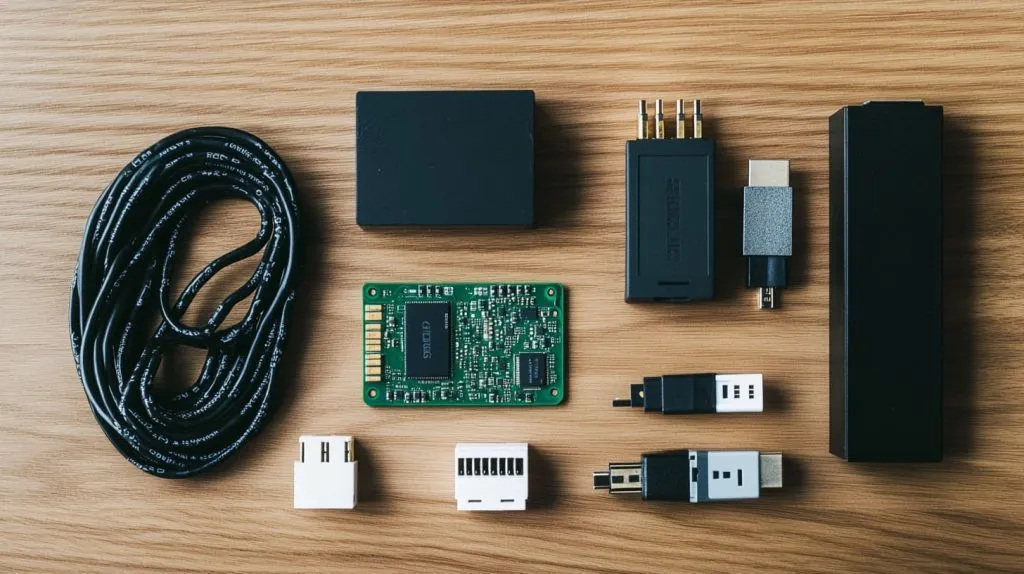
GUI vs headless: deciding factors for makers, distributors, and factory test jigs
If you’re flashing ten boards on a production line, the desktop is slow and error-prone. Headless scripts repeatable by interns beat fancy click paths every time.
Network security policies (WPA2-PSK vs WPA-Enterprise)
Your client’s office may ban PSK entirely. Plan for WPA-EAP now, even if you’ll deploy PSK in your garage first.
Local vs remote provisioning needs (field-deployed hardware, customer re-branding)
Davide wants us to embed his SSID at the factory. Lasle prefers a captive portal so his end users can enter credentials on-site. Decide whose headache it is before shipping.
Once you know the battlefield, pick the weapon. Here are five that never let me down.
Method 1 – Desktop GUI (Pi OS with Pixel)

Click the bar-graph icon, choose your SSID, and watch the list populate. A weak signal here means real-world trouble later.
Entering SSID/PSK & saving the profile
Tick “Remember password” if the board lives in one place. For demo kits, leave it unticked so the next venue won’t guess your lab password.
Verifying connection with ip a and ping
Open LXTerminal, run ip a | grep wlan0, then ping -c 4 8.8.8.8. No packet loss means you can move on.
A GUI works for one-off builds, but Bookworm’s console tools feel like power steering for bulk orders.
Method 2 – Command-Line with NetworkManager/nmcli (Bookworm & later)

Checking that wlan0 is managed by NM
nmcli dev status should show wlan0 connected. If it’s unmanaged, run nmcli dev set wlan0 managed yes.
Adding a connection:
nmcli dev wifi connect "MySSID" password "MyPass"One line, zero typos if you paste.
Setting a static IP, DNS & country code in one command
nmcli con mod MySSID \
  ipv4.addresses 192.168.1.50/24 \
  ipv4.gateway 192.168.1.1 \
  ipv4.dns 1.1.1.1 \
  wifi.country CN
Listing & toggling saved profiles
nmcli con show then nmcli con down <name> keeps debugging civilized.
Still on Bullseye? No worries—wpa_supplicant remains a trusty friend for legacy images.
Method 3 – Classic wpa_supplicant.conf (Bullseye & earlier)

Creating wpa_supplicant.conf on the boot partition (headless)
country=CN
ctrl_interface=DIR=/var/run/wpa_supplicant GROUP=netdev
network={
    ssid="MySSID"
    psk="MyPass"
    key_mgmt=WPA-PSK
}
Save, eject, boot. The file migrates to /etc/wpa_supplicant/.
Country code, key-mgmt & multiple network blocks
Add several network blocks for roaming. The Pi connects to the first one it sees.
Enabling SSH by dropping an empty ssh file
Two seconds of work that saves half an hour of monitor hunting.
First-boot workflow & automatic file cleanup
A cron job that deletes the conf after first connect protects credentials if the card goes missing.
Bookworm replaces that conf with a TOML file. Sounds scary, but the format is friendly once you see it in action.
Method 4 – Boot-Time Provisioning Files (Bookworm .toml)

Structure of /boot/network-config.toml
version = 2
wifi = { id = "MySSID", passphrase = "MyPass" }
Add ip = { address = "192.168.1.51/24", gateway = "192.168.1.1" } for static networking.
Example: DHCP vs static profile in TOML
| Profile | DHCP | Static |
|---|---|---|
| Syntax | Omit ip | Add ip table |
| Best for | Hotels, hotspots | Kiosks, fixed sensors |
Future move to cloud-init and how to stay compatible
Rumor says Pi OS may adopt cloud-init. If that happens, your TOML file becomes YAML. Keep scripts modular so swapping formats is painless.
Need something faster than editing files? The Pi Imager hides a time-saving gem.
Method 5 – Raspberry Pi Imager “Advanced Options”

Pre-setting SSID, password, hostname & locale in the Imager GUI
Hit Ctrl + Shift + X, fill in Wi-Fi, hostname, and enable SSH. Flash dozens of cards; every board boots ready.
Saving a preset for factory flashing lines
Click Save as defaults. My production PC writes 20 cards an hour while I sip tea.
Cards flashed, boards booted—what if the site has no Wi-Fi yet? Spin up your own.
Setting Up an Initial Hotspot for First-Time Config
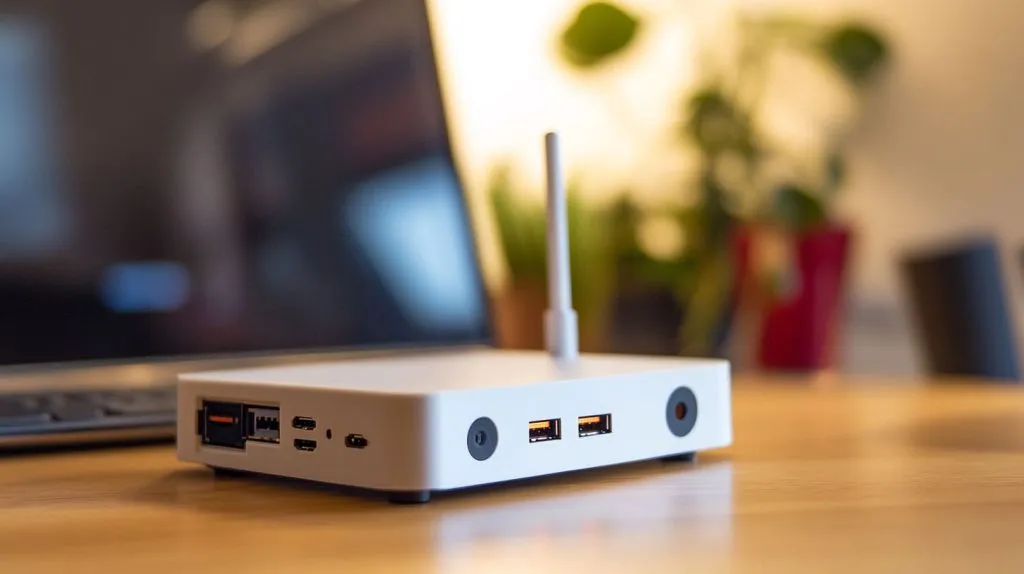
Enabling raspi-config “Access Point” mode
sudo raspi-config → Network Options → Wi-Fi Hotspot. Reboot and connect to raspberrypi.local.
Quick nmcli script to switch between AP and client modes
Keep this two-liner on the desktop:
nmcli connection up hotspot
nmcli connection up MySSID
Captive portal idea for B2B customers (enter credentials, device reboots)
A simple Flask app asks for SSID/PSK, writes TOML, and restarts NetworkManager. Customers feel in control; you avoid late-night support tickets.
Even perfect setups fail sometimes. Let’s arm ourselves against the usual gremlins.
Troubleshooting Common Wi-Fi Issues

Checking rfkill & interface state (rfkill list, nmcli dev status)
If Soft blocked: yes, run rfkill unblock wifi. Some metal cases short the antenna pad and trigger killswitch logic.
Reading logs: journalctl -u NetworkManager vs dmesg | grep brcm
dmesg shows firmware crashes; NetworkManager logs reveal bad passwords and DHCP woes.
Dealing with country-code mismatch & regulatory domain errors
sudo iw reg set BE for Belgium, CN for China. Mismatched codes cap transmit power at 14 dBm.
Diagnosing power-supply brown-outs that drop Wi-Fi
Watch the red LED. A faint flicker under load screams low 5 V line. Swap the cable first, not the kernel.
Fix the signal, then squeeze every millisecond of latency out of it.
Securing & Optimizing the Connection
Disabling Wi-Fi power-save for better latency (iw dev wlan0 set power_save off)
Sensors wake faster; SSH feels snappier. Battery life drops a hair—worth it for mains-powered kiosks.
Updating firmware (sudo rpi-update) and why it matters
A March 2025 patch cut reconnection time by half on Zero 2 W boards. I felt it during live demos—less dead air, more applause.
Hardening wpa_supplicant (disable WPS, enforce CCMP only)
Add disable_wps=1 and proto=RSN in each network block. Small edits, big peace of mind.
Once the basics are solid, stretch the little board into tricks your competitors haven’t thought of.
Advanced Scenarios

Use scan_ssid=1 in wpa_supplicant or nmcli dev wifi connect --hidden yes for NetworkManager. I roam two shop floors without dropping MQTT messages.
WPA2-Enterprise (PEAP/MSCHAPv2) on corporate networks
Create a .p12 cert bundle, then:
nmcli con add type wifi ifname wlan0 ssid CorpNet \
  -- wifi-sec.key-mgmt wpa-eap \
  802-1x.eap peap \
  802-1x.identity "piuser" \
  802-1x.password "p1Pass!"
Auto-reconnect scripts for mobile deployments
A cron job pings the gateway every minute and restarts NetworkManager if 3 pings fail. My delivery robots use it daily.
Using VLANs or separate IoT subnet for large installations
Tag packets with id=42 in /etc/dhcpcd.conf. Keeps customer POS traffic safe from your camera stream.
Adding a fallback USB-to-Ethernet gadget for remote rescue
I tape an ASIX 88772 adapter inside the case. If Wi-Fi dies, the on-site tech plugs a cable and I SSH in through wire.
We’ve covered plenty—time to wrap it up and map the next steps.
Conclusion
Connecting a Raspberry Pi Zero to Wi-Fi is part art, part checklist. We walked through desktop clicks, nmcli muscle memory, wpa_supplicant classics, Bookworm TOML magic, and Pi Imager shortcuts.
Davide can bake credentials at the factory for fast Amazon restocks.
Machel might bundle a hotspot portal so his creative clients tweak settings on-site.
Whichever camp you join, automate your provisioning, log every connection, and test under real interference before sealing the box. Your future self—perched on some rooftop at midnight—will thank you.