Skip to content


My eight‑year‑old niece once tried to pinch‑zoom a printed photo on my desk. It hit me then: many kids only know screens that sing back preloaded apps. I want their “first computer” to do more than obey—I want it to invite questions, reward tinkering, and maybe even survive a juice spill. Choosing that starter machine shapes how confident they’ll feel around technology for years. In that lineup of options, the Raspberry Pi sits halfway between a toy and a real workstation. Today I’ll break down whether it truly deserves a place on the family desk.
A quick sip of coffee—let’s define what makes any computer kid‑friendly before we judge the Pi.
What Makes a Computer “Kid‑Friendly”?

Ergonomics & durability requirements
Small hands tap harder than you think. Thick‑key keyboards, drop‑resistant cases, and screens with wide viewing angles protect both posture and hardware. I’ve cracked one too many fragile laptop hinges during show‑and‑tell sessions to ignore this.
Learning‑curve factors: OS, interface, peripherals
Kids thrive when the interface is forgiving. A simple desktop, clear icons, and plug‑and‑play mice matter more than retina displays. If they can’t find the file they saved, curiosity dies fast.
Cost & replaceability for accidental drops or spills
Budget equals bravery. When replacement costs stay low, parents say “yes” to experimentation—and kids learn without fear.
| Device Type | Typical Cost | Screen Included? | Easy to Replace Parts? |
|---|---|---|---|
| Chromebook | \$250–\$400 | Yes | Limited |
| Tablet | \$150–\$300 | Yes | No |
| Raspberry Pi | \$80–\$150* | No (needs monitor) | Yes (modular) |
*Complete kit estimate.
Safety essentials: parental controls and secure browsing
Built‑in filters or DNS tools are non‑negotiable. No parent wants to play cat‑and‑mouse with questionable pop‑ups.
With those benchmarks set, what does the Pi actually put on the table?
Raspberry Pi at a Glance
Current models worth considering (Pi 400, Pi 5, Pi 4, Pi Zero 2 W)
Below is the cheat sheet I hand to friends who ask which board to pick:
| Model | CPU | RAM | Form Factor | Notable Perks |
|---|---|---|---|---|
| Pi 400 | 1.8 GHz quad‑core | 4 GB | Keyboard‑in‑one | Built‑in keyboard, no tiny parts |
| Pi 5 | 2.4 GHz quad‑core | 4 GB / 8 GB | Board | Fastest Pi, dual 4K display |
| Pi 4 | 1.5 GHz quad‑core | 2–8 GB | Board | Lower price, strong community |
| Pi Zero 2 W | 1 GHz quad‑core | 512 MB | Tiny board | Pocket‑size projects |
Key specs that matter to young users (CPU, RAM, Wi‑Fi, GPIO)
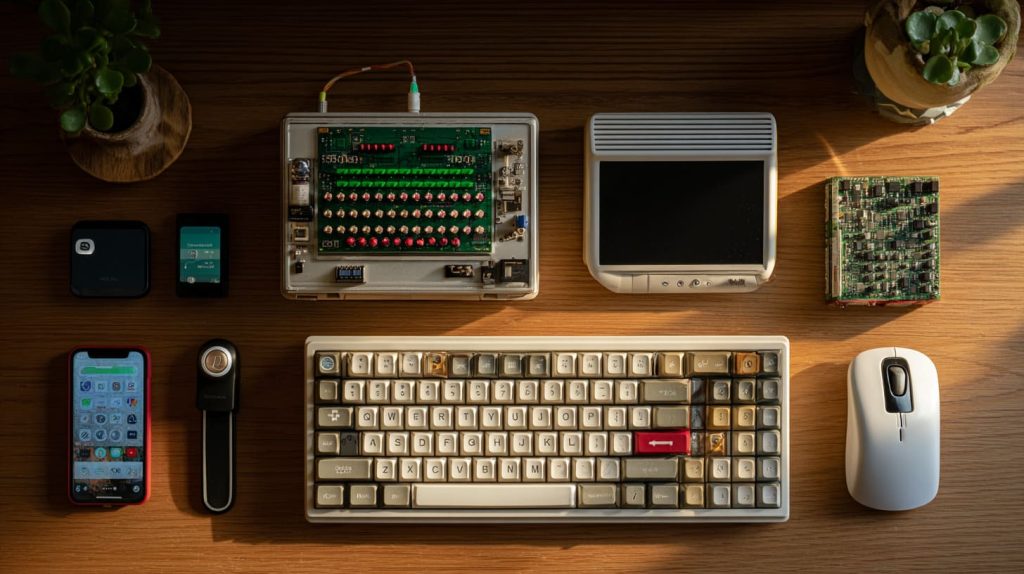
Speed is nice, but built‑in Wi‑Fi and abundant GPIO pins open doors to sensors and LEDs—tactile magic for restless minds.
Typical total build cost (board, case, PSU, mouse, keyboard, display)
Expect \$80–\$150 depending on reuse of an old monitor. MaidaTech’s wholesale bundles shave ~10 % off retail, handy for classrooms.
Curiosity bubbling? Let’s see how that translates into learning gains.
Educational Benefits of Raspberry Pi
Hands‑on hardware insight: GPIO, sensors, and tinkering
The first time I wired an LED to GPIO 17 with my niece, her eyes beat the LED’s blink rate. A clickable win builds momentum for deeper dives.
Beginner‑friendly coding platforms (Scratch, Minecraft Pi, Python with Thonny)
Drag‑and‑drop blocks ease them in. Later, Python scripts let them see loops move a servo. The jump feels organic.
Rich learning ecosystem: Raspberry Pi Foundation, CoderDojo, online tutorials
Plenty of free lesson plans land in my inbox weekly. Kids aren’t waiting for me—they’re following global mentors on YouTube.
Project‑based learning that nurtures creativity and problem‑solving
Whether it’s a garden moisture alarm or a custom Minecraft mod, each project ends with a physical or visual payoff. That feedback loop turns homework into hobby.
The Pi sounds promising, yet setup can trip up parents. Let’s make that part painless.
Practical Setup Guide for Parents & Educators
Essential peripherals checklist (durable case, power, input devices, monitor)
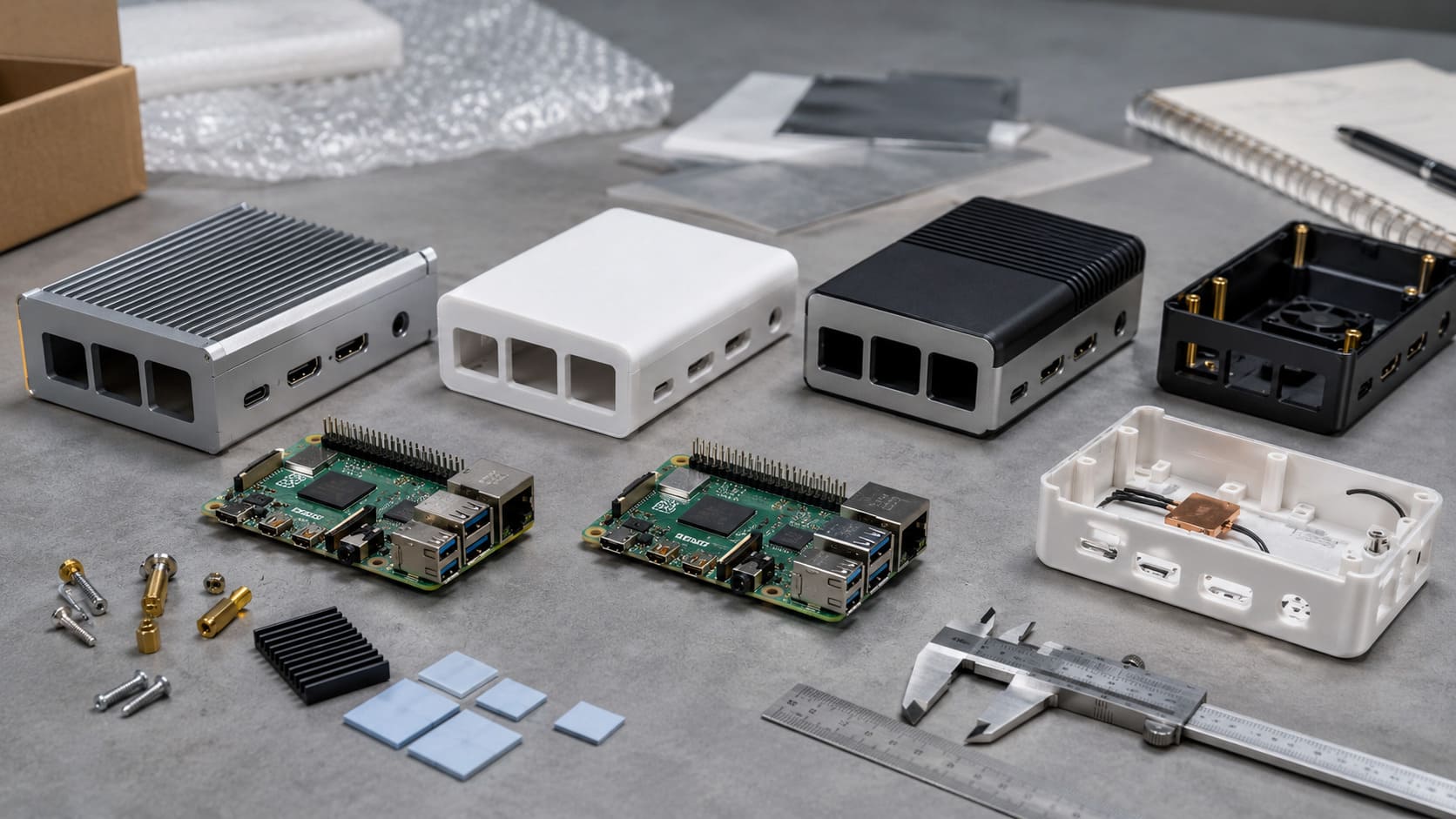
- Ventilated case (ABS or aluminum)
- 5 V 3 A power supply
- USB mouse & keyboard (wired means fewer batteries)
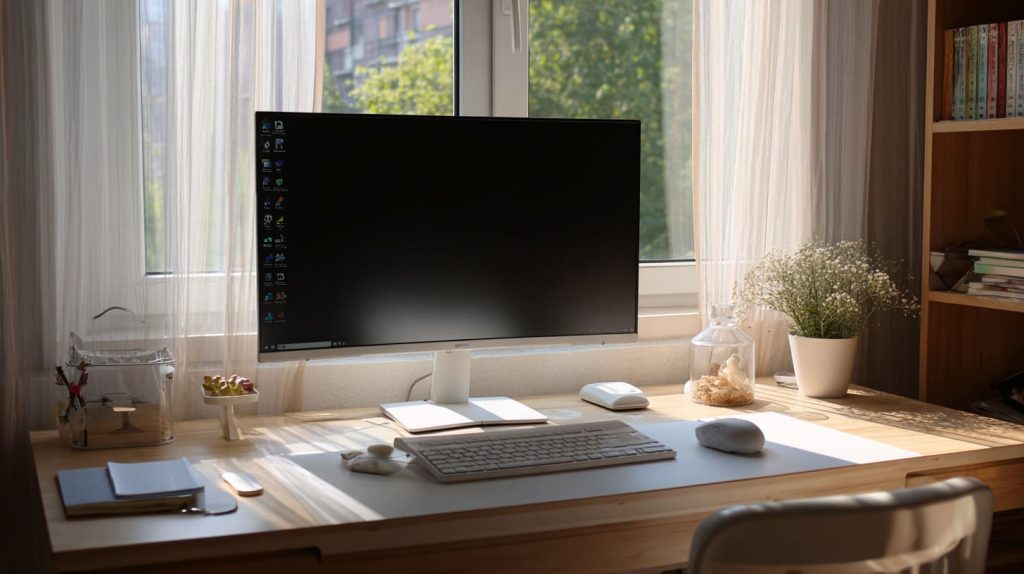
- HDMI monitor or TV
Kid‑proofing the hardware: rugged cases, cable management, heatsinks
A rubber‑sleeved MaidaTech case plus a low‑profile heatsink keeps tiny fingers safe and boards cool.
Recommended starter kits & bundles (pre‑imaged SD cards, lesson plans)
Pre‑flashed SD cards cut the “why won’t it boot?” panic by half. I preload Scratch projects so day one ends with blinking pixels, not troubleshooting forums.
Step‑by‑step first boot: installing Raspberry Pi OS, user accounts, updates
- Insert SD → Power on.
- Choose language, Wi‑Fi, timezone.
- Create a standard user, keep admin password with the grown‑ups.
- Run
sudo apt update && sudo apt full-upgrade—teaches patience and maintenance.
Setup done, next question: Which Pi for which age?
Age‑Based Recommendations

| Age | Recommended Model | Key Apps | Reason |
|---|---|---|---|
| 4–7 | Pi 400 | ScratchJr, TuxPaint | All‑in‑one keyboard, simple projects |
| 8–12 | Pi 5 / Pi 4 | Scratch, Minecraft Edu, Python | More power, GPU for projects |
| 13+ | Pi 5 | LibreOffice, VS Code, Robotics kits | Desktop tasks and hardware depth |
Kids grow fast. Swapping SD cards keeps the board relevant longer than most toys.
Time to stack the Pi against the rest of the pack.
Raspberry Pi vs. Alternative First Computers

Pi vs. Chromebook for browser‑based learning
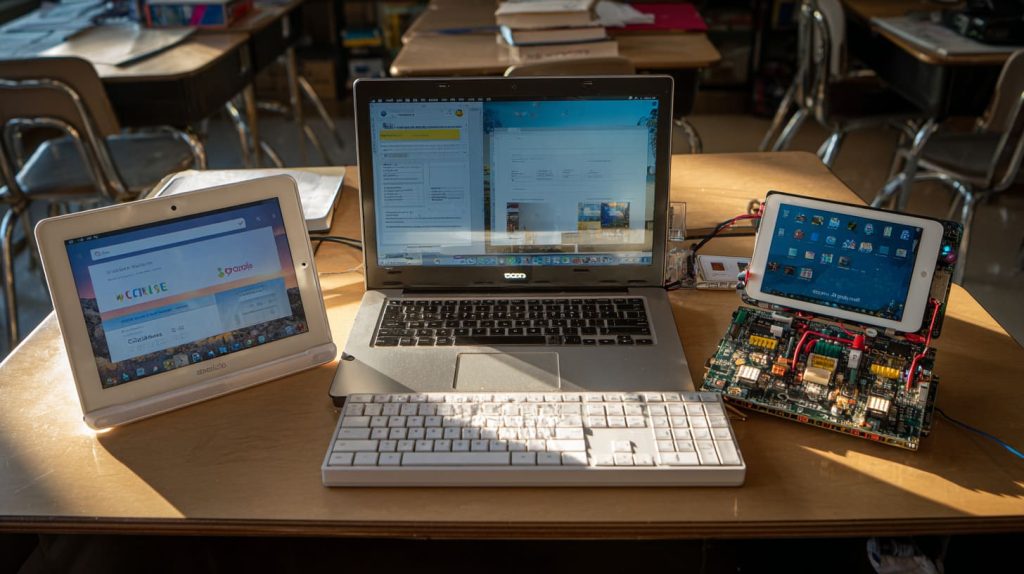
Chromebooks boot quick and lock down viruses, yet hardware hacking is near zero. The Pi trades that polish for hands‑on freedom.
Pi vs. tablet/iPad for app ecosystems and parental oversight
Tablets win on mobility and touch apps. But creative coding feels cramped on glass, and repairs equal replacements.
Pi vs. micro:bit & Arduino for hardware experimentation
Micro:bit blinks sooner; Arduino drives motors better. The Pi sits in the middle, juggling code and Chrome tabs.
Decision matrix: when each platform wins
| Scenario | Best Choice | Why |
|---|---|---|
| Pure coding & browsing | Chromebook | Managed updates |
| Touch‑centric games | Tablet | Huge app store |
| Hardware + Desktop | Raspberry Pi | GPIO + full OS |
| Ultra‑low‑cost LED projects | micro:bit | Under \$20 |
Even winners have flaws, so here’s the honest downside list.
Limitations & Challenges

Performance ceilings for intensive multimedia or gaming
4K video editing? Not today. High‑end games? Nope. Set expectations early.
Smaller mainstream app library and Linux learning curve
Some homework portals demand Windows‑only executables. Workarounds exist, but adults must help.
DIY assembly time and ongoing troubleshooting needs
Loose HDMI? Dead SD card? You’ll play occasional tech support. Treat it as shared learning, not chores.
Risk of “hardware rabbit holes” distracting from core learning goals
Kids may chase LED effects over math homework. Structure helps—project goals, time limits.
Still on board? Let’s talk keeping them safe online.
Safety, Security & Parental Controls
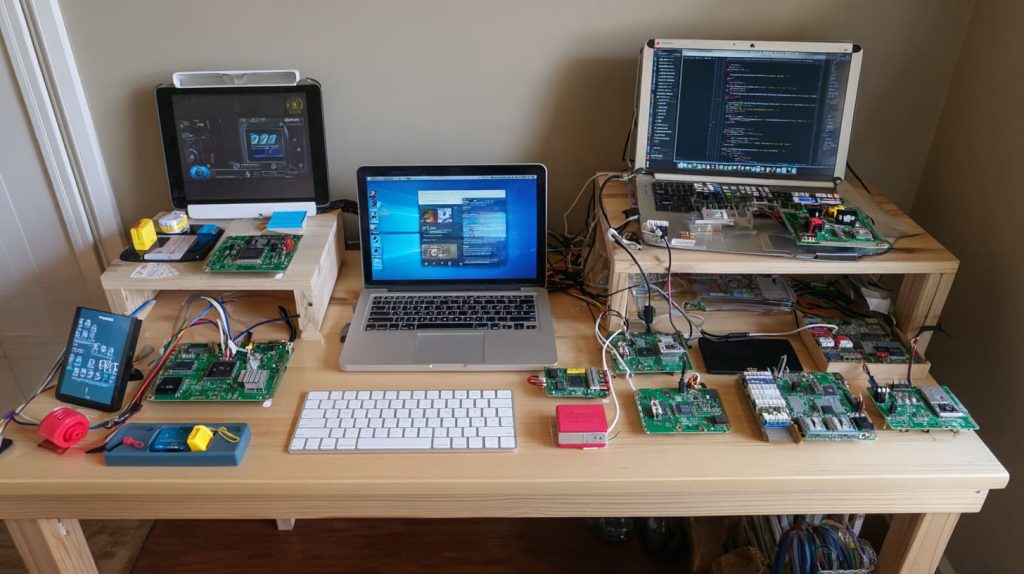
Setting up limited user accounts and strong passwords
No sudo for the junior user. Keep admin rights behind the grown‑up’s password manager.
Content filtering with Pi‑hole or DNS‑based tools
A Pi can block ads for the whole house. I flip the lesson: “We built the filter, now let’s talk why ads track you.”
Teaching responsible online behavior alongside technical skills
Code is power. Pair every new command with a chat about ethics and digital footprints.
But what does all this cost, really?
Cost Analysis

| Item | Low | High |
|---|---|---|
| Board | \$15 (Zero 2 W) | \$80 (Pi 5 8 GB) |
| Case & Cooling | \$6 | \$25 |
| Power Supply | \$8 | \$12 |
| Mouse & Keyboard | \$0 (reuse) | \$30 |
| Monitor | \$0 (old TV) | \$100 |
| Total | \$29 | \$247 |
Hidden extras: spare SD cards, sensors, occasional replacement cables. Most parts outlive the first project and migrate to the next.
Numbers aside, let’s meet families putting these boards to work.
Success Stories & Use Cases
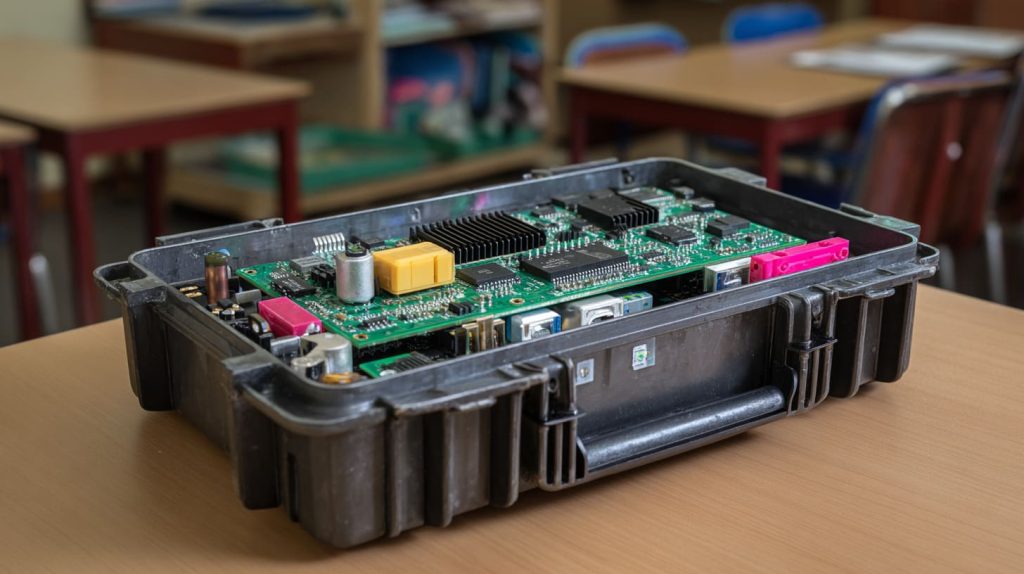
Homeschool families leveraging Pi for STEM curricula
One parent in our dealer chat uses a Pi‑controlled greenhouse. Photosynthesis lessons now include real‑time humidity charts.
Classroom Code Clubs and after‑school programs
In Brussels, Jacky runs weekend workshops where kids laser‑engrave their brand on MaidaTech cases before coding.
Re‑branding & bundle opportunities for resellers (MaidaTech custom kits)
Davide orders blank Pi cases, slaps on custom labels, and sells “Explorer Kits” on Amazon. Lower cost, higher perceived value.
Before you dive in, pick the right board and accessories.
Buying Guide: Choosing the Right Pi & Accessories
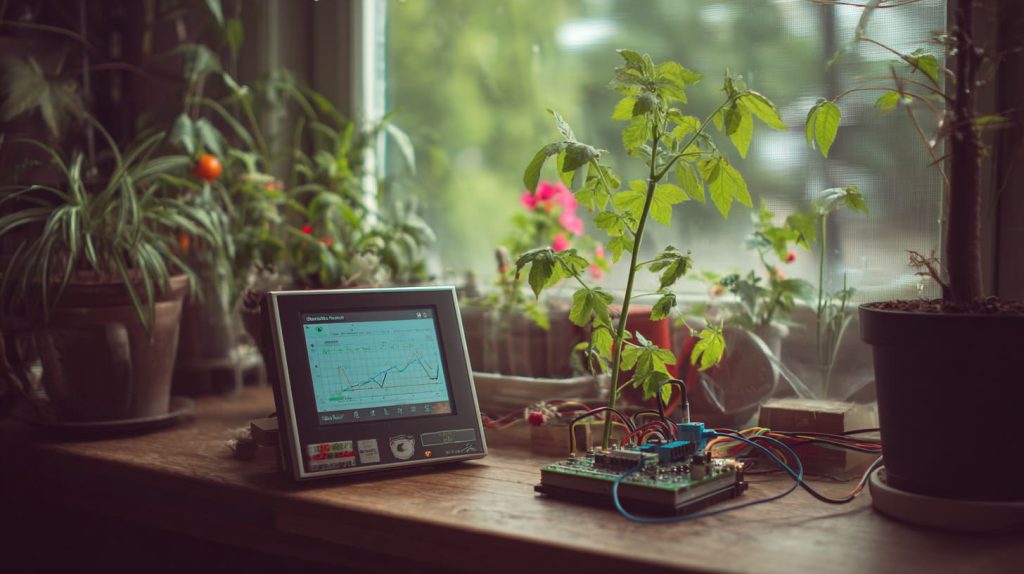
Board selection criteria: processing power, ports, future‑proofing
If dual 4K screens matter, grab a Pi 5. For keyboard‑centric beginners, the Pi 400 is king.
Selecting a child‑proof case, power supply, and cooling solution
Look for rounded edges, V‑0 flame‑rated plastic, and a locked fan grill. MaidaTech’s OEM shells tick these boxes.
A simple camera module sparks computer‑vision experiments. A safe‑shutdown button guards against SD corruption.
Where to buy: MaidaTech wholesale, Amazon, local distributors
Bulk orders through our Raspberrypicase.com portal save educators ~10 %. Smaller quantities? Amazon Prime covers fast shipping.
Almost there—let’s wrap up.
Conclusion
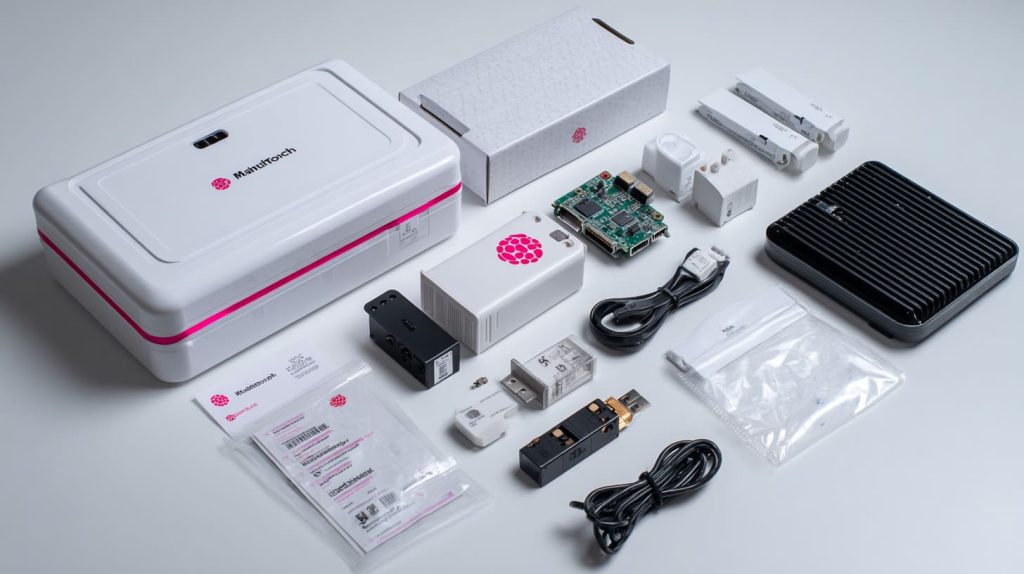
Raspberry Pi gives kids ownership over their computers. It asks them to plug in wires, type commands, maybe watch the boot logs scroll. That messiness breeds confidence no slick tablet can match. Yet parents must stomach occasional troubleshooting and accept that Minecraft shaders might lag.
If those trade‑offs feel fair, start with a sturdy kit, set clear goals, and watch curiosity bloom.
Ready to begin? Check the resources below, join a CoderDojo, or email me at vincent@maidatech.com—I’m always happy to help pick the perfect first Pi.
Next steps
- Raspberry Pi Foundation project hub
- Local Code Club or makerspace
- Wholesale educator kits on Raspberrypicase.com