Skip to content
I felt stuck with streaming boxes cluttering my TV stand. I wanted crisp, smooth 1080p playback from a compact device. Raspberry Pi offered a hassle-free answer that saved my day.
Yes, a Raspberry Pi can handle 1080p video playback on your TV. You simply need a media player application like Kodi, and a strong power supply. With proper configuration, it can deliver a clear, stable picture.
I remember the day I first tested my Pi, and the satisfaction was instant. Let me explain how you can do the same, without complicated steps or special knowledge. Get comfy, and let’s explore each question in detail.
Can Raspberry Pi 4 stream 1080p?
I used to wonder if the Pi 4 could handle full-HD streams without buffering. The short answer: yes, with the right software and connections, it delivers a solid viewing experience.
Raspberry Pi 4 supports 1080p video streaming. It requires a stable internet connection, a capable media player like VLC or Kodi, and enough memory. With that, you can enjoy movies in full HD resolution.

I once had to stream live soccer matches for a friend’s watch party. I used a Pi 4, an Ethernet cable, and a well-optimized media app. The result was fluid and lag-free.
Hardware checklist for better streaming
| Model | CPU Speed | RAM Options | Recommended for 1080p? |
|---|---|---|---|
| Raspberry Pi 4 B | 1.5 GHz+ | Up to 8GB | Yes |
| Raspberry Pi 3 B | 1.2 GHz | Up to 1GB | Limited |
For more user stories and tweaks, I check the Raspberry Pi official forum, which has tips on bandwidth optimization.
Can you connect Raspberry Pi to a TV?
I used to fiddle with multiple HDMI adapters and messy cables. The Pi made things simpler.
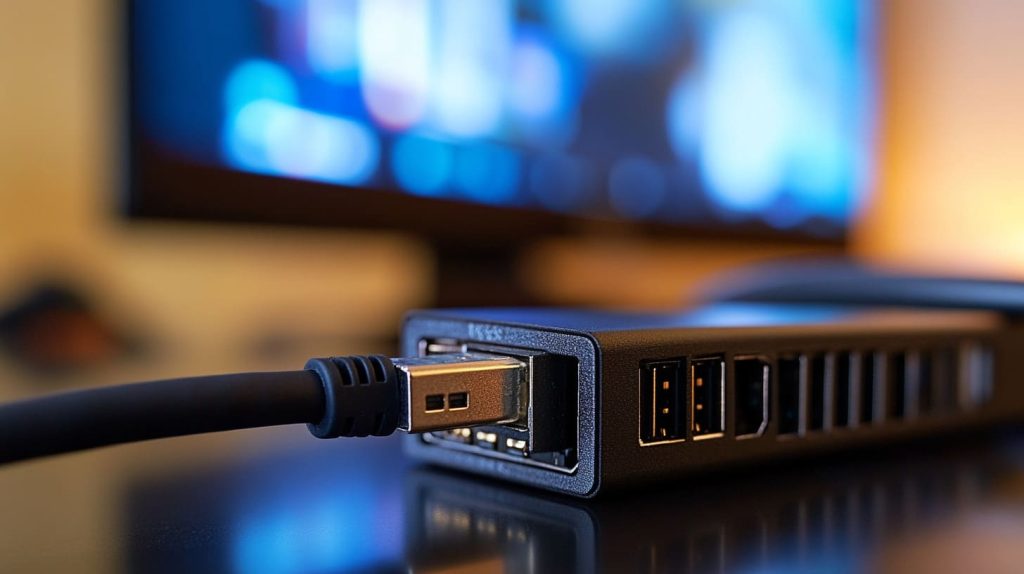
Yes, you can connect a Raspberry Pi to most TVs using an HDMI cable. It outputs both audio and video signals, so you usually only need that single cable to get started.
My easy connection setup
I plug one end of the HDMI into the Pi’s port and the other into my TV. I power the Pi with a reliable adapter. Then I switch the input source on my TV, and I’m set.
You can learn more about HDMI configurations in the Kodi media center guide, where they share detailed recommendations for Pi-based home theaters.
What is the maximum screen resolution output of Raspberry Pi?
I once thought the Pi only handled standard HD. I was pleased to find it can go further.
Raspberry Pi devices can output up to 4K resolution depending on the model. For everyday 1080p videos, it’s more than enough.
Checking the tech specs
Raspberry Pi 4 can handle 4K at 60 frames per second on paper. That’s plenty for 1080p streaming needs. However, keep your cables and settings in mind for the best results.
What video format does Raspberry Pi use?
I remember trying to play a random MKV file. The Pi handled it well.
Raspberry Pi supports common video formats like MP4, MKV, and others through software decoding. The exact compatibility depends on your media player application.
Testing different formats
I typically stick to MP4 for smooth playback. But advanced tools, such as VLC, can handle various codecs. When in doubt, I convert my files to H.264 or H.265.
What is the max resolution of Raspberry Pi 4 HDMI?
I saw some confusion about Pi 4’s resolution limit. Let’s clarify that.
The Raspberry Pi 4’s HDMI ports can output up to 4K at 60Hz. That means 1080p is very comfortable for this device.
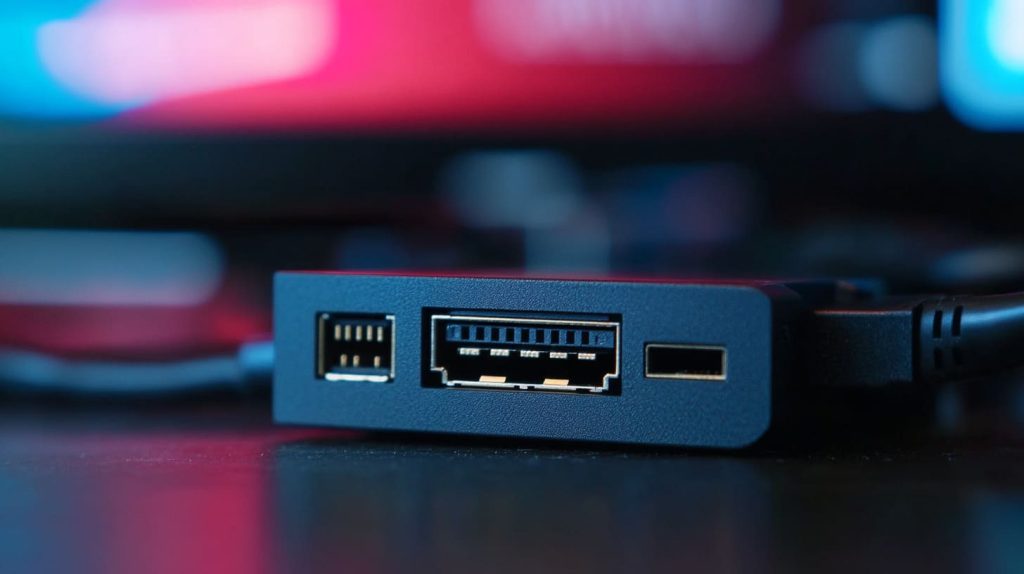
HDMI tips for clarity
I prefer high-speed HDMI cables labeled for 4K. That leaves plenty of overhead for 1080p content. I also make sure to enable “Full HDMI” in the Pi’s configuration if needed.
What are the best media player applications for smooth 1080p video playback on Raspberry Pi?
I’ve tested many media players. Some worked better than others.
Kodi and VLC are popular, reliable choices. They use hardware acceleration on the Pi and handle various file types with minimal stutter.
Comparing popular options
| Media Player | Strengths | Drawbacks |
|---|---|---|
| Kodi | Great interface, add-ons | May need extra setup |
| VLC | Lightweight, easy to install | Some advanced features hidden |
If you want a smooth experience and a friendly interface, Kodi is my go-to. I often link to My brand website for tips on getting the right Pi accessories to optimize performance.
How can I connect my Raspberry Pi to a TV or monitor for optimal video output?
I remember tweaking display settings to match a monitor’s resolution. It was easier than expected.
Use HDMI for direct audio-video output. Modify the Pi’s display configuration file if needed, and always ensure your cable supports the resolution and refresh rate you want.
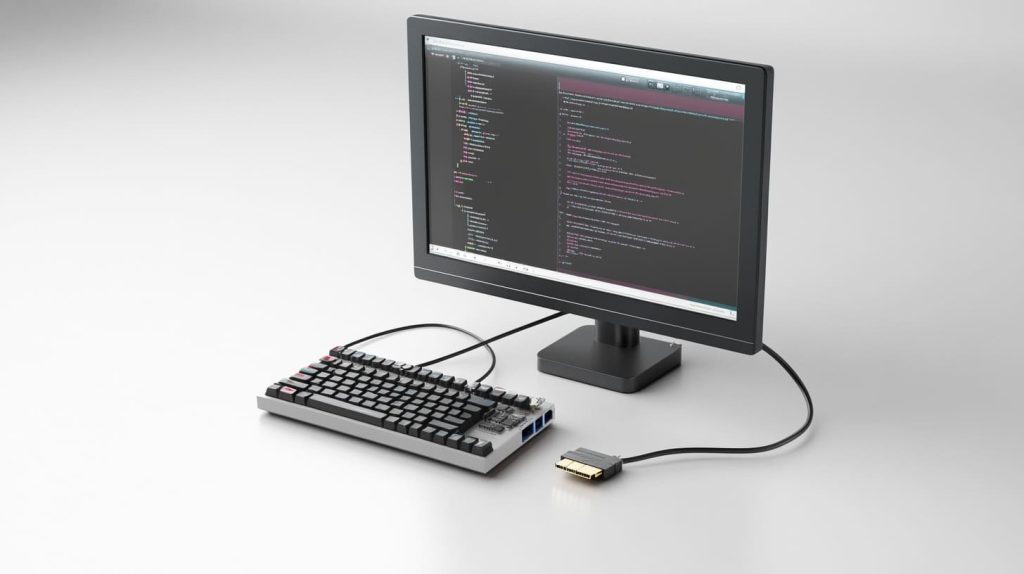
Fine-tuning the display
- Adjust resolution in the Raspberry Pi configuration menu.
- Ensure the monitor or TV is set to the correct input.
- If using a custom case, confirm there’s ample ventilation for heat control.
Conclusion
Raspberry Pi can handle crisp 1080p playback on your TV with minimal fuss.