Skip to content

If you've ever built a PC or worked with one for long enough, you know how critical proper cooling is. The CPU, being the heart of your system, can generate a lot of heat. That's where the CPU heatsink comes in. It's like a protective shield that prevents your CPU from getting too hot and causing damage. But what happens when that heatsink starts failing? Recognizing the early signs of a malfunctioning heatsink can save you from bigger problems down the road. Let's dive into those indicators so you can keep your system running smoothly and avoid those dreaded crashes.
Common Indicators of a Malfunctioning CPU Heatsink
1. Elevated CPU Temperatures
Your CPU is under constant load, especially when running heavy programs or multitasking. But if you start noticing that your temperatures are running high all the time, even when you're just browsing the web or doing something light, it might be a sign that your heatsink isn't doing its job. Normally, you want your CPU to be running at a cool, steady temperature.
What should you do? You can use tools like HWMonitor or Core Temp to keep an eye on the temperature readings. If they start creeping up too much, it's a red flag.

2. Unusual Noises
There’s nothing worse than hearing weird noises coming from your PC when you’re in the middle of a task. If your heatsink fan is making grinding, rattling, or loud whirring noises, it’s likely an early sign that something’s wrong. Fans are supposed to run quietly, and if they’re making a racket, the fan could be failing or obstructed, preventing it from doing its job properly.
Tip: Try to identify if the noise gets louder when your PC is under load. If it does, then it’s definitely related to cooling.
3. System Instability
One of the more annoying issues you’ll face with a failing heatsink is random system crashes, freezes, or even spontaneous shutdowns. Why? Because your CPU is overheating, causing it to throttle or shut down to protect itself. This isn’t just annoying; it can be a sign of potential hardware failure if left unchecked.
What you can do: If this is happening often, it might be time to give your heatsink a closer look to see if it’s working correctly.
4. Inconsistent Fan Speeds
If you notice that your fan speeds seem all over the place—ramping up and down randomly—it’s another sign that your heatsink is struggling. The cooling efficiency of the heatsink depends on its fan running at a consistent speed. If there’s a problem, it could be due to a malfunctioning fan or a power supply issue.
Suggestion: If you have fan control software, check to see if the fan speed is fluctuating even when the load on your CPU remains the same. This will help you spot any issues.
5. Physical Damage
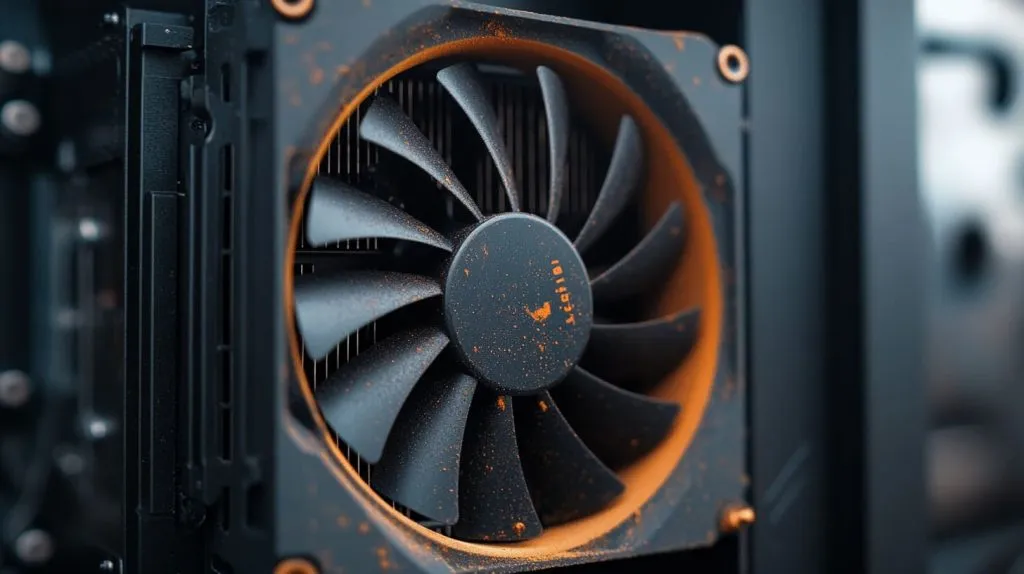
Sometimes, the problem is right in front of your eyes. Bent fins, corrosion, or even a build-up of dust and debris can all harm the heatsink's cooling power. Dust can clog the heatsink and fan, significantly reducing airflow. It’s essential to keep the area clean to ensure maximum performance.
How to check? Take a moment to inspect the heatsink physically. If you spot any obvious issues, like dust or bent fins, those will need to be cleaned or replaced.
Diagnosing and Addressing Heatsink Issues
1. Visual Inspection
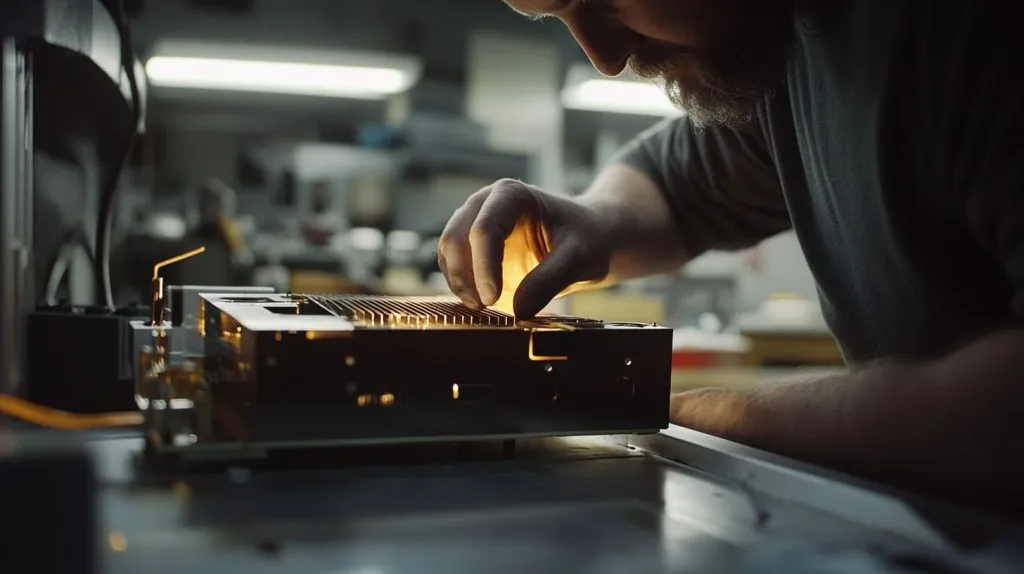
The first step in fixing a problematic heatsink is simply taking a good, long look at it. Sometimes, problems like dust accumulation or bent fins are so obvious, they almost slap you in the face. Check for any physical damage, make sure the heatsink is securely attached, and ensure the fan is clear of obstructions.
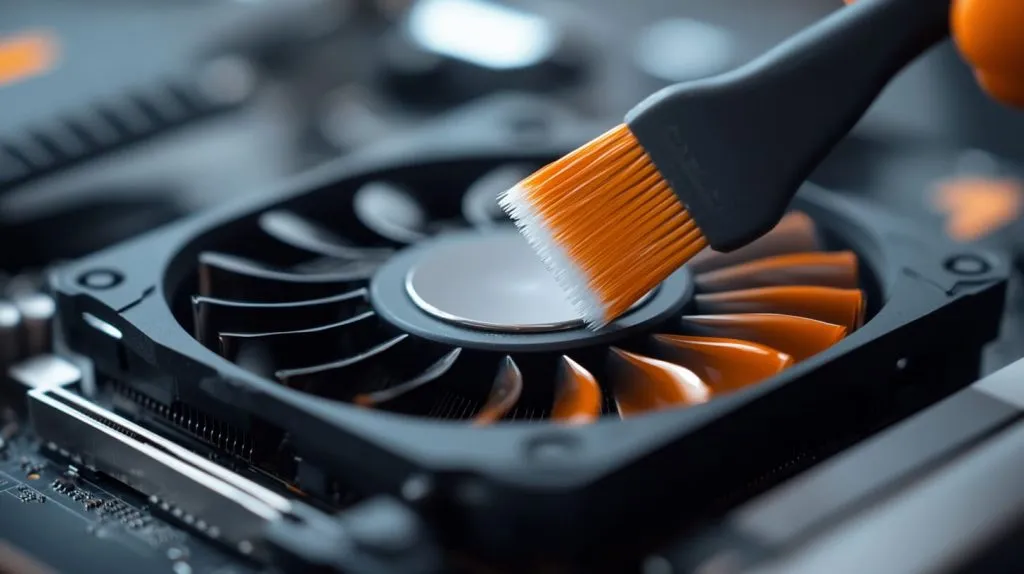
Pro Tip: If the heatsink is dirty, give it a gentle cleaning with a soft brush or compressed air.
2. Temperature Monitoring
As mentioned earlier, tracking your CPU's temperatures regularly is one of the easiest ways to spot cooling problems early. You don’t need to be a tech expert to check the temperatures—tools like HWMonitor or Core Temp make it simple to get the data you need. If your CPU is consistently running hot even with light use, it’s time to take action.
3. Cleaning and Maintenance
Regular cleaning and maintenance of the heatsink and fan can go a long way in preventing overheating. Dust tends to build up over time, blocking airflow and reducing cooling efficiency. Try to clean your system every few months to maintain optimal airflow.
Tip: If you have pets or live in a dusty environment, you might need to clean your PC even more often.
4. Reapplying Thermal Paste
Another issue that often gets overlooked is the thermal paste. Over time, thermal paste can degrade, leading to poor heat transfer between the CPU and heatsink. Reapplying fresh thermal paste can significantly improve cooling performance.
When to do it: If you notice overheating or system instability, it’s a good idea to reapply thermal paste. It’s a quick fix that can work wonders.
5. Replacing the Heatsink
If none of the maintenance steps above help, it may be time for a new heatsink. A more efficient heatsink, or a new fan, can make a huge difference in cooling your CPU properly. It might feel like a hassle, but it's far better than dealing with system crashes or hardware failure.
Conclusion
A well-functioning heatsink is a crucial part of your PC’s cooling system. By keeping an eye out for these signs of failure, you can save yourself from future headaches. Regular inspections, cleaning, and temperature monitoring will help ensure that your CPU stays cool and your system remains stable. Don’t wait for the issues to get worse—take action today to keep your PC in top condition.