Skip to content

I remember unboxing my first Raspberry Pi. The excitement. The confusion. And yes—the missing keyboard.
You don’t strictly need a keyboard to use a Raspberry Pi, but it depends on how you want to set it up and what you’re using it for.
If you’re anything like me, you’ll start with the basics—plug it in, boot it up, and… stare at the screen, wondering what comes next.
What is needed to run a Raspberry Pi?
The first time I powered on a Pi, I didn’t realize I needed more than just the board.
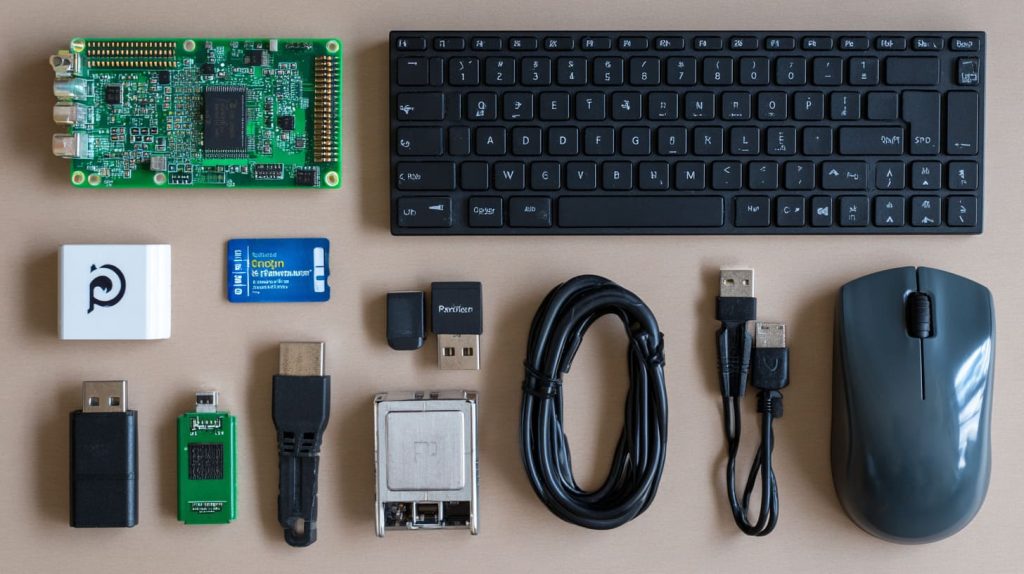
To run a Raspberry Pi, you’ll need power, storage, a display, and input devices like a keyboard and mouse—or another method to control it.
Dive Deeper:
| Item | Needed? | Notes |
|---|---|---|
| Power supply | ✅ Required | Preferably 5V 3A USB-C |
| MicroSD card | ✅ Required | At least 16GB, with OS installed |
| Display | ✅ Optional | Required if not headless |
| Keyboard & mouse | ✅ Optional | Unless using SSH or remote control |
You don’t need everything upfront. But skipping the input side means you’ll have to prep for a headless install.
Can I use my laptop as a keyboard for my Raspberry Pi?
Before I got a dedicated keyboard, I tried to “borrow” my laptop’s keyboard. Turns out, it’s possible.
Yes, you can use your laptop as a keyboard for Raspberry Pi by enabling SSH or using tools like VNC or USB gadget mode.
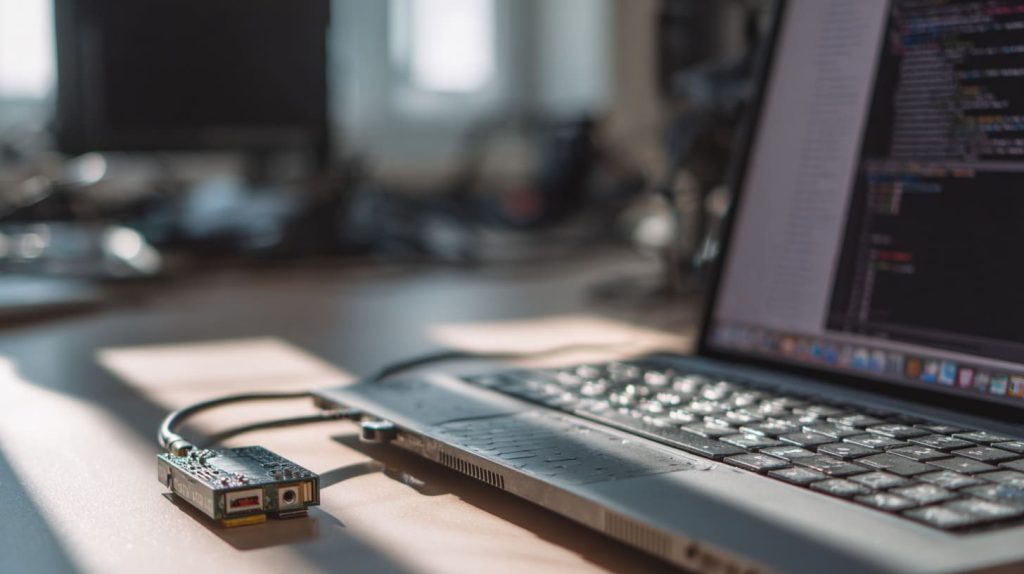
It’s not plug-and-play though. You’ll need to edit the config.txt and set up your Pi headlessly first. SSH over WiFi is the easiest route.
Can you run a 3D printer from a Raspberry Pi?
Oh yes—I did this for my Ender 3, and I never looked back.
Yes, Raspberry Pi can run a 3D printer using OctoPrint or similar tools. It doesn’t require a keyboard once setup is complete.
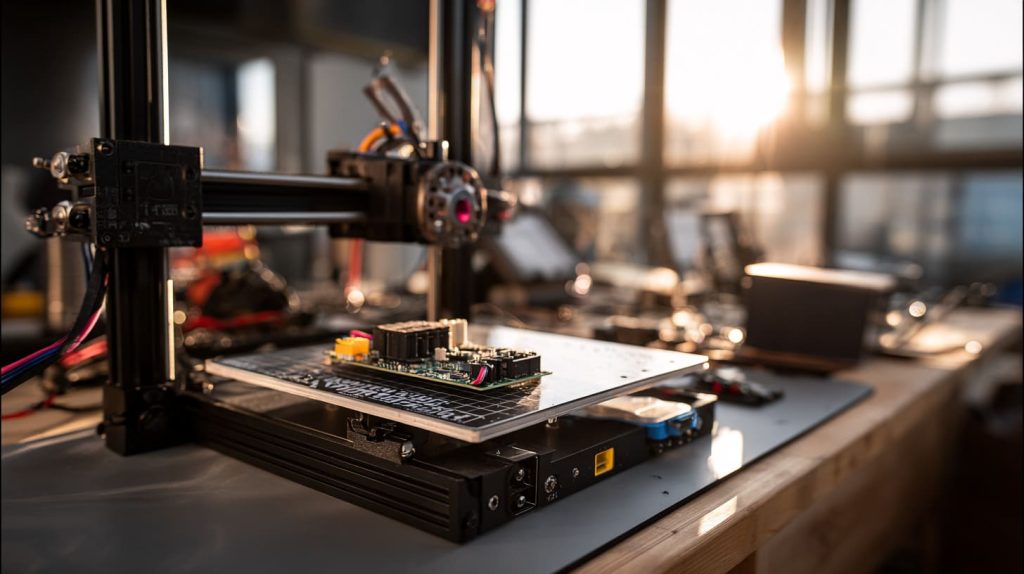
Just flash the OctoPi image onto an SD card, connect the Pi to your printer via USB, and you're in business. No keyboard required once it’s on your Wi-Fi.
Can you use a Raspberry Pi as a main computer?
I’ve tried it out of curiosity. It worked—mostly.
Yes, a Raspberry Pi can be used as a basic desktop computer for web browsing, coding, and light office work.
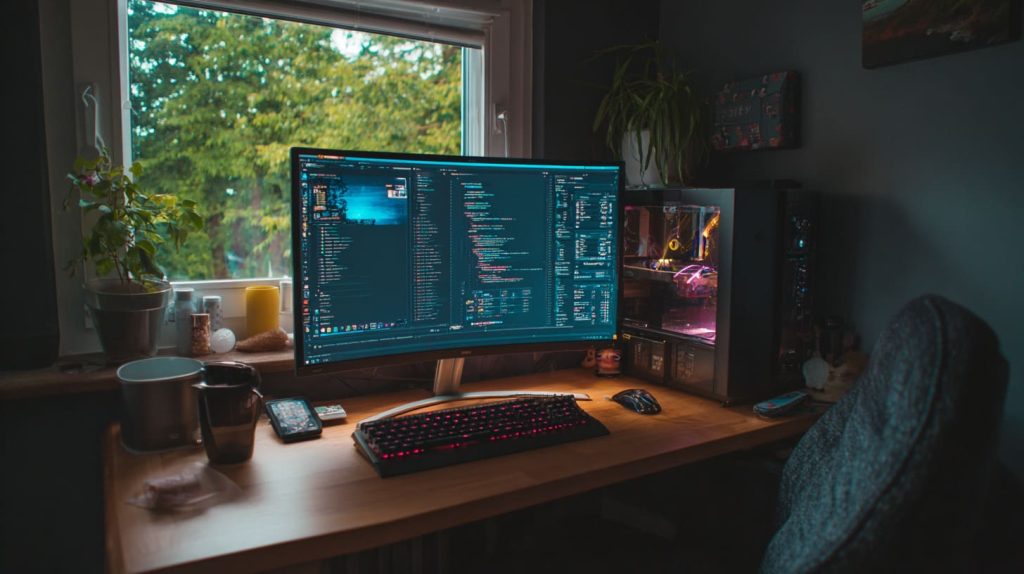
But you’ll definitely want a keyboard and mouse for a comfortable experience. Unless you’re planning to talk to your terminal like a wizard.
Can you set up a Raspberry Pi without using a keyboard?
This was the method that saved me when I lost my USB keyboard.
Yes, Raspberry Pi can be set up headlessly using SSH, VNC, or preloaded configuration files on the microSD card.
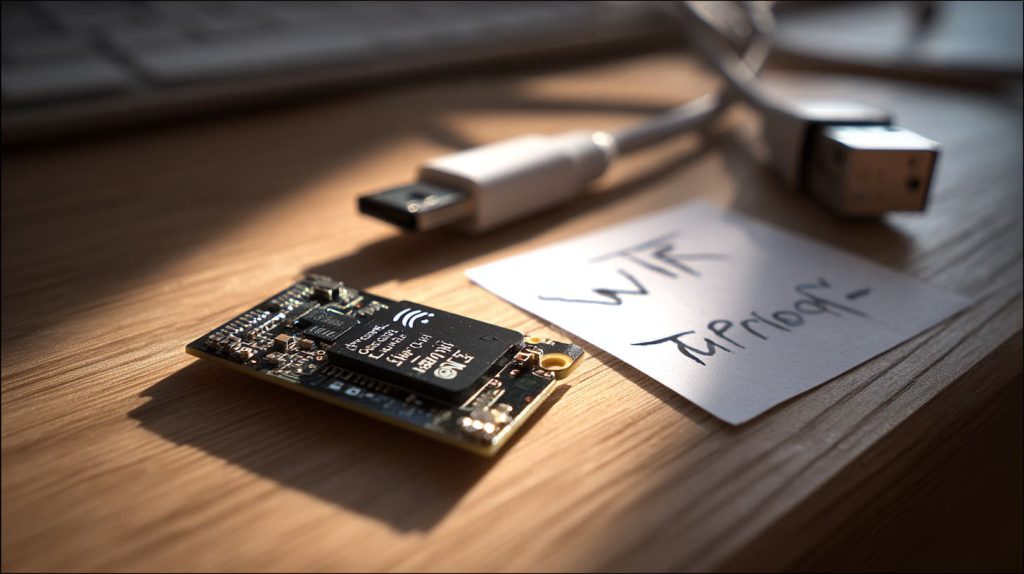
It takes a bit of prep—editing wpa_supplicant.conf and enabling SSH on the boot partition. But it works. And it’s honestly a fun challenge.
What are the advantages and disadvantages of using a keyboard vs headless mode?
Each path has its pros and quirks.
Using a keyboard gives you direct control, while headless mode saves space and works better for remote setups.

Pros & Cons Table
| Mode | Pros | Cons |
|---|---|---|
| With keyboard | Plug-and-play, easy debugging | Needs extra gear |
| Headless | Clean setup, great for IoT & servers | Tricky for beginners |
Which types of keyboards are compatible with Raspberry Pi?
In my workshop, I’ve tested them all—from old Dell USBs to Bluetooth models.
Raspberry Pi works with most USB, Bluetooth, and 2.4GHz wireless keyboards.
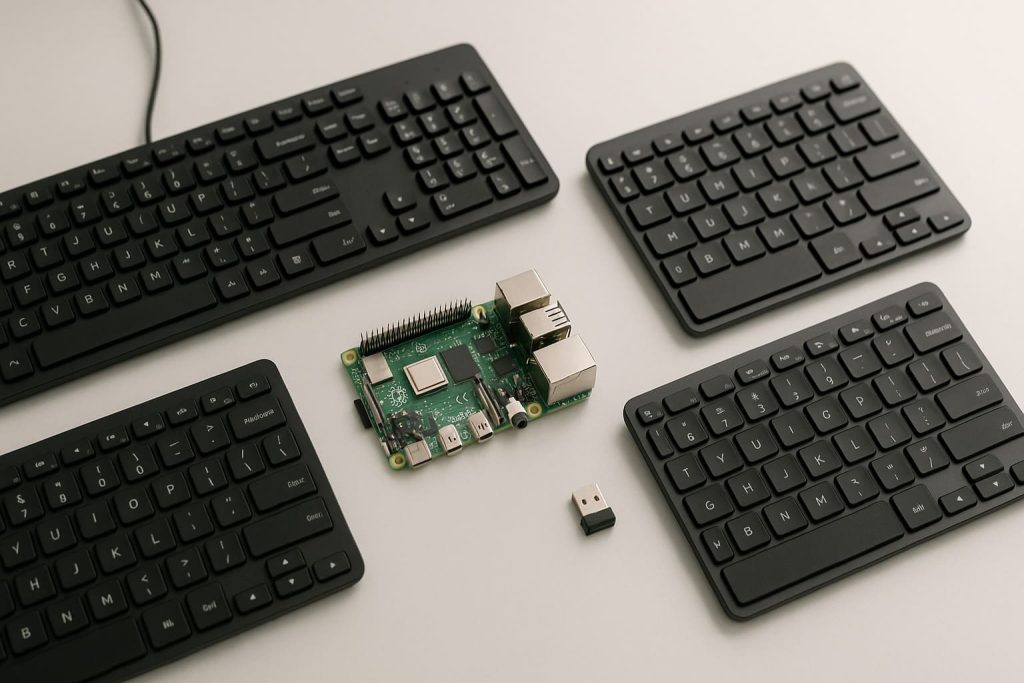
Just be sure your wireless keyboard doesn’t draw too much power. And remember—Bluetooth requires an OS with GUI, like Raspberry Pi OS Desktop.
Do you always need a keyboard after initial setup or only temporarily?
Good question. I used one just once—for setup—and never again on my OctoPi rig.
You typically only need a keyboard during the initial setup, especially if going headless afterward.

For projects like servers, NAS, or smart home hubs, the Pi sits there quietly doing its job—no typing needed.
How to choose a budget keyboard that works well with Raspberry Pi?
I’m all for frugality—especially for test benches.
Choose a compact USB keyboard or a wireless one with low power draw and no extra drivers needed.

I once used a $6 keyboard from a local store, and it worked like a charm. Avoid flashy gaming boards—they suck power and aren’t worth the headaches.
What are alternatives to keyboards for Raspberry Pi input?
Sometimes you just want to go minimal.
Alternatives include touchscreens, SSH access, web interfaces, or mobile apps like JuiceSSH and PiHelper.
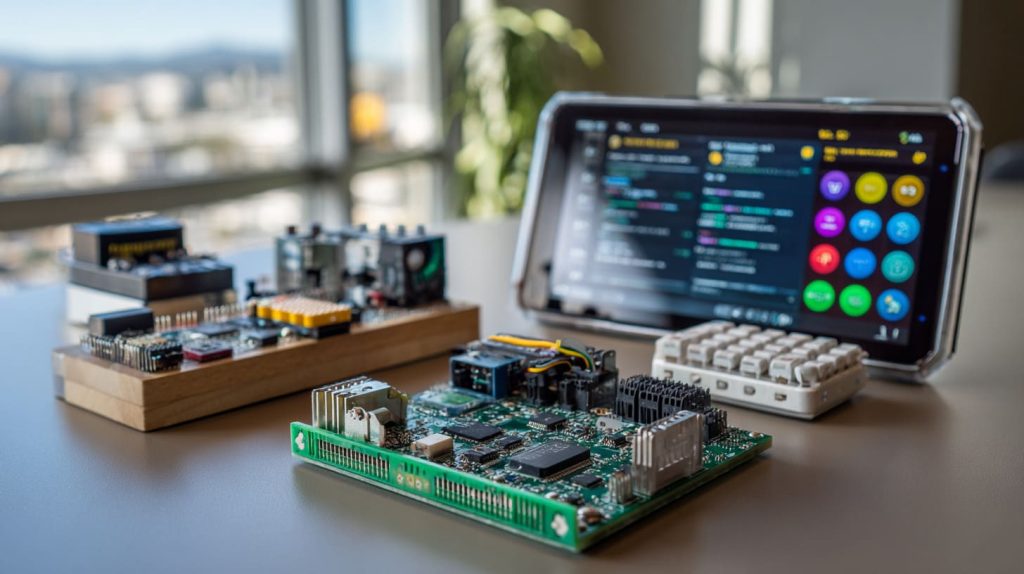
For headless projects, I usually use my phone over SSH. Some folks even use GPIO buttons or rotary encoders as quirky input devices.
How would using a keyboard-integrated Raspberry Pi (like Pi 400) change your setup?
This thing is a beast for classroom or lab setups.
Pi 400 simplifies your setup—it’s a Raspberry Pi and keyboard in one, ideal for plug-and-play projects.
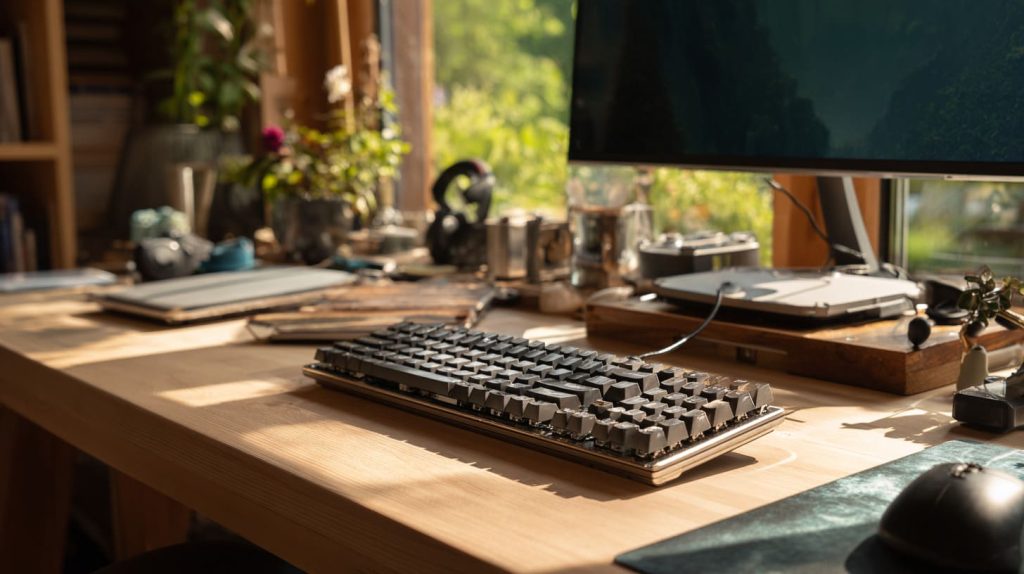
No extra keyboard, no cable mess. It’s like Raspberry Pi decided to go retro and modern at the same time.
What power or performance issues arise when using wireless/LED keyboards with Raspberry Pi?
Ah, the blinking lights that drain your power budget…
High-power keyboards with RGB or unpowered wireless dongles can overload the Pi’s USB ports and cause instability.
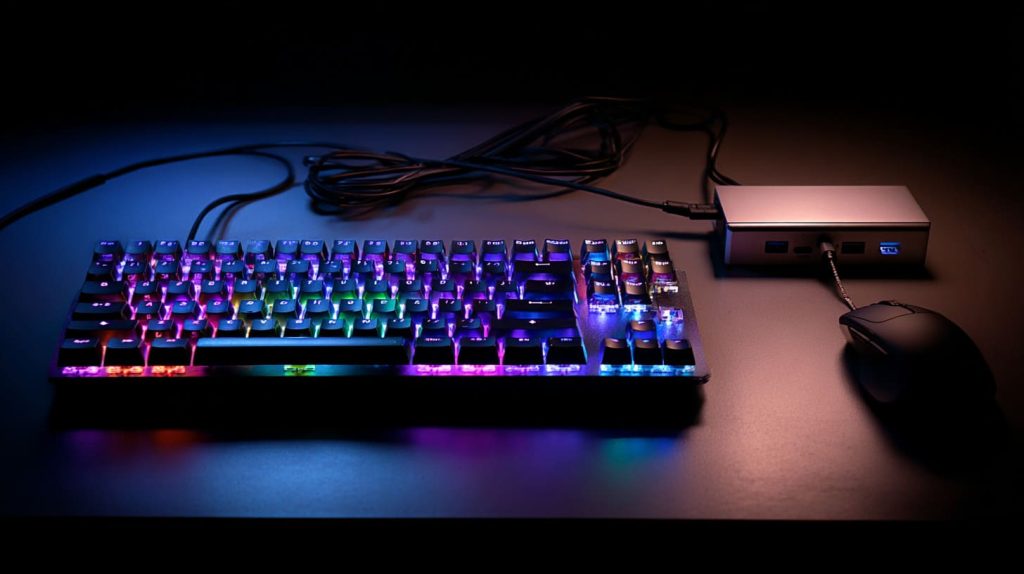
Power Concerns Breakdown
| Keyboard Type | Power Draw Risk | Solution |
|---|---|---|
| RGB gaming | 🔴 High | Use powered USB hub |
| Wireless (2.4GHz) | 🟡 Medium | Use low-power models |
| Bluetooth | 🟢 Low | Use with GUI-based OS only |
In my lab, I always check dmesg logs if something funky happens after plugging in a keyboard. It’s usually a power issue.
Conclusion
You don’t always need a keyboard—but when you do, choose smart, stay simple.