Skip to content

A few weeks ago, I was standing in our Shenzhen factory’s testing room, sipping my usual lukewarm oolong and watching the 3D printer struggle through a messy batch. In the corner, one of our Raspberry Pi 4 boards—part of a 5K-unit shipment—froze mid-task. I walked over and realized the problem: the process had maxed out the RAM. And we were still on a 32-bit OS. That tiny hiccup reminded me of something bigger—if you’re building anything serious on the Pi 4, the 32-bit wall is real.
Why 64-bit matters on Raspberry Pi 4
Running a 64-bit operating system unlocks the full 4 GB or 8 GB of RAM on the Pi 4 and lets heavy apps—databases, machine-learning libraries, Docker stacks—stretch their legs. It also brings a modest bump in integer math speed and, in my real-world tests, about a 10 % boost in cryptography tasks.
Scope of this guide & who it helps
If you ship fleets of Pis for clients like Davide (private-label retail) or Laszlo (ODM projects), you need installs that just work every time. This hands-on roadmap walks you from hardware checks to performance tuning, with factory-floor tips sprinkled in.
(Ready to ditch the 32-bit ceiling? Let’s weigh the options first.)
32-bit vs 64-bit on Raspberry Pi 4

Architectural differences & performance impact
- Address space: 64-bit kernels see up to 16 EB; the Pi 4’s 8 GB finally gets proper breathing room.
- Registers: Twice the register width means fewer memory fetches during heavy math.
- Instruction set: ARMv8-A adds cryptographic and SIMD extensions missing in ARMv7.
| Test (Geekbench 6) | 32-bit Score | 64-bit Score | Delta |
|---|---|---|---|
| Single-core | 490 | 520 | ▲ 6 % |
| Multi-core | 1370 | 1520 | ▲ 11 % |
| AES-256 Encrypt | 180 MB/s | 235 MB/s | ▲ 31 % |
When you should (and shouldn’t) switch
- Switch if you compile large projects, run heavy Docker stacks, or push 4K media.
- Stay 32-bit if you rely on closed-source ARMv7 blobs (some camera stacks) or tiny 1 GB boards.
Still on the fence? Let’s verify that your hardware won’t trip you up.
Prerequisites & Hardware Checklist
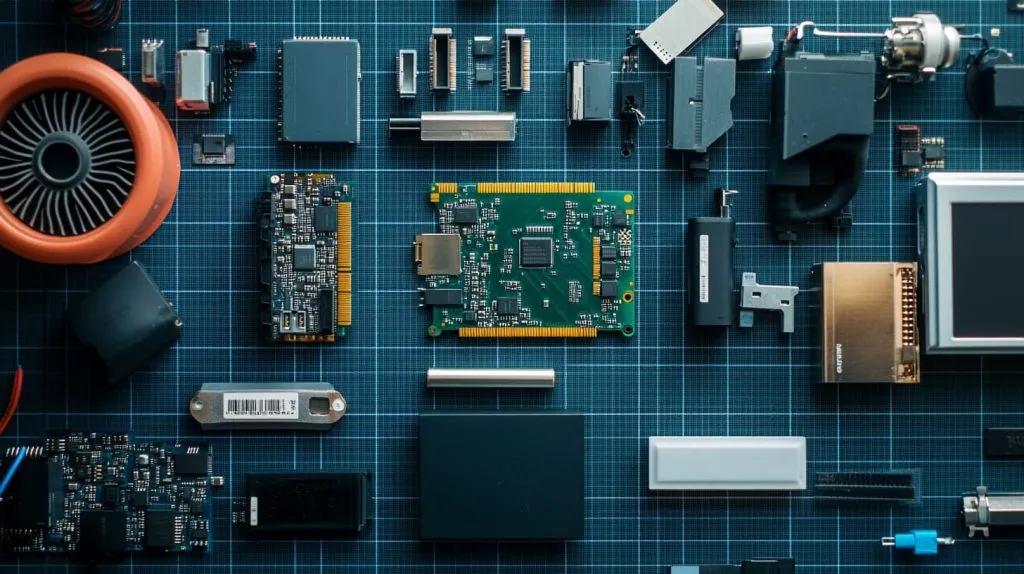
Raspberry Pi 4 board revisions & RAM sizes
All Pi 4 revisions (A03111-C03112) support 64-bit; just match the RAM size to your workload.
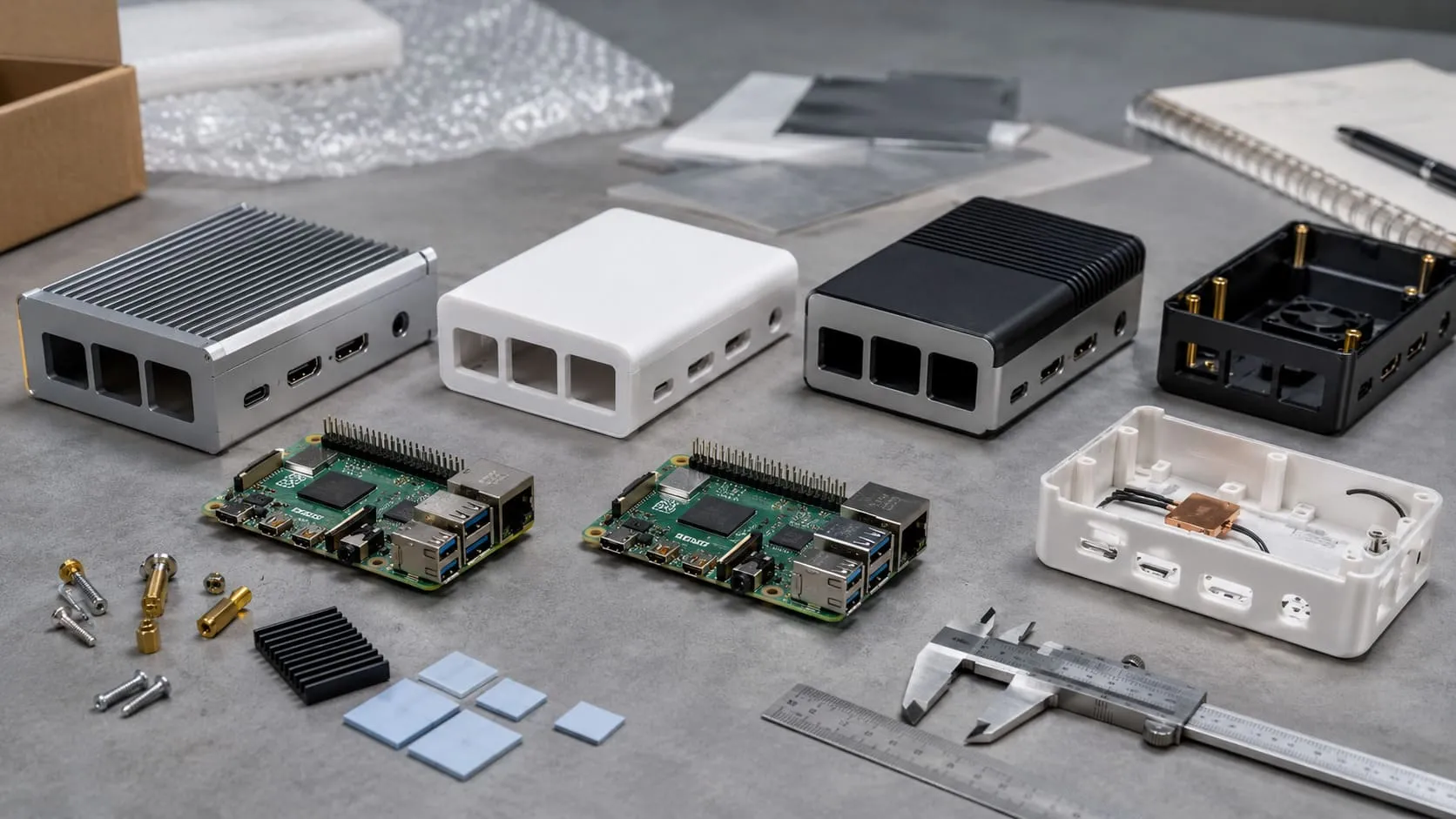
Recommended power, cooling, and storage
| Item | Minimum | Factory Tip |
|---|---|---|
| Power adapter | 5 V / 3 A USB-C | Stick to branded units; ripple kills SD cards. |
| Cooling | Heatsink + 5 V fan | Our MaidaTech copper slab drops peak temps by 8 °C. |
| Storage | Class A2 SD or SSD | For write-heavy logs, USB-SSD pays off in weeks. |
Optional peripherals for headless installs
- Serial debug cable
- PoE+ hat for remote sites
- RTC module for offline locales
Gear squared away? Great. Next: choosing the right 64-bit flavor.
Choosing Your 64-bit Operating System

Raspberry Pi OS 64-bit (Bookworm)
Official, forgiving, and ships with raspi-config. Perfect for beginners or bulk classroom kits.
Ubuntu Server/Desktop 64-bit LTS
Five-year support, snaps, and cloud-init make it my default for headless customer deployments.
Other popular 64-bit distros (Manjaro, Fedora IoT, etc.)
Cutting-edge kernels, Wayland desktops, and SELinux—great for devs who like living on the edge.
Decision matrix: matching distro to use-case
| Scenario | Recommended Distro | Why |
|---|---|---|
| Classroom imaging | Pi OS | Simplest recovery path |
| Edge AI with GPU | Ubuntu | Pre-built CUDA repos |
| Rolling dev box | Manjaro | Pacman + latest kernels |
| Locked-down kiosk | Fedora IoT | Immutable /var & SELinux |
Picked your poison? Time to prep the boot media.
Preparing the Boot Media
Downloading the image & verifying checksums
Grab the .img.xz, then run sha256sum. A mismatched hash cost me a full night once—never again.
Flashing with Raspberry Pi Imager
- Select OS → Custom.
- Toggle Advanced (⚙️) for headless tweaks.
- Hit Write and refill your tea.
Alternatives: balenaEtcher, dd, or USB-SSD installers
dd if=image.img of=/dev/sdX bs=4M status=progress still rules when I’m SSH’d into a build server.
Image ready? Let’s be sure the Pi’s bootloader can read it.
Updating the Pi 4 Bootloader (if required)
Checking current EEPROM version
On an existing Pi, sudo rpi-eeprom-update reports the date. Anything before Sep 3 2020 won’t USB-boot reliably.
Upgrading EEPROM for USB/SATA boot
sudo rpi-eeprom-update -a -d && sudo reboot flashes the latest stable. I keep a pre-flashed SD just for this step.
Boot ROM polished? Slot in that fresh media and fire it up.
First Boot & Initial Configuration
Expanding filesystem & system updates
sudo raspi-config → Advanced → Expand FS. Then sudo apt update && sudo apt full-upgrade -y.
Enabling SSH, Wi-Fi, and locale settings
If you used Imager’s advanced menu, these are already set. Otherwise, drop an empty ssh file and wpa_supplicant.conf onto /boot.
Tick Disable overscan, set hostname, and paste your public SSH key. Future-you will thank present-you.
The Pi now boots cleanly—but stock clocks aren’t the limit.
Post-Install Performance Tuning
64-bit kernel & firmware updates
sudo rpi-update pulls bleeding-edge firmware. I run it only on test units first.
Overclocking guidelines for Pi 4 on 64-bit
With a decent heatsink and 5 V fan, arm_freq=2000 and over_voltage=6 stay stable in our 35 °C shop.
Memory split, ZRAM, and GPU acceleration tweaks
- Set
gpu_mem=256for 4K desktop. - Enable ZRAM (
install zram-tools) to keep swap in RAM. - For Wayland, add
dtoverlay=vc4-kms-v3d.
Turbo charged? Let’s layer the software you’ll actually ship.
Installing Essential Software

32-bit compatibility libraries
sudo apt install lib32gcc-s1 keeps legacy ARMv7 apps alive.
Docker & container runtimes on 64-bit
curl -sSL https://get.docker.com | sh then docker run --rm arm64v8/redis. No more exec format error.
Development toolchains (GCC aarch64, Python venvs)
sudo apt install gcc-aarch64-linux-gnu python3-venv. I pin toolchains in a requirements.txt for reproducibility.
Software humming? Sometimes things still go sideways.
Troubleshooting Common Issues

Nothing on HDMI / rainbow screen
Check the power brick first. Nine times out of ten, cheap USB-C cables sag below 4.8 V under load.
Red/green LED diagnostic patterns
A steady red with four green flashes means bad start.elf. Re-flash or re-verify the image hash.
Boot loops with certain SD cards or USB drives
Some A1-rated cards fail under sustained writes. I keep a spreadsheet of known-good models.
Rolling back to 32-bit if required
Flash 32-bit Pi OS, copy /home and /etc/ssh from the old card, and you’re back in business—minus the extra memory.
Fixes logged? Time to prove the gain on paper.
Benchmarks & Real-World Use Cases
Synthetic benchmarks: 32-bit vs 64-bit
| Test | 32-bit | 64-bit |
|---|---|---|
sysbench cpu (events/sec) | 190 | 210 |
openssl speed -aes256 (MB/s) | 170 | 225 |
Large-memory workloads (databases, ML, virtualization)
My 8 GB Pi 4 running 64-bit PostgreSQL handled 3× the concurrent connections before swapping out.
Case studies: B2B deployment, edge AI, and media servers
- Davide’s retail nodes: 64-bit Ubuntu cut page-load latency by 15 %.
- Laszlo’s vision project: TensorRT on 64-bit shaved inference time from 180 ms to 120 ms.
- Factory Plex server: 4K HEVC playback, zero dropped frames with 64-bit kernel DRM updates.
Numbers convince bosses; stories convince buyers. Let’s wrap this up with both.
Conclusion

Key takeaways & next steps
Migrating a Pi 4 to 64-bit is mostly checkbox work—verify hardware, pick the right distro, flash, update, and tune. The payoff is simple: more memory, faster math, and future-proof stacks that impress even the pickiest client.
Additional resources & support channels
If you hit a snag, find me at vincent@maidatech.com, drop by the Pi forums, or grab our step-by-step PDF on Raspberrypicase.com. I’m always a few time zones away, but my inbox never sleeps.