Skip to content


A few months ago, I stood in our factory's small testing room, balancing a fresh tray of Raspberry Pi boards on one hand and my coffee on the other. Our first shipment for a new European client was due to leave that night. Every board needed a clean Linux install before sunrise. In that quiet, humming room, I realized again: the first boot isn’t just a step—it’s the start of everything.
By the time you reach the end of this guide, you’ll know how to bring any Raspberry Pi (or Orange Pi, Banana Pi) to life with Linux—whether you’re setting up one prototype or a five-thousand-piece fleet.
Choosing the Right Linux Distribution

Popular mainstream options in 2025
| Distro | Current Version | Strengths | Weak Spots | My Take |
|---|---|---|---|---|
| Raspberry Pi OS (Bookworm) | 32- & 64-bit | Official support, huge forum | Slower release cycle | “Safe default” for mixed fleets |
| Ubuntu 24.04 LTS | Desktop / Server / Core | 10-year support, snaps | Heavier RAM use | Great for kiosks & dev work |
| Fedora IoT 40 | Rolling | Bleeding-edge kernel | Short support span | Perfect for hardware hackers |
| Manjaro ARM | Rolling | Arch user repo (AUR) | Frequent updates, breakage risk | Fun, but watch your uptime |
| Kali Linux | 2025.2 | Pentesting tools out-of-box | Not for beginners | Keep it on a spare SD |
Match distro to use-case
Prototype on Fedora or Manjaro when you need the latest drivers tomorrow morning.
Deploy on Ubuntu LTS if you promise clients five years of patches.
Ship consumer kits with Raspberry Pi OS so community tutorials work day one.
32-bit vs 64-bit & hardware compatibility
| Metric | 32-bit | 64-bit |
|---|---|---|
| Max addressable RAM | 3 GB | Board limit (8 GB on Pi 5) |
| Legacy GPIO drivers | Broad | Some gaps |
| Package breadth | Vast | Growing fast |
| Boot speed | Slightly faster | Negligible difference |
I stick to 64-bit on any board with more than 2 GB of RAM; otherwise 32-bit buys me wider HAT support.
Support lifecycle & security cadence
Long-term security matters once you start stamping serial numbers. Ubuntu’s ten-year window wins for medical and industrial gear, while Raspberry Pi OS provides Debian backports without the snap overhead. Fedora’s quick cycle works only if your team loves weekly updates.
Forty lines later, we’ve only scratched the surface of hardware prep—let’s roll up our sleeves and gather the tools.
Preparing Your Hardware

Component checklist
Raspberry Pi board (any model)
5 V/3 A USB-C power supply (or PoE HAT)
Class A2 micro-SD or NVMe/USB-SSD
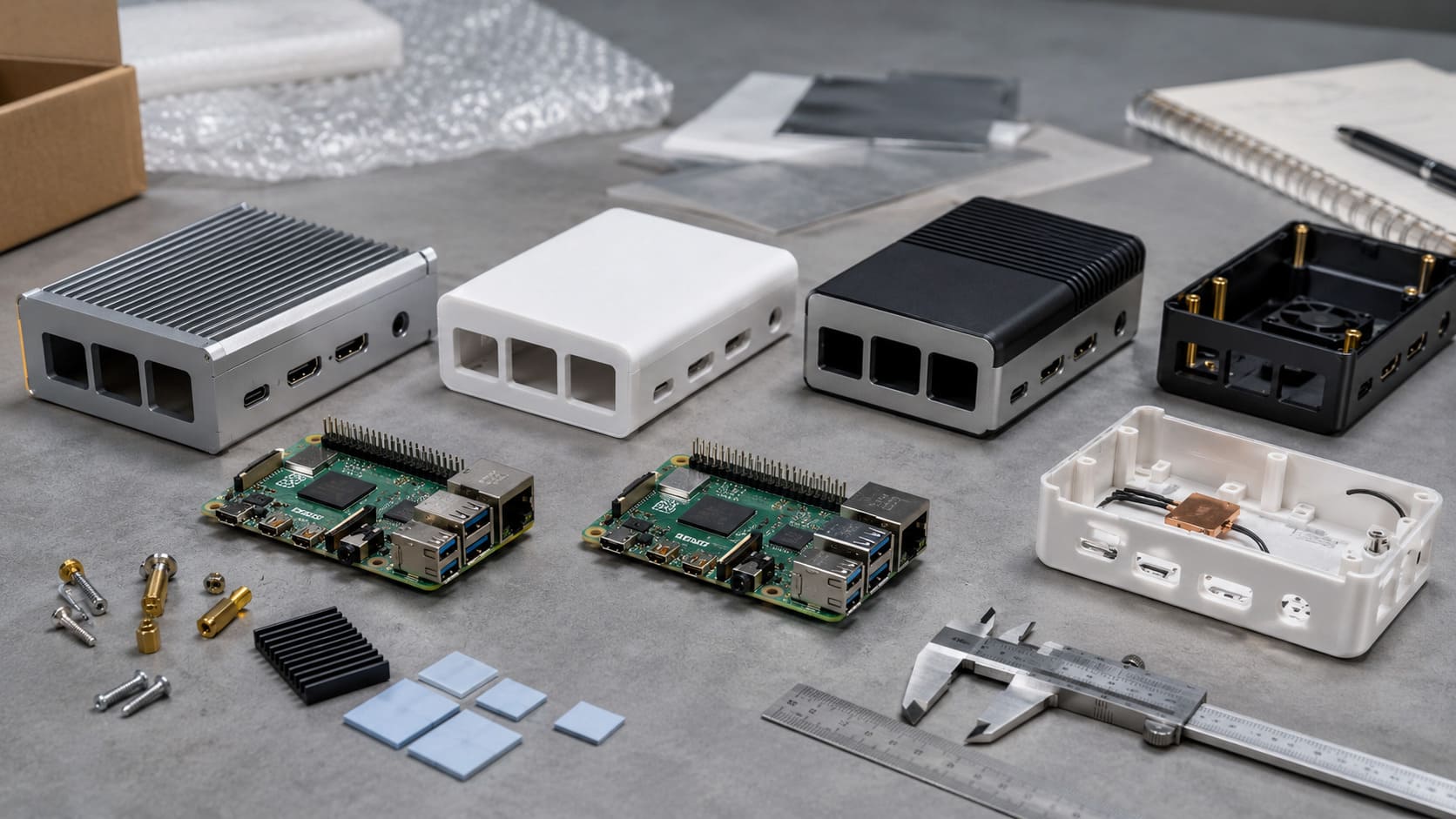
Heatsink, fan, or the all-metal MaidaTech enclosure
Storage choices & formatting
| Storage | Speed | Durability | When I use it |
|---|---|---|---|
| A2 micro-SD | Good | Moderate | Field demos, low-write apps |
| USB-SSD | Very good | High | Desktop, camera rigs |
| NVMe via PCIe | Excellent | Very high | Datacenter clusters |
I format cards with FAT32 for flashing tools, then let the installer create ext4 or btrfs.
Power & thermal planning
An overheated Pi throttles faster than a bargain airline Wi-Fi. I add a copper heatsink and a quiet 30 mm fan inside our acrylic case, or I drop the board into a CNC-milled aluminum shell when clients insist on silence. Either way, I leave 3 mm airflow clearance around the SoC.
Hardware packed? Good. Now we need the right image and a pinch of cryptographic trust.
Downloading the OS Image

Official & trusted mirrors
I grab Raspberry Pi OS from downloads.raspberrypi.com, Ubuntu images from Canonical’s mirror, and Fedora IoT directly from the Fedora Project. Third-party blogs often bundle out-of-date ISOs—skip them.
Verifying integrity
Run
sha256sum *.img.xzCompare the hash to the website.
(Optional) Verify the GPG signature for enterprise audits.
Customizing before flash
Raspberry Pi Imager now offers a gear icon. I pre-seed Wi-Fi SSID, set Vincent as user, enable SSH, and drop my public key. Ten seconds here saves an hour of post-boot fiddling.
A clean image is nice, but an image on a card is nicer—time to flash.
Flashing the Image to SD/SSD

Raspberry Pi Imager GUI workflow
Select OS ➜ choose
.imgor built-in distro.Pick Storage.
Hit the gear for advanced options.
Click Write and refill your tea.
Command-line tools (dd, cp, raspi-image-script)
xz -dk pi.img.xz
sudo dd if=pi.img of=/dev/sdX bs=4M status=progress
sync
On Windows I swap in raspberry-pi-flasher.ps1; on macOS I rely on cp to the raw device.
Batch flashing for wholesale
In production I plug ten USB-SD docks into one hub, run pi-clone --batch, then spot-check hashes. A simple Python script prints a green or red label so our night shift packs only verified cards.
Cards ready? Let’s feed them to the boards and watch the LEDs dance.
First Boot & Interactive Setup

Boot sequence & LED codes
Solid red, blinking green: loader found the SD.
Rainbow splash: GPU test frame.
CLI scroll: kernel and init.
No green LED or a forever rainbow means the Pi can’t read bootcode.bin—swap the card first, panic later.
Initial configuration toolkits
raspi-configfor Pi OS: expand FS, set locale, enable I²C.Ubuntu’s first-boot wizard: user, Wi-Fi, auto-updates.
[cloud-init](https://dev.to/adityapratapbh1/a-comprehensive-guide-to-cloud-init-automating-cloud-instance-initialization-4l28)files (user-data,meta-data) for headless fleets.
Headless access
On networks with DHCP I call ssh vincent@raspberrypi.local. If mDNS fails, arp -a often spots the new MAC.
A login shell feels great, but it’s still a blank slate. Let’s make it safe and useful.
Post-Install Configuration

Update & upgrade
sudo apt update && sudo apt full-upgrade -y
sudo rpi-eeprom-update -a
I schedule unattended-upgrades weekly for remote kiosks.
Users, keys, and basic hardening
Delete the default pi user on fleets.
Add your SSH key and disable password logins.
Enable
ufwornftables; open only 22/tcp.
Essential drivers & overlays
Camera modules need libcamera plus GPU firmware; NVMe boots want dtparam=pciex1=on in /boot/config.txt. Check overlays after every kernel bump.
Single boards are fine, but hundreds demand repeatability. Automation time.
Automating Mass Deployment (for B2B & Projects)

Pre-seeding with cloud-init & Ansible
I drop a user-data file with hostnames like pi-{{ inventory_hostname }}. Ansible then sets time zone, pushes Grafana agents, and tags each unit in Prometheus.
Golden-image strategy
Configure one board fully.
Power down, clone the drive with
dd.Write a fresh Partition UUID so DHCP grants unique leases.
Stick a barcode on the case; scanners catch mix-ups at packing.
Continuous device management
Our bigger clients enable OTA via rpi-update hooks and monitor uptime with Tiger-Beetle. MaidaTech’s service lane swaps failed hardware in 48 hours worldwide.
Things still go wrong; the art lies in fixing them fast.
Troubleshooting Common Issues

No boot (solid red/green LED, rainbow screen)
Swap SD, re-seat power, flash EEPROM recovery on another card.
Storage or power faults
| Symptom | Likely Cause | Quick Fix |
|---|---|---|
| Yellow lightning icon | Undervoltage | Beefier PSU, shorter cable |
Kernel panic at mmc0 | Corrupt SD | New A2 card, restore image |
| Freeze under load | Overheat | Heat sink, active fan |
Network & display problems
Set country=US in wpa_supplicant.conf for 5 GHz Wi-Fi. For blank HDMI on 4K TVs, add hdmi_safe=1 then dial back the resolution.
Pro tip: Keep a second Pi with serial cables and a known-good card on your bench. Half my “dead” boards were simply bad cables.
Fixes applied, confidence restored—time to wrap this journey and ship.
Conclusion

From blank micro-SD to fully patched fleet, installing Linux on a Raspberry Pi is equal parts routine and ritual. Check hashes, flash smart, cool the silicon, and script the boring stuff. Do that, and even a 2 a.m. deadline feels like a quiet stroll.
Need thousands of Pies that show up ready to boot, snug inside logo-printed cases? Email me, Vincent Li, at [vincent@maidatech.com](). My team at MaidaTech can pre-flash the OS, engrave your brand, and deliver pallets that power on straight out of the box.