Skip to content

Some folks think Raspberry Pi is just a toy. I used to think so too—until I built one into a full desktop.
Yes, you can build a basic PC using a Raspberry Pi, especially for tasks like web browsing, coding, media playback, and light productivity.
But it’s not just plug-and-play. You need the right expectations—and a few clever workarounds.
Can a Raspberry Pi 4 replace a PC?
I get this question a lot from friends who want a cheap, quiet desktop. And I always say, “That depends on what you expect.”
For basic computing—yes. For heavy multitasking or media editing—not really.

What it can do—and where it falls short
Here’s a breakdown from my own experience:
| Task | Performance on Pi 4 |
|---|---|
| Web Browsing | ✅ Acceptable (with Chromium) |
| Video Playback (1080p) | ✅ Smooth (with VLC/Kodi) |
| Office Tools (LibreOffice) | ✅ Usable |
| Photo Editing (GIMP) | ⚠️ Slow at times |
| Video Editing | ❌ Not recommended |
| Coding (Python, Java) | ✅ Smooth |
| Docker/Multi-tab Browsing | ⚠️ Needs 8GB RAM |
You’ll feel it struggle when you open too many browser tabs or edit high-res images. But for most daily tasks, it holds up surprisingly well.
Can you use a Raspberry Pi as a gaming PC?
The short answer? Not the kind of “gaming PC” you might be imagining.
You can use Raspberry Pi for retro gaming and light indie games, but not for AAA gaming.

What kind of games work?
- Retro emulation: NES, SNES, Sega Genesis, Game Boy work great with RetroPie.
- Browser-based games: Playable, but memory-heavy ones can lag.
- Steam Link: You can stream from a powerful PC, but Pi is just the display device.
One of my favorite setups used a Pi 4 and an SNES-style USB controller to play Super Mario World. Felt like being 10 again.
Can Raspberry Pi run Windows?
This one’s tricky—because technically, yes, but practically, not so much.
Raspberry Pi can run Windows 10 IoT or Windows 11 ARM, but both are limited and not ideal for general PC use.

Which version of Windows?
- Windows 10 IoT Core: Not a desktop OS. More for embedded systems. No Start menu, no file explorer.
- Windows 11 ARM (unofficial): Can be installed with WoR (Windows on Raspberry), but it’s sluggish. Drivers are buggy. Updates break things.
If you’re serious about a usable OS, I recommend Raspberry Pi OS, Ubuntu, or Twister OS instead.
How powerful is a Raspberry Pi computer?
I like to describe it this way: it’s like a smartphone from 5 years ago, but in a credit-card-sized board.
A Raspberry Pi 4 or 5 offers decent performance for daily computing, but won’t match a mid-range laptop or desktop.

Benchmarks at a glance
| Spec | Raspberry Pi 4 (8GB) |
|---|---|
| CPU | Quad-core Cortex-A72, 1.5GHz |
| GPU | Broadcom VideoCore VI |
| RAM | Up to 8GB LPDDR4 |
| Storage | microSD or SSD via USB 3.0 |
| Boot time | ~20–30 seconds |
It’s powerful enough for coding, light image editing, watching YouTube, or running a server. But don’t expect it to replace your work laptop.
What are the limitations of building a desktop PC with Raspberry Pi?
It’s not just about power. There are real-world limitations you should know.
You’ll face challenges with storage, RAM, I/O speed, and peripheral compatibility.

Where you'll feel the pain
- microSD bottleneck: It’s slower than SSD—even A2-rated cards struggle under load.
- Limited GPU acceleration: 3D graphics and video rendering aren't smooth.
- Ports: Only a few USB ports, so you’ll need a hub.
- Driver issues: Some WiFi dongles, webcams, or sound cards might not work out of the box.
That said, with a USB SSD and some patience, you can dodge most of these.
How much RAM do you need to run a Raspberry Pi as a computer?
This one really depends on how you use it. But I always recommend this:
For desktop use, aim for 4GB minimum—8GB if you want to multitask or use Chromium.
Why RAM matters more than you think
- 2GB: Okay for single-task systems (kiosks, terminals).
- 4GB: Comfortable for general use, basic coding, office work.
- 8GB: Needed for Docker, web dev, or 10+ browser tabs.
I once set up a 2GB Pi for a friend’s digital signage. It ran fine—but would’ve crashed trying to open Gmail and YouTube together.
Can Raspberry Pi 5 replace a traditional desktop for everyday use?
The Pi 5 changed the game a bit. It’s snappier, faster, and supports PCIe.
Raspberry Pi 5 is the closest we’ve come to desktop-grade Pi—but still not a full replacement for power users.
What makes Pi 5 different?
- 2.4GHz quad-core CPU: Much faster response time.
- PCIe expansion: Add NVMe SSDs or better WiFi cards.
- Dual 4K video output: Feels like a modern device.
If you're just doing daily admin, emails, and document work—it’s enough. For media creation or gaming? Still not there.
What accessories do you need to build a Raspberry Pi desktop setup?
Your Pi won’t work as a PC without a few friends.
You’ll need a power supply, monitor, keyboard, mouse, case, SD card, and optionally a fan or SSD.
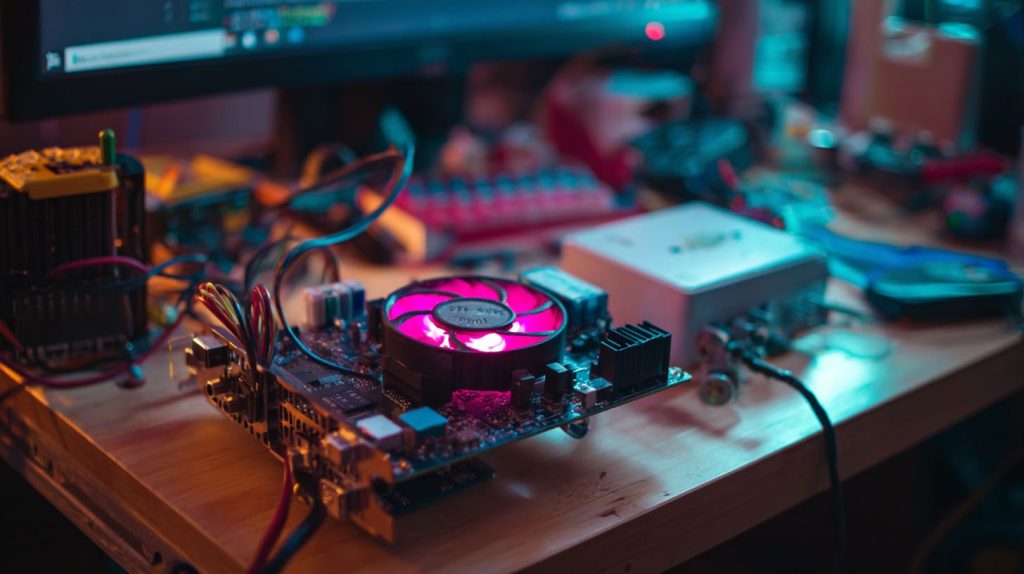
My daily setup includes...
| Accessory | Recommendation |
|---|---|
| Power Supply | 5V 3A USB-C (official or good brand) |
| Storage | 32GB+ A2-rated microSD or USB SSD |
| Display | Any HDMI monitor |
| Input Devices | USB keyboard + mouse |
| Cooling | Active fan recommended |
| Connectivity | Ethernet or good USB WiFi |
Bonus: add a USB hub and speakers, and you’re golden.
Can you use Raspberry Pi with dual monitors?
Yes—and it’s surprisingly smooth.
Raspberry Pi 4 and 5 support dual HDMI output for running two 1080p or 4K displays.

Setup tips
- Use micro-HDMI to HDMI cables.
- Configure display layout in Raspberry Pi OS settings.
- Keep one window per screen—it lags if you drag across.
I often keep code on the left and docs or browser on the right. Makes me feel like I’m on a full workstation.
How does Raspberry Pi compare to a mini PC or Intel NUC?
This one’s about trade-offs.
Mini PCs or Intel NUCs are faster and more polished—but Raspberry Pi is cheaper, fanless, and more flexible.

Side-by-side
| Feature | Raspberry Pi 4/5 | Intel NUC / Mini PC |
|---|---|---|
| Price | ~$50–$100 | $200+ |
| Performance | Low–Medium | Medium–High |
| Upgradability | Limited | Limited |
| Size | Tiny | Small |
| OS Support | Linux-heavy | Full Windows/Linux |
| Power Consumption | 5–10W | 15–40W |
If you just need a casual PC or a smart DIY setup, Pi is fun. For full Windows and serious workloads, go NUC.
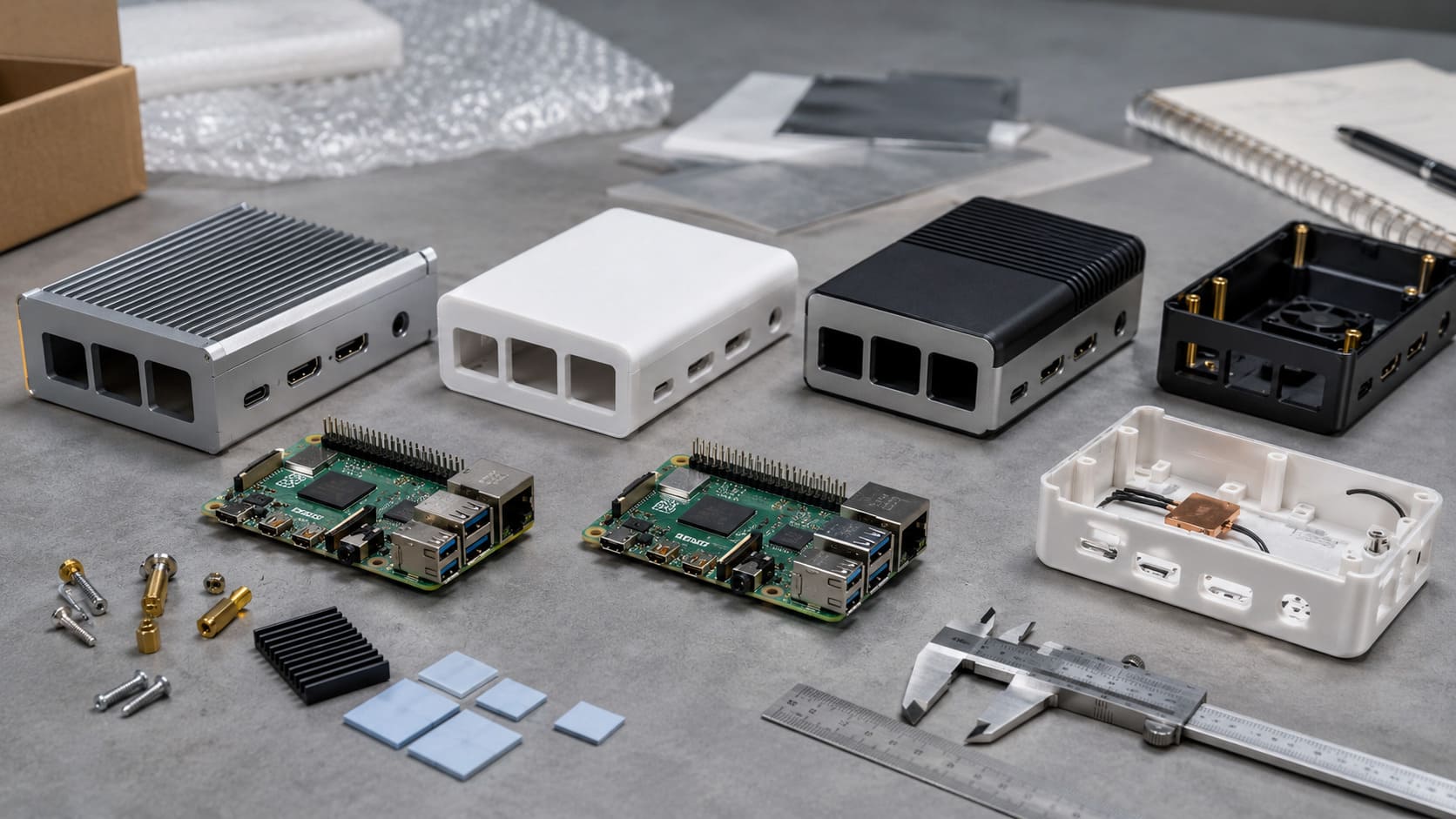
What is the best Raspberry Pi case for building a PC?
Cases matter more than people think. I’ve tested dozens.
Look for a case with active cooling, space for SSD, and clean access to ports—like our custom MaidaTech desktop-style enclosures.

Case selection checklist
- Material: Plastic is lightweight. Metal helps with heat.
- Cooling: Fan mounts or heat sinks are a must.
- Access: Can you plug cables without struggling?
- Mounting: Optional VESA or wall-mount brackets?
One of my clients, Jacky from Belgium, once ordered 500pcs of our logo-engraved cases with built-in fan support—he resells them on Amazon, and the feedback’s been awesome.
Conclusion
Yes, Raspberry Pi can be your next PC—but only if you know what to expect.