Skip to content
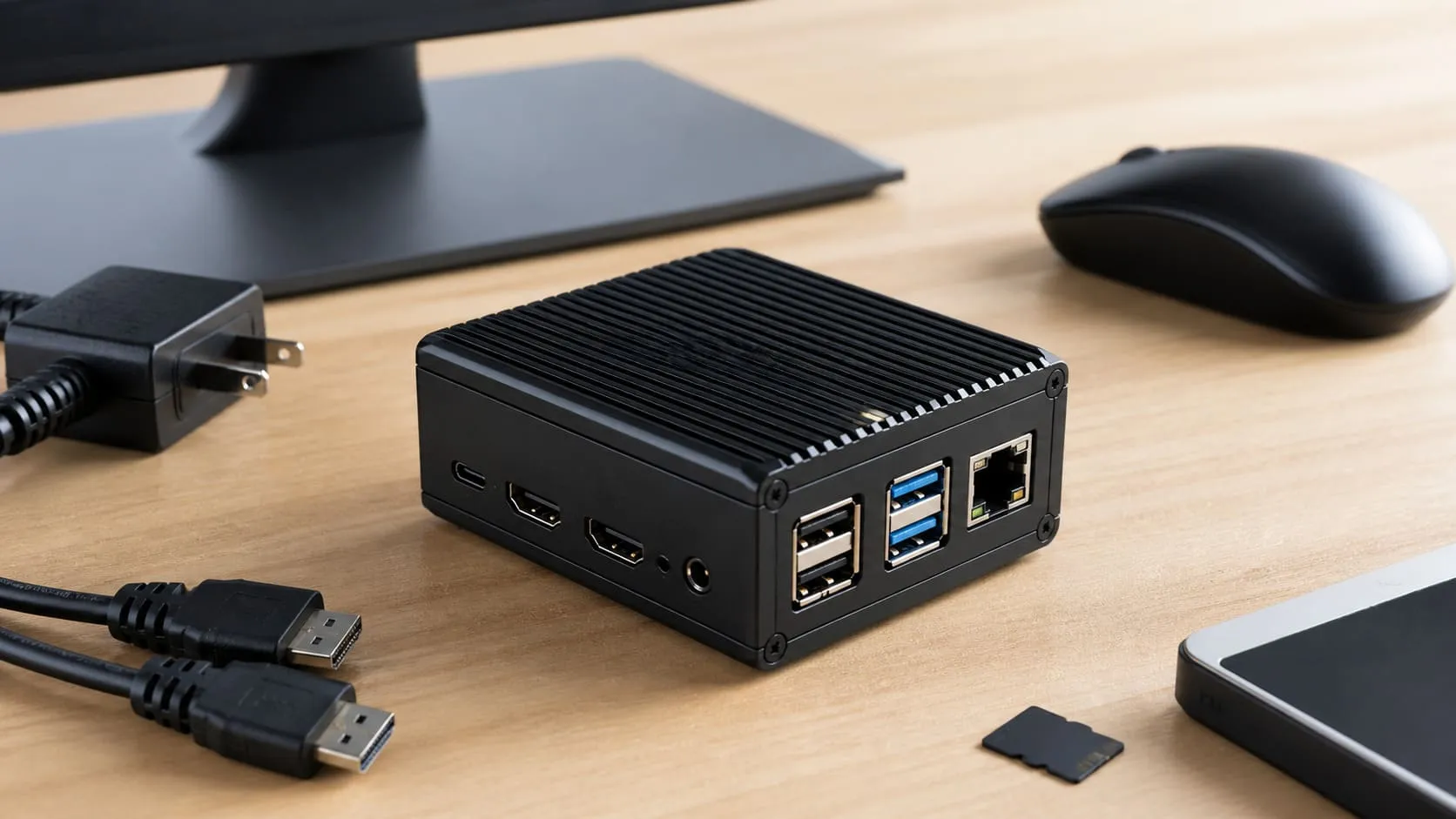
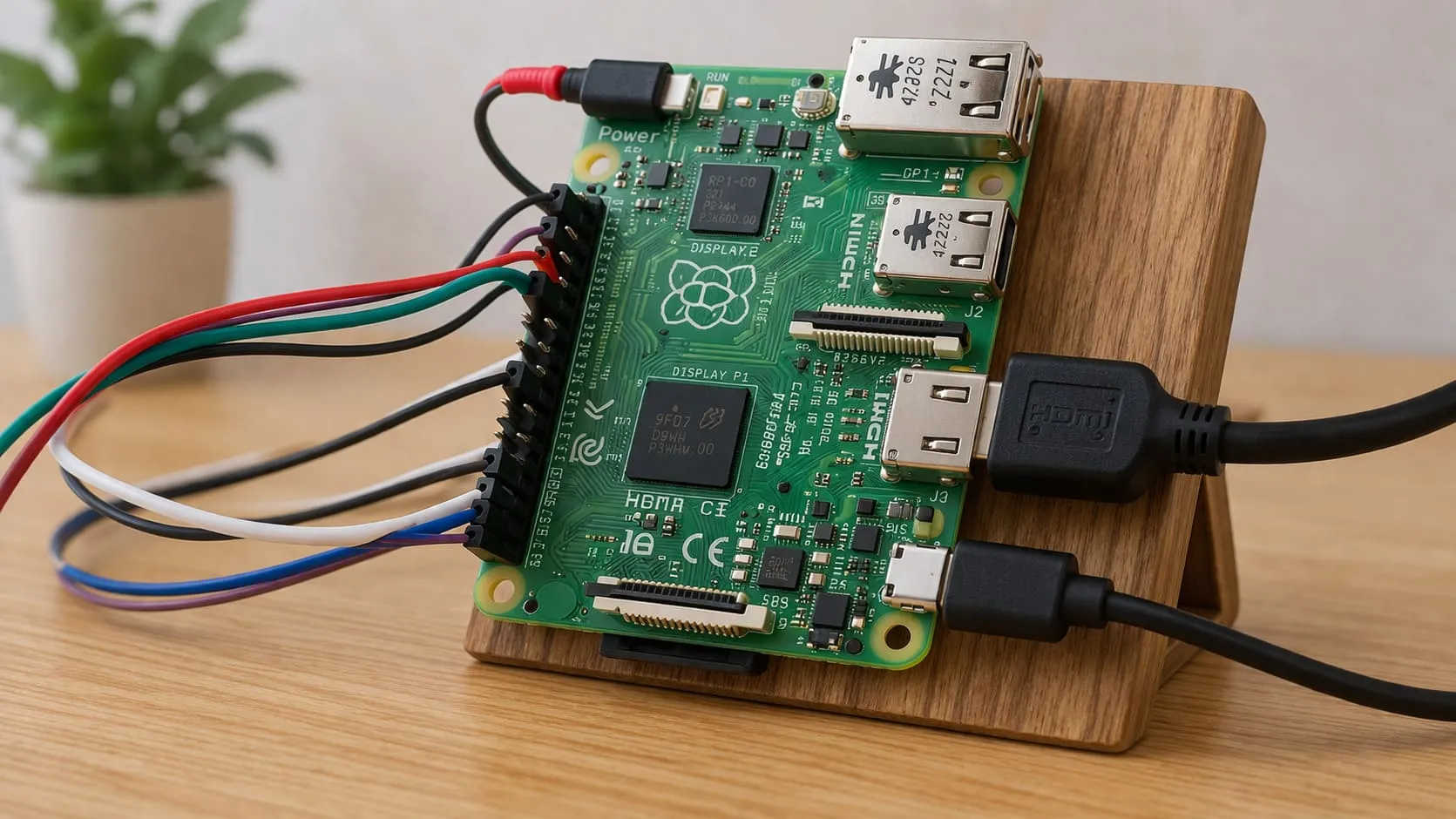
When you lay a Raspberry Pi board on the table for the first time, it doesn’t shout for attention. No flashy lights, no spinning fans. Just a simple green rectangle with ports and pins. But in factories, classrooms, and small workbenches around the world, this tiny board quietly powers projects that solve real problems.
In my shop, we’ve used Raspberry Pis to test display stands, automate inventory shelves, even run environmental sensors for some clients' pilot projects. It's not because Pi is the only option—but because it makes starting feel less intimidating. You don’t need racks of expensive equipment or a team of engineers to get something useful running. You need a board, some wires, and a few lines of Python.
What is a Raspberry Pi?
A Raspberry Pi is a single-board computer that’s roughly the size of a credit card. It boots from a micro-SD card, runs Linux, and happily powers everything from home dashboards to industrial robots.
Why choose Python for Raspberry Pi projects?
Python ships with Raspberry Pi OS, so you can start coding minutes after first boot. Its syntax is clean. Libraries like gpiozero wrap messy hardware calls into friendly functions. And if you get stuck, a global army of hobbyists and professionals can help.
Who this guide is for (makers, educators, B2B product teams)
Whether you’re a teacher wiring an LED for a classroom demo, a maker automating greenhouse fans, or a buyer like Davide hunting for custom-branded cases, you’ll find a starting point here.
Ready to fire up your workstation? Let’s pick the right Pi and set it up.
Setting Up Your Development Environment

Choosing the right Pi model for coding (Pi 5 vs Pi Zero 2 W)
| Model | CPU Speed | RAM | Ports | Use Case |
|---|---|---|---|---|
| Pi 5 | Up to 3 GHz | 4–8 GB | 2 HDMI, 2 USB 3 | Heavy multitasking, AI demos |
| Pi Zero 2 W | 1 GHz quad-core | 512 MB | Mini HDMI, 1 micro-USB | IoT nodes, wearables |
The Pi 5 feels like a mini desktop; the Zero 2 W disappears inside a smart sensor. I reach for the Pi 5 when clients run Python-heavy web apps, and grab the Zero when Lasle needs twenty low-cost units for a field test.
Installing Raspberry Pi OS (Bookworm)
Flash the image with Raspberry Pi Imager.
Enable SSH in the “advanced” options.
Insert the card, power on, and watch the rainbow splash screen. Simple.
Updating and upgrading the system
Open the terminal:
sudo apt update && sudo apt full-upgrade -yNo one loves waiting, but outdated packages break projects faster than a dropped pie.
Enabling SSH and remote access
sudo raspi-config
# Interface Options → SSH → Enable
Now you can code from your main PC while the Pi hums under a shelf.
Installing additional Python versions (pyenv, apt)
If you need Python 3.12 for the latest library, pyenv install 3.12.2 does the trick. Projects remain isolated, and my factory scripts don’t collide with Jacky’s retail dashboard.
Hardware’s ready, cables neatly tied. Let’s talk about the software that makes coding feel like sketching on a napkin.
Essential Tools & IDEs

Thonny IDE walkthrough (pre-installed)
Thonny opens in seconds. The left pane is your code, the right pane shows variables in real time. Students love watching integers change as a button is pressed.
Visual Studio Code on the Pi (code-oss & Remote SSH)
Install with sudo apt install code-oss. For large projects, I pair VS Code on my laptop with the Pi via Remote SSH. No lag, full IntelliSense.
Remote development from your main PC
If the client’s network forbids SSH, I slip in a tiny ngrok tunnel. One command, secure HTTPS link, done.
Alternative editors (nano, Vim, Geany)
When Wi-Fi drops mid-demo, nano keeps me coding. Vim rewards muscle memory. Geany fits those who want a lightweight GUI.
Software loaded; fingers itching. Time to wire up the pins and feel the current flow.
Understanding GPIO and Hardware Basics
GPIO pin numbering (BOARD vs BCM)
BOARD counts the physical pins. BCM uses Broadcom’s logic numbers. I stick a label on my Pi or the wrong scheme costs me an afternoon.
Safely wiring LEDs and sensors
Rule 1: resistor first, ego second. A 330 Ω resistor between 3.3 V and an LED saves you from the smell of burnt plastic.
Comparing RPi.GPIO, gpiozero & pigpio libraries
| Library | Level | Async Support | Install | Good For |
|---|---|---|---|---|
| RPi.GPIO | Low-level | No | Built-in | Precise timing |
| gpiozero | High | Yes | pip install | Quick prototyping |
| pigpio | Mid | Yes | daemon | Remote pin control |
Power considerations & voltage levels
The Pi talks in 3.3 V whispers. Feed it 5 V and it screams—once. Add level shifters when driving 5 V logic.
Now that the basics click, let’s light something up. Nothing grabs attention like a blinking LED.
First Python Project: Blinking an LED
Parts list & simple circuit
| Part | Qty | Note |
|---|---|---|
| LED (red) | 1 | Any color works |
| 330 Ω resistor | 1 | Protects the LED |
| Jumper wires | 2 | Male-to-female |
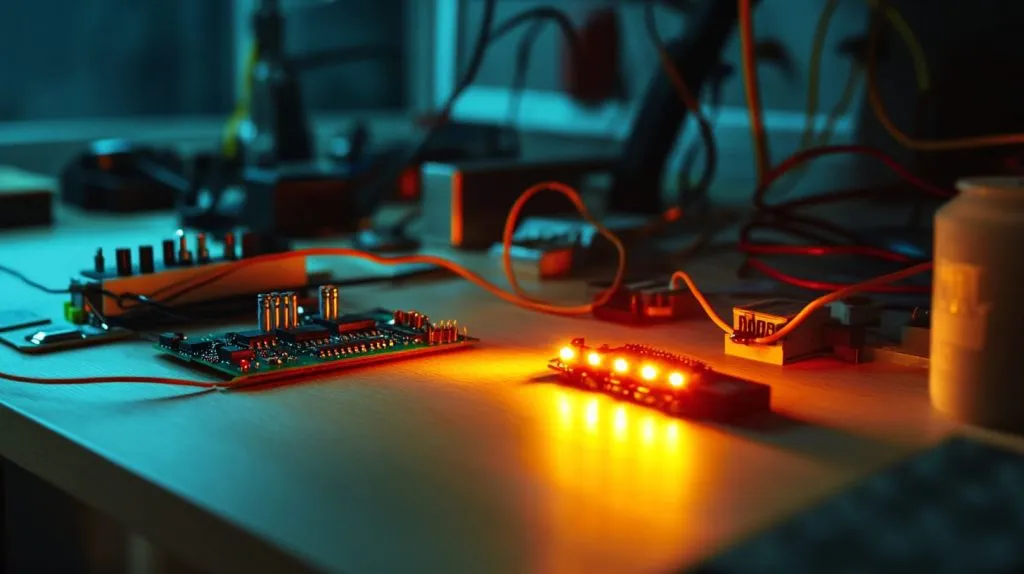
Wire GPIO 17 → resistor → LED → GND.
Writing the blink script with RPi.GPIO
import RPi.GPIO as GPIO, time
GPIO.setmode(GPIO.BCM)
LED = 17
GPIO.setup(LED, GPIO.OUT)
try:
    while True:
        GPIO.output(LED, 1)
        time.sleep(0.5)
        GPIO.output(LED, 0)
        time.sleep(0.5)
finally:
    GPIO.cleanup()
Cleaning up (try/finally, warnings)
Without GPIO.cleanup(), the pin may stay HIGH. I’ve seen this lock a relay overnight and cook a heating pad.
Running the script at boot with systemd
Create /etc/systemd/system/blink.service. Enable it. Your LED now joins the boot sequence like a tiny orchestra conductor.
The LED blinks. Eyes sparkle. Let’s feed it more input—buttons, sensors, motion.
Working With Sensors & Peripherals
Debounce every button or you’ll register ghosts. In gpiozero, it’s one line: Button(4, bounce_time=0.05).
Reading analog data via MCP3008
The Pi lacks analog pins. The MCP3008 solves that. Map a potentiometer to channel 0 and watch the values glide from 0 to 1023.
Controlling servos & motors with PWM
I once used gpiozero.Servo to tilt a camera rig for a client demo. Smooth moves sold the concept faster than any spec sheet.
Using I²C/SPI devices (temperature sensor, OLED)
Enable the bus in raspi-config. Address conflicts? Change jumpers or tweak the device tree overlay.
Now those sensors generate data. Data begs to travel. Let’s put it on the network.
Building Networked Projects
Connecting to Wi-Fi & storing credentials
wpa_supplicant.conf holds SSIDs and keys. Lock the file at 600 permissions or risk sending passwords into the wild.
Python networking basics (sockets, HTTP requests)
A ten-line socket script turns two Pis into walkie-talkies. requests.get() pulls weather data for the factory dashboard.
MQTT for IoT messaging
MQTT is the post office; topics are PO boxes. I publish temperature readings to factory/line3/temp, and Grafana subscribes. Instant graph.
Hosting a Flask or FastAPI server on the Pi
Small tutorial sites, local APIs, even a product configurator—Flask handles them with under 50 MB RAM.
Data moves, apps respond, clients smile. But raw numbers die unseen unless we store and visualize them.
Data Logging & Storage
Storing data in CSV, SQLite, and InfluxDB
| Storage | Setup Time | Scalability | Good For |
|---|---|---|---|
| CSV | Seconds | Low | Quick tests |
| SQLite | Minutes | Medium | Local dashboards |
| InfluxDB | Hours | High | Time-series data |
Visualizing data with Matplotlib & Grafana dashboards
Matplotlib handles lab reports. Grafana makes buyers gasp when they see live charts on a wall-mounted screen during factory tours.
SD-card health & wear-leveling tips
Log to RAM first, write in batches. I learned the hard way when an SD card died mid-QA run, costing two hours of assembly-line downtime.
After saving data, bugs crawl out. Let’s hunt them before they bite clients.
Debugging & Testing Your Code
Using logging instead of print
logging.info() keeps timestamps. When Davide asks why his LED stayed ON at 03:00, the log tells the story.
Remote debugging with VS Code
Set a breakpoint, hit F5, inspect variables live—even if the Pi is bolted inside a kiosk.
Writing unit tests with pytest
Mocks let me fake a button press at 2 AM without driving to the factory.
Profiling and optimizing performance
cProfile shows bottlenecks. One loop shaved 200 ms and saved a servo from jitter.
With code stable, we can think bigger: how to ship, scale, and automate.
Deployment & Automation

Virtual environments & requirements.txt
No more “it works on my Pi.” Each project owns its packages.
Creating systemd services for Python apps
Systemd restarts a crashed script before the boss knows it failed.
Docker on Raspberry Pi
Containers isolate everything. Lasle’s media-server image never touches Davide’s retail dashboard.
CI/CD pipelines with GitHub Actions
Push to main, GitHub builds, the Pi pulls, service restarts. I sip tea while code ships itself.
Secure delivery is sweet, but insecure systems sour fast. Let’s lock the doors.
Security Best Practices
Keeping OS & packages updated
A weekly cron job runs apt update && apt upgrade -y. Silence is golden afterward.
Managing secrets with environment variables
Never hard-code API keys. .env files stay out of Git and out of trouble.
Configuring UFW & Fail2Ban
UFW blocks unused ports. Fail2Ban bans brute-force IPs. Together, they’re the Pi’s bouncers.
Secure remote access (ngrok, WireGuard)
Ngrok for quick demos, WireGuard for long-term tunnels. Both encrypt traffic end-to-end.
Security handled, curiosity grows. What can this board do beyond blinking lights and HTTP calls?
Advanced Topics
AI/ML on the Pi with TensorFlow Lite
A Pi 5 classifies images at near-real-time. I used it to sort acrylic samples by color during QC.
Async IO, threading & multiprocessing
One process logs data, another serves a web page, a third blinks an alert—no blocking, no headaches.
Camera module programming with picamera2
Grab 12-MP stills, overlay notes, stream to YouTube. Perfect for remote project walk-throughs.
MicroPython vs full Python
MicroPython runs on microcontrollers. Pair it with a Pi gateway for ultra-low-power sensors.
Even experts hit snags. When trouble shows up, keep this list handy.
Troubleshooting Common Issues
Permission & sudo errors
If Permission denied, prepend sudo. But check file ownership first; habitually using root masks real problems.
Module import errors
pip install <package> --user often fixes missing modules without breaking system packages.
I²C/SPI device not detected
Run i2cdetect -y 1. No address? Check pull-ups, bus enable, cable orientation.
Overheating and throttling fixes
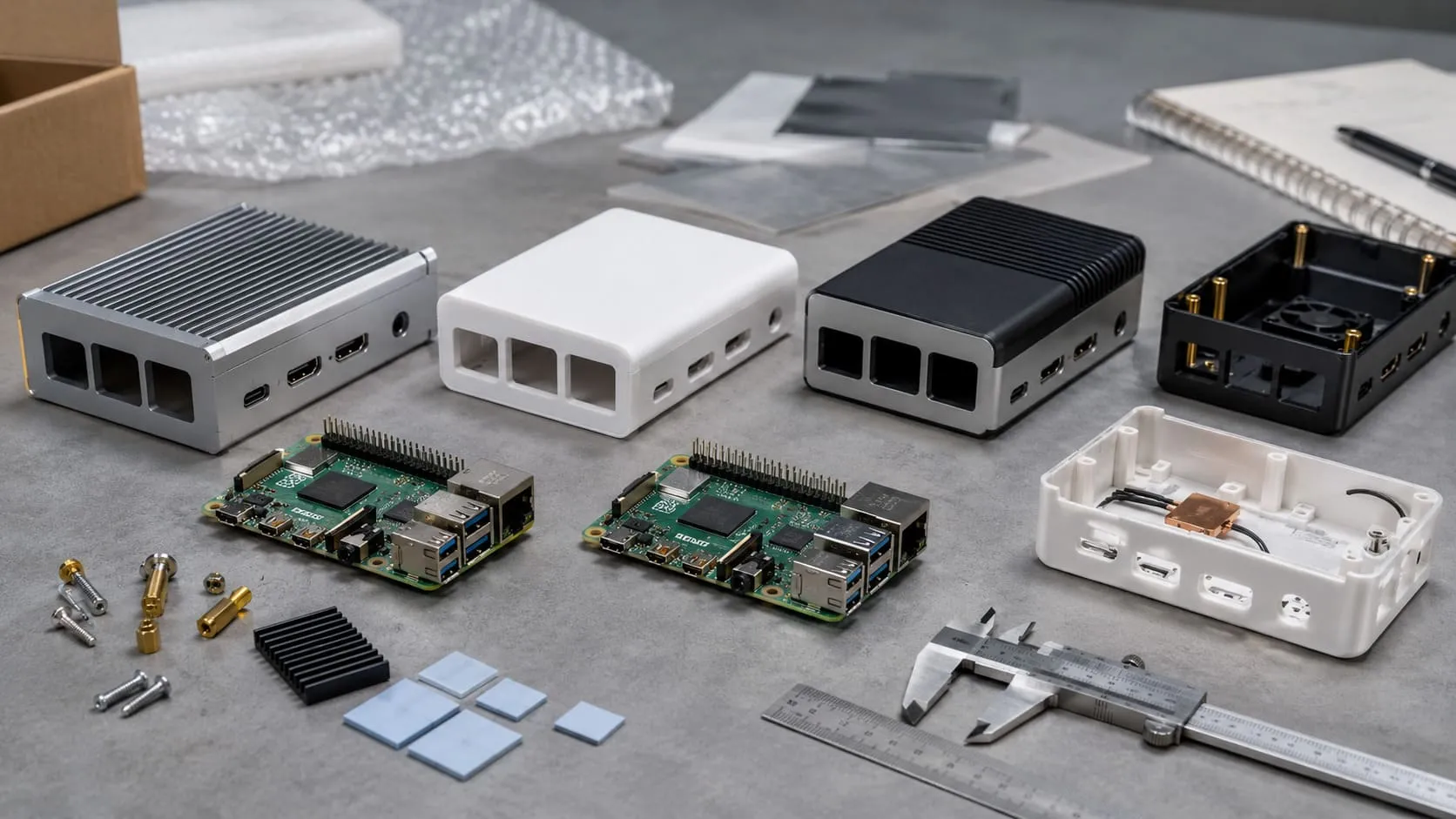
A copper heatsink plus a 40 mm fan keeps cores under 60 °C during stress tests. Good airflow saves performance.
Issues solved, projects running, lessons learned. Time to wrap up and plan the next build.
Conclusion

Key takeaways & next steps
A Raspberry Pi, a few lines of Python, and a bit of curiosity can launch classroom demos, factory dashboards, or entire product lines. Start small, test often, log everything.
Additional learning resources
Official Docs – docs.python.org & raspberrypi.com
Community – r/raspberry_pi, Stack Overflow, Pi forums
Books – Automate the Boring Stuff, Getting Started with Raspberry Pi
How MaidaTech can support your custom Raspberry Pi projects
If you need a branded case, a thermal solution, or an ODM redesign that fits your exact board layout, drop me a line at [vincent@maidatech.com](). My team and I run three production lines, ship worldwide, and keep enough stock to meet Davide-level urgency. Let’s turn your idea into the next project the Pi community can’t stop talking about.