Skip to content


I’m Vincent Li, and I still remember the buzz the first time I wondered whether I could run Windows on a Raspberry Pi 3. I was in my workshop, surrounded by half-assembled cases and a few untested prototypes. The question sparked my curiosity, and I dove in. In this blog, I want to talk about what I learned from that exploration.
What the Article Will Cover
I plan to discuss the Raspberry Pi 3 hardware, Windows on ARM, installation options, performance factors, and the real pros and cons. I’ll also share examples and personal insights. My hope is that you’ll walk away with a clearer picture of whether running Windows on a Raspberry Pi 3 makes sense for you or your business.
Relevance for Raspberry Pi Enthusiasts and Business Buyers
If you’re an enthusiast with a tinkering streak, you may love the challenge. If you’re a business buyer, including my typical customers like Davide or lasle, you might be more concerned about stability, cost, and customization. Let’s dive in, and if you stay with me, I promise to keep it honest and straightforward.
I’m always amazed by how small changes can lead to big discoveries. So let’s see how the Raspberry Pi 3 stacks up as we move on to the next part.
Understanding the Raspberry Pi 3
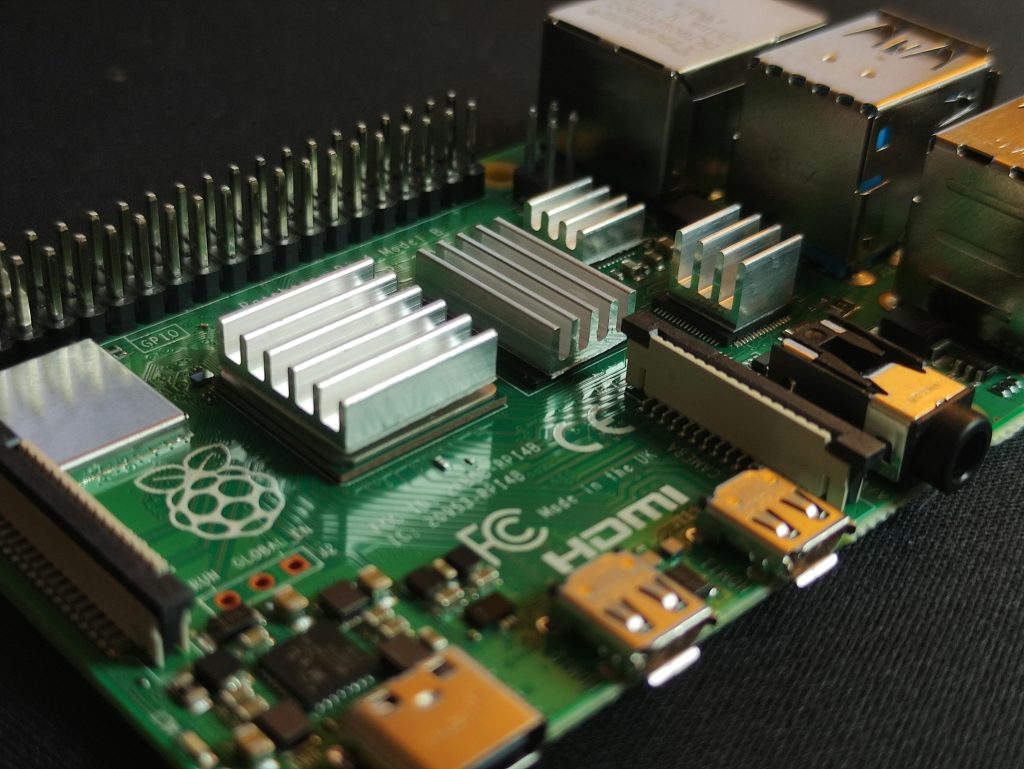
I once tried explaining a Raspberry Pi to my uncle. I said, “Imagine a mini-computer the size of your palm, ready to handle coding experiments, retro gaming, and maybe even a stripped-down version of Windows.” He gave me a curious nod. The Pi 3 is one of those devices that look simple, but it can surprise you.
Overview of Raspberry Pi 3 Hardware Specifications
Let’s look at some core specs in a simple table:
| Component | Specification | Comment |
|---|---|---|
| CPU | Quad-core 1.2GHz 64-bit | Not the newest now, but still decent for tinkering |
| RAM | 1GB LPDDR2 | Limits what OS can realistically be run |
| Wireless Connectivity | 802.11n Wi-Fi, Bluetooth 4.1 | Helps with wireless projects and IoT |
| Ports | 4 USB 2.0 ports, HDMI | Enough for basic desktop needs, though not super-fast |
These specs matter when we talk about Windows, because an operating system from Microsoft often craves more power. That small 1GB RAM can get cramped, especially once drivers and background processes pile up.
Performance Capabilities and Limitations Compared to Other Models
The Pi 3 does a fine job running Linux distros or even older emulators. But compared to newer Pi models, it has slower processing speed and less memory. When I tried heavy applications, I noticed lags. This doesn’t mean it’s unusable—it just means we need to lower expectations when we try to run something resource-intensive like a full Windows environment.
From a critical angle, some might say the Pi 3 is underpowered for desktop-level OS tasks. Others argue that with clever optimizations, you can still get a workable system. I see both sides. I think it boils down to what you really need to do.
Key Features That Impact OS Compatibility
The ARM-based CPU is the biggest factor. Windows on ARM is not as straightforward as Windows on x86. Driver availability also plays a role. I remember trying to track down stable drivers for Wi-Fi, and it took longer than I’d expected. While the Pi 3 has standard connectivity features, official Windows releases aren’t designed to cater to all these features on a smaller board.
I like to weigh the technical hurdles against the creative benefits. Sometimes, the more limited the hardware, the more innovative the solutions we find. Let’s keep this spirit alive as we move on.
I felt a tinge of excitement when I first saw “Windows on ARM.” Let’s move on and see why that is so important.
Windows and ARM Architecture: An Overview

Before exploring installation steps, I had to figure out Windows on ARM. I learned there’s a difference between Windows IoT Core and more familiar versions like Windows 10 or 11. Recognizing that difference is key when we talk about Pi 3 compatibility.
Windows Operating Systems Designed for ARM
Microsoft has Windows IoT Core, which is a version of Windows tailored for small devices and IoT setups. Unlike the full-fledged Windows, it lacks a typical desktop environment. I recall running a demo app on IoT Core, and it felt more like a slimmed-down kiosk mode. That’s great for industrial or specialized uses, but not so much if you want a classic desktop.
There’s also Windows 10/11 on ARM, but these are more resource-intensive. From a broader perspective, ARM support is growing. Apple has M-series chips, and many Chromebooks run on ARM. Yet, Windows still feels new in that space. Some drivers or applications might not fully cooperate.
Differences Between Windows IoT Core and Full Windows Editions
Windows IoT Core is more like a platform for building solutions rather than a typical OS you’d use for daily tasks. Full Windows editions give you the familiar interface, but they also demand far more system resources. On the Pi 3, that can lead to major slowdowns. I often get asked: “Does it run normal Windows apps?” The short answer is “Yes, but performance can be unpredictable if it runs at all.”
Critics might say IoT Core is too limiting. Supporters argue it’s purpose-built. I see it as a tool in the toolbox. If your business project needs a minimal Windows environment, it might be perfect. If you want a standard Windows desktop, you’ll need to brace for challenges.
Why ARM-Based Devices Have Unique OS Challenges
ARM chips use a different instruction set compared to Intel or AMD chips. This difference means certain programs need to be recompiled or adapted. It also affects drivers. I remember the confusion I felt the first time I realized a random .exe file might not work on ARM Windows unless it was specifically designed for it.
I like to think that the obstacles make us better problem-solvers. If you agree, you’ll appreciate the next part, where we tackle how to install Windows on a Pi 3.
Installation Options for Running Windows on a Raspberry Pi 3

It’s like tinkering with a puzzle. You gather the pieces—SD cards, specialized tools, OS images—and hope it all fits together. Below, I’ll lay out some mainstream and unofficial methods.
Using Windows IoT Core on Raspberry Pi 3
Windows IoT Core is the official route. You download the image, flash it to an SD card, and boot up. You won’t get a typical Windows desktop, but you can run Universal Windows Platform (UWP) apps. This is cool for manufacturing, retail, or specialized tasks that don’t need a big interface.
From a critical angle, if you want to rebrand or customize an enclosure—like what I do at MaidaTech—this OS could be a stable choice, especially for embedded solutions. Yet if your goal is to run a normal Windows desktop for everyday tasks, IoT Core might be too stripped down.
Exploring Unofficial Methods to Run Windows 10/11 ARM
Unofficial builds are out there. Enthusiasts have created ways to run a modified Windows 10 or 11 ARM image on the Pi 3. The process often involves using specialized tools and community-driven drivers. This is more complicated, but it can be a fun side project if you like experimenting.
However, these methods can be buggy, and I’ve run into issues like missing audio or broken Wi-Fi. People who like to tinker may find this thrilling. Businesses might see it as a time sink. It’s always good to consider whether the payoff is worth the effort.
Third-Party Tools and Workarounds for Installation
Third-party tools such as WoA Installer can simplify the process. These tools handle partitioning, driver bundling, and other behind-the-scenes tasks. Without them, you’d need manual steps that can be tedious.
It’s wise to think about your comfort with partial or experimental drivers. If you’re distributing Pi 3 systems with your own brand, you want reliability. A single driver glitch could ruin a user’s experience. In my view, it’s best to test thoroughly before rolling out.
Step-by-Step Overview of the Installation Process
- Gather Files: Pick a Windows IoT Core or ARM image plus the needed drivers.
- Prepare SD Card: Use a tool like Rufus or WoA Installer to flash the OS.
- Install Drivers (Unofficial Builds): If you’re using Windows ARM, install Pi-specific drivers.
- Boot Up: Insert the SD card into the Pi 3, plug in power, and wait.
- Test Peripherals: Check USB, Wi-Fi, and Bluetooth to see if they work.
This process sounds simple, but I’ve seen it fail for minor reasons. Once, I grabbed the wrong driver package and ended up with no audio. If you’re patient, though, you learn from every misstep.
I found myself pausing to reflect on how stable my Pi’s performance was. Next, let’s discuss performance more deeply.
Performance Considerations and Practical Limitations

People often ask: “Does it run smoothly?” My honest answer is: “Sometimes, but don’t set the bar too high.”
Boot Time, Resource Utilization, and Overall Speed
On a Pi 3, Windows IoT Core boots relatively fast because it’s lightweight. But for a full Windows ARM install, it can take a while. Memory is only 1GB, and Windows can hog system resources. Running multiple apps often slows everything down.
From a broader perspective, some folks love the challenge of pushing minimal hardware. Others might call it an exercise in frustration. I see it as an experiment that teaches you about the limits of both hardware and software.
Application Compatibility and Driver Support Issues
Not every program will run. You might face driver conflicts for Wi-Fi or graphics. Some older 32-bit Windows apps might work through emulation, but performance can be questionable. If you’re using specialized business software, double-check if it supports ARM.
I recall trying to install a simple inventory tool. It partially worked, but certain .NET features acted quirky. This is where you weigh the novelty of Windows on a Pi 3 against the need for smooth, predictable operation.
Real-World Performance: Benchmarks and User Experiences
Some community members run benchmarks and share results. They often find slow CPU performance and frequent stutters under heavier tasks. Still, for basic tasks—like web browsing or running a single UWP app—some claim it’s stable enough. From the outside, that can look contradictory, but it’s all about your use case.
When I talk to my customers, I emphasize real testing. Numbers on a chart help, but you need to see how your own software behaves. That’s how you make a reliable choice.
I sometimes chat with local Pi enthusiasts about unusual Windows projects. They’ve inspired me with stories of success and taught me to see the Pi as more than a board—it’s a community-driven platform.
Use Cases and Applications

The Pi 3 with Windows can fill some unique niches. People ask me if it’s worth it, and I say it depends on what you need and how you adapt.
IoT and Embedded System Projects with Windows IoT Core
Windows IoT Core is well-suited for headless or kiosk-like projects, especially in retail or factory settings. You can have a minimal interface that drives a digital sign or controls sensors on an assembly line. I know a friend who used it in a small greenhouse monitoring system.
Taking a critical stance, if you need more advanced UI or multi-app interactions, IoT Core might feel too confined. But if you like a controlled environment with easy integration into Azure or other Microsoft services, it can shine.
Educational and Prototyping Opportunities
Schools might use Windows IoT Core to teach coding in C# or similar frameworks. With the Pi’s GPIO pins, you can explore how hardware and software interact. It’s also a neat way to get kids excited about technology, letting them build small machines that talk to each other.
Some might question if the Pi 3 is powerful enough for advanced educational work, like machine learning demos. I think it’s good for basic lessons, but if you need deeper computing power, there are other boards or the Pi 4 to consider.
Comparing Windows-Based Projects with Linux-Based Alternatives
Linux-based systems like Raspberry Pi OS are easier to set up, have broader community support, and run faster on the Pi 3. Windows gives you certain Microsoft ecosystem benefits but at the cost of performance.
In my experience, if your project is heavily reliant on .NET or Microsoft services, Windows IoT Core could make sense. Otherwise, a Linux distro might be simpler, faster, and more open. That’s just my personal take, shaped by my own trials.
I find these comparisons spark some friendly debates in maker groups. If you like that spirit of learning, let’s keep going and see what might trip you up.
Challenges, Troubleshooting, and Community Support

I’ve hit my share of roadblocks with Windows on Pi 3. I learned the importance of community forums and official documentation.
Common Installation and Configuration Issues
- Missing Drivers: Audio, Wi-Fi, or Bluetooth not working due to missing or outdated drivers.
- Slow Performance: Unexpected freezing or slow boot times.
- Incompatible Apps: ARM version limitations or emulation overhead.
At times, I felt overwhelmed by all these issues. But each problem taught me something new. I realized that these friction points can scare off less experienced users, so it’s good to know what you’re getting into.
Tips for Overcoming Hardware and Software Limitations
I’ve tried to keep it simple: use minimal apps, disable unnecessary services, and rely on lightweight software wherever possible. For instance, if you’re using IoT Core, design your UWP app to be lean. Don’t expect the Pi 3 to juggle multiple big tasks at once.
Also, a decent power supply helps. It may sound trivial, but undervoltage can cause random errors. In my shop, I always recommend stable power solutions for Raspberry Pi projects, because it saves you from mysterious crashes.
Where to Find Help: Official Documentation and Community Forums
Microsoft’s official IoT Core docs offer setup guides. Enthusiast forums can provide driver links and user experiences. I’ve leaned on those communities many times. You’ll see folks sharing step-by-step instructions and even custom scripts to fix certain bugs.
Stepping back, I realize how crucial that sense of community can be. When we bond over these common hurdles, we become better problem-solvers together.
I’ve had late-night conversations with fellow Pi fans about hardware constraints. Then we find out we can push the Pi 3 a bit further. Let’s examine the bigger picture, though, to see if Windows on Pi 3 is really worth it.
Pros and Cons of Running Windows on a Raspberry Pi 3

Every time I weigh pros and cons, I imagine myself on a seesaw. Let’s break down some advantages and drawbacks.
Advantages of Deploying Windows on Raspberry Pi 3
- Familiar Ecosystem: You get Windows tools like Visual Studio for developing UWP apps.
- Integration with Microsoft Services: Good if you’re using Azure or other Microsoft cloud services.
- Official IoT Core Support: It’s straightforward for embedded projects, with decent documentation.
On the surface, it can seem like a neat solution, especially if you’re already in the Microsoft ecosystem.
Drawbacks and Limitations to Consider Before Installation
- Performance Constraints: The Pi 3 is not built to handle full Windows efficiently.
- Limited App Compatibility: ARM-based Windows can’t run everything out of the box.
- Driver Hurdles: Expect to do some digging or rely on community fixes.
If these drawbacks don’t faze you, Windows on Pi 3 might be a fun or even viable option. But if you’re short on time or need robust performance, consider alternatives.
Cost-Benefit Analysis for Business and DIY Projects
For small-scale DIY, the cost is low. The Pi is affordable, though you’ll invest time. For business use, weigh the trade-offs. Is the Windows environment essential for your brand or your customers? If yes, the time spent could pay off. If no, a Linux distro might be more practical.
I like to remind my customers that once you factor in custom branding on the case, shipping, and any potential delays due to OS quirks, the real expense can grow. But on the plus side, customizing a Pi case with Windows branding can be a unique selling point if you market it right.
I see both the excitement and the caution signs. It’s all about what your end goal is.
Conclusion

I’ve enjoyed sharing my personal experiences and critical views on running Windows on a Raspberry Pi 3. It’s a path filled with learning, occasional headaches, and genuine excitement.
Summary of Key Points Discussed
I covered how the Raspberry Pi 3’s hardware impacts OS compatibility, what makes Windows on ARM special, how to install Windows IoT Core or unofficial ARM builds, and the performance trade-offs. I also explored various use cases, challenges, and community resources.
Final Recommendations for Potential Users and Business Buyers
If you’re purely experimenting, try Windows IoT Core or an unofficial build. Keep your expectations realistic, because performance is limited. If you’re a business buyer who needs reliability, test it thoroughly and consider your support network. If you find that the overhead is too much, Linux-based options might be a better route.
In the end, it’s about matching the Pi 3’s charm with what you truly need. I always appreciate the lessons learned along the way. If you have time to experiment and patience to troubleshoot, running Windows on a Raspberry Pi 3 can be both enlightening and rewarding.