Skip to content


Most conversations about the Raspberry Pi 400 start simple, then hit the same wall: someone wants “just a bit more RAM” without changing the whole device.
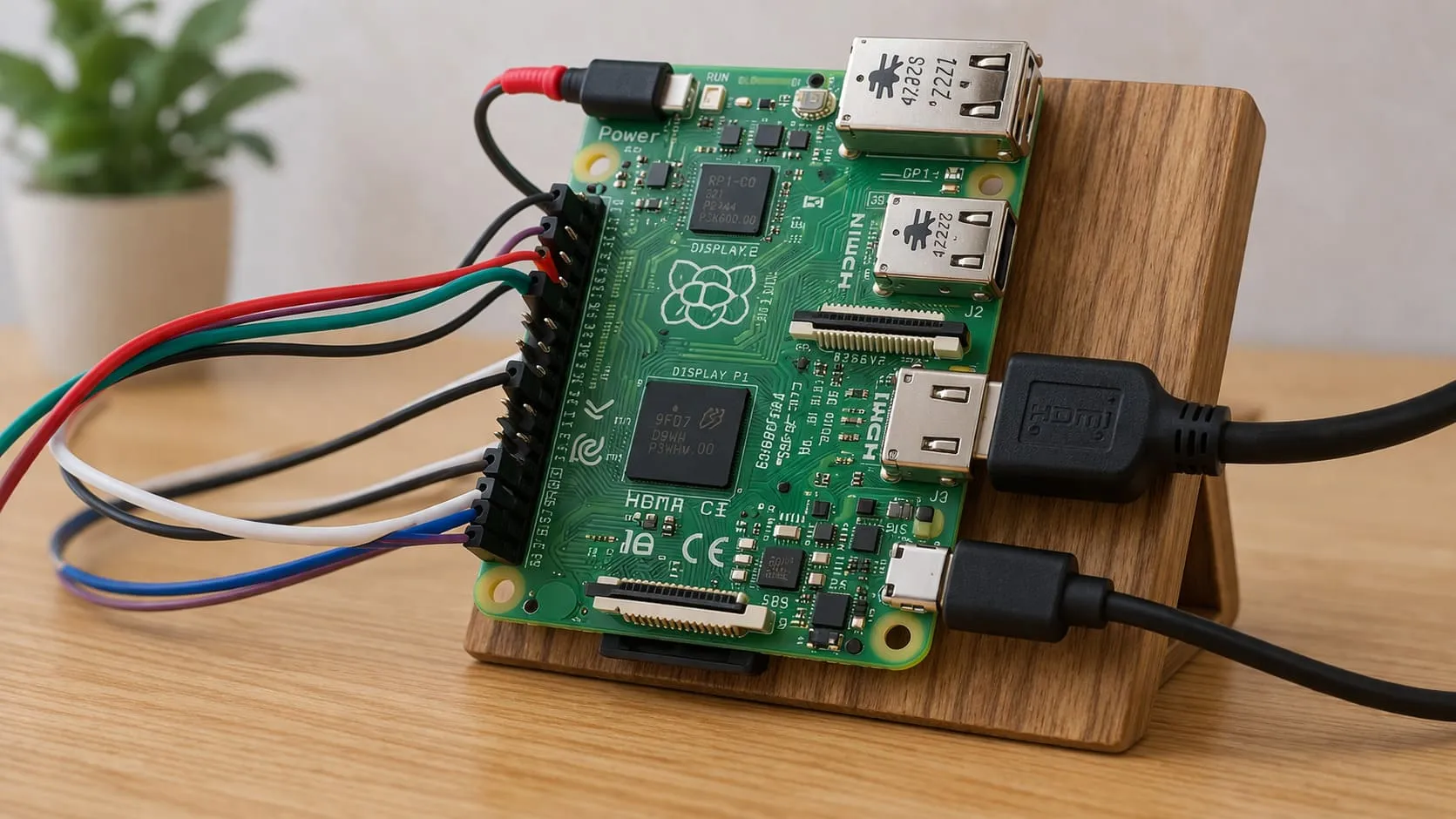
You cannot upgrade the physical RAM on a Raspberry Pi 400 because the 4GB memory is soldered directly to the board, but you can still stretch that memory with smart OS tuning, lightweight workloads, and project-specific planning.
When I explain this to buyers or project engineers, the mood always shifts. The focus moves from “Can I upgrade it later?” to “Can we design the project right from the beginning?” That is where the real decisions sit.
How much RAM does the Raspberry Pi 400 have?
Most people I talk to are surprised when they find out the Pi 400 has only one memory option.
The Raspberry Pi 400 always comes with 4GB of RAM, fixed at the factory, which means every unit worldwide shares the same memory capacity regardless of kit or region.
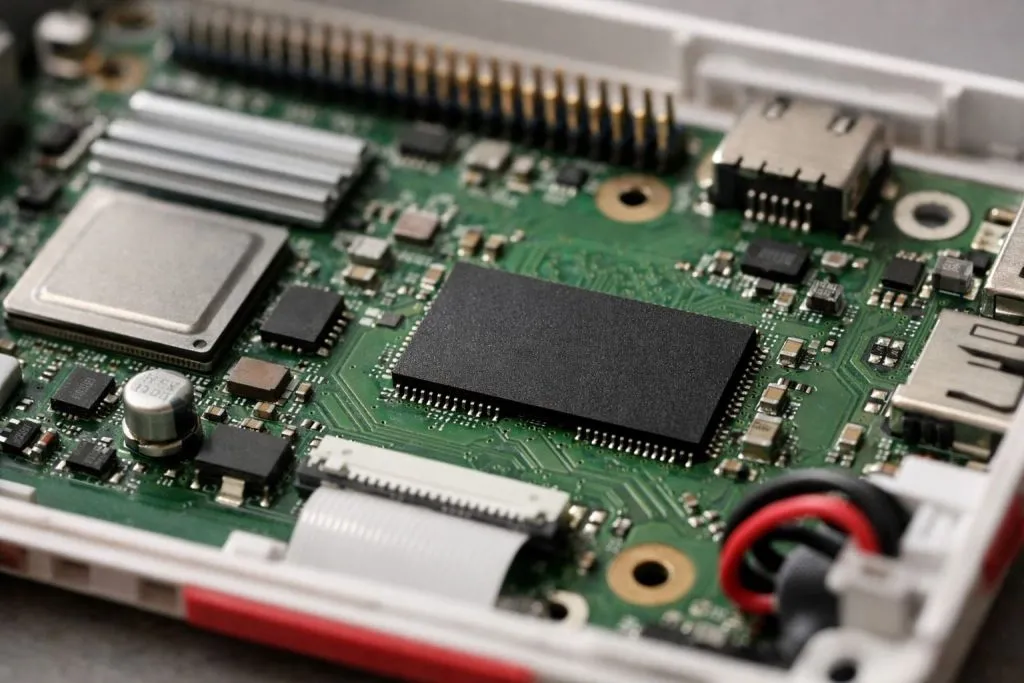
I like this simplicity when I work with buyers like Jacky from Belgium. We never argue about “which RAM version” of the Pi 400 is on the table. It is always 4GB. That makes documentation and support much easier for both sides.
Why this fixed 4GB matters in real use
In many projects, 4GB sounds small on paper but behaves better than people expect when:
- The OS is clean
- The browser tabs are controlled
- Background services are minimal
On real client jobs, the first thing I confirm is the exact RAM number in htop before blaming the SD card or CPU for slowdowns.
Typical RAM usage patterns
Here is a rough view from my own and customers’ setups:
| Use case | OS / Setup | Typical RAM use | Notes |
|---|---|---|---|
| Light coding + browser | Raspberry Pi OS desktop | 1.2–2.0 GB | Feel okay with 1–3 tabs |
| Office work (docs, spreadsheets) | Raspberry Pi OS + web office apps | 2.0–3.0 GB | Needs discipline with tabs |
| Light media center | Pi OS + media player | 1.0–1.5 GB | RAM rarely main bottleneck |
| Heavy web apps | Chromium + many tabs | 3.0–4.0 GB | Risk of swap and slowdowns |
The dangerous moment is not the first boot. It is the third week, when someone has added a dozen “tiny” tools and wonders why the system feels heavy.
Can Raspberry Pi 400 run Windows 10?
Sooner or later, someone asks me if they can “just run Windows 10” on their Pi 400 like a cheap mini PC.
You can boot Windows on a Pi 400 using community projects, but it is unofficial, driver support can be messy, performance is usually disappointing with 4GB, and I do not treat it as a reliable choice for real delivery or daily office use.

For hobby experiments, I understand the curiosity. It looks cool in screenshots. But when real users and real deadlines enter the picture, all the small issues with drivers, updates, and speed land in your lap.
What “running Windows” actually feels like
When people say, “It runs Windows,” they often mean “it boots and the desktop appears.” That is not the same as a smooth daily machine.
Key points I explain to customers:
- Support: No official support as a normal Windows desktop device
- Performance: UI often feels heavy with only 4GB RAM
- Drivers: Some hardware features can be unreliable or missing
- Maintenance: Updates can break the setup without warning
When people ask me about Windows on Pi 400, I think first about support tickets, not benchmarks, because every crash still lands in my inbox.
When I would and would not try it
I might try it if:
- It is a personal weekend experiment
- The user knows it is “for fun,” not for production
- They want to test UI behavior on ARM Windows
I avoid it if:
- The device is for client delivery
- The project needs long-term stability
- There is no technical person to recover the system
For most buyers I work with, a lean Raspberry Pi OS or a lightweight Linux distribution simply makes more sense.
Can the Raspberry Pi 400 be overclocked?
After RAM, the next “upgrade” people ask about is clock speed. They want extra power without changing hardware.
Yes, you can overclock the Raspberry Pi 400 by tweaking the configuration, but it increases heat, power draw, and long-term risk, so I only use it in very controlled scenarios.
It is tempting. A few lines in config.txt, and benchmarks jump. The problem is that benchmarks do not show you the silent crash that happens at 3 a.m. when nobody is watching.
Overclocking basics on Pi 400
Common tweaks include:
- Raising CPU frequency above stock
- Adjusting GPU frequency
- Increasing voltage slightly
Typical steps:
- Add settings in
/boot/config.txt - Reboot and stress test
- Watch temperatures and throttling behavior
Whenever I touch overclocking on a Pi 400, my mental rule is simple: if I cannot afford downtime, I do not touch the clock speed.
Where overclocking sometimes makes sense
I only consider overclocking when:
- The device is easy to access physically
- There is monitoring in place
- It is a lab, demo, or personal tool
For remote deployments or B2B customers, I almost always prefer stability over speed. Replacing a slightly slower but stable unit is much cheaper than fixing a fast but flaky one in the field.
What projects can I do with a Pi 400?
Once people accept the fixed RAM, the next question is simple: “Okay, so what is this 4GB Pi 400 actually good at?”
The Raspberry Pi 400 works great for coding education, light desktop tasks, retro gaming, simple home automation dashboards, and as a compact development machine for projects that do not need heavy multitasking or massive datasets.

I like to think of the Pi 400 as a “ready-to-type” Raspberry Pi 4. The integrated keyboard makes it easy to drop on a desk, plug in a monitor, and start real work in minutes.
Project types that fit 4GB well
| Project type | Fit for Pi 400? | Why it works |
|---|---|---|
| Coding education | Excellent | IDE + browser + terminal run fine with 4GB |
| Lightweight desktop use | Good | Email, small docs, web tools with limited tabs |
| Retro gaming | Excellent | Emulators for 8/16/32-bit systems run smoothly |
| Home automation dashboard | Good | One browser kiosk or custom app is usually light |
| Media center (1080p) | Good | Video decoding relies more on GPU than huge RAM |
| Heavy Docker workloads | Weak | Container stacks often push beyond 4GB |
| Large data science projects | Poor | RAM and storage bandwidth become major limits |
What quietly decides my Pi 400 project list is not creativity, it is who will maintain the device six months after installation.
Why is the RAM on Raspberry Pi 400 not upgradable like a PC?
This is where expectations from laptop and desktop buyers collide with single-board design reality.
The Raspberry Pi 400 uses integrated memory soldered directly to the board, so it has no RAM slots or modules to replace, which keeps costs and size down but removes upgrade flexibility.
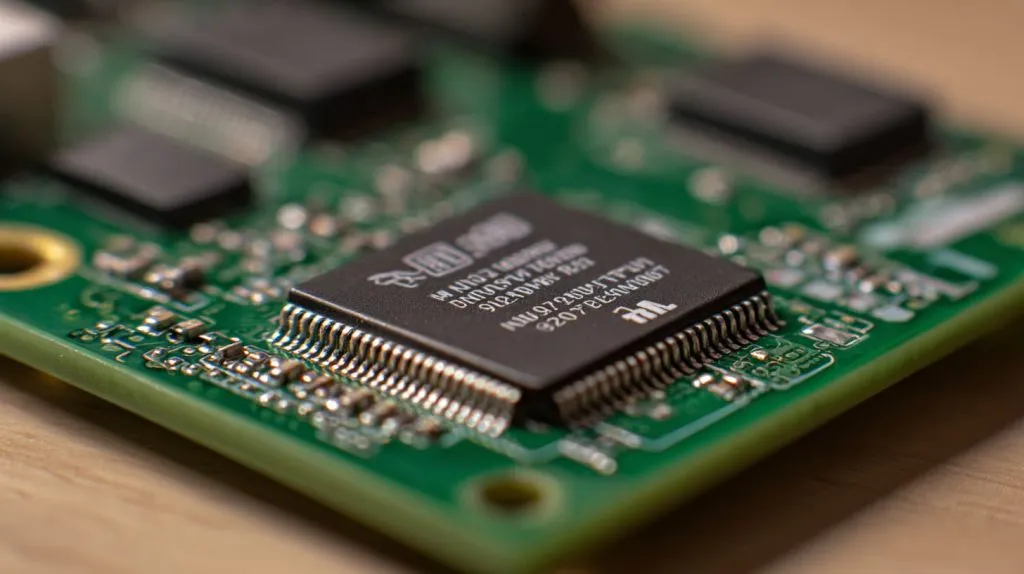
People are used to opening a PC case, pushing in a new stick, and doubling memory in minutes. With Pi 400, you do not have that path. You choose once when you buy it.
Design trade-offs behind fixed RAM
| Aspect | Typical PC | Raspberry Pi 400 |
|---|---|---|
| RAM type | Removable DIMM/SO-DIMM | Memory chip soldered on board |
| Upgrade path | Add/replace modules | None for normal users |
| Signal routing | Longer traces, more complexity | Shorter, tuned for one specific memory package |
| Cost and size | Higher, more mechanical parts | Lower, simpler, more compact keyboard computer |
The detail I keep pointing out in meetings is that a soldered RAM chip locks your decision the second you place the purchase order.
Why this matters for planning
For my B2B clients, the consequence is simple:
- You cannot “fix” an undersized RAM choice later
- Fleet upgrades mean buying new units, not adding modules
- Testing upfront becomes much more important
That is why I push for realistic test workloads before anyone commits to hundreds of Pi 400 kits.
What RAM size does the Raspberry Pi 400 come with, and is it enough?
This is usually the follow-up question after I explain the lack of upgrades.
The Raspberry Pi 400 only ships with 4GB RAM, which is enough for education, light desktops, and many embedded use cases, but it feels tight for heavy browsers, containers, and memory-hungry web apps.
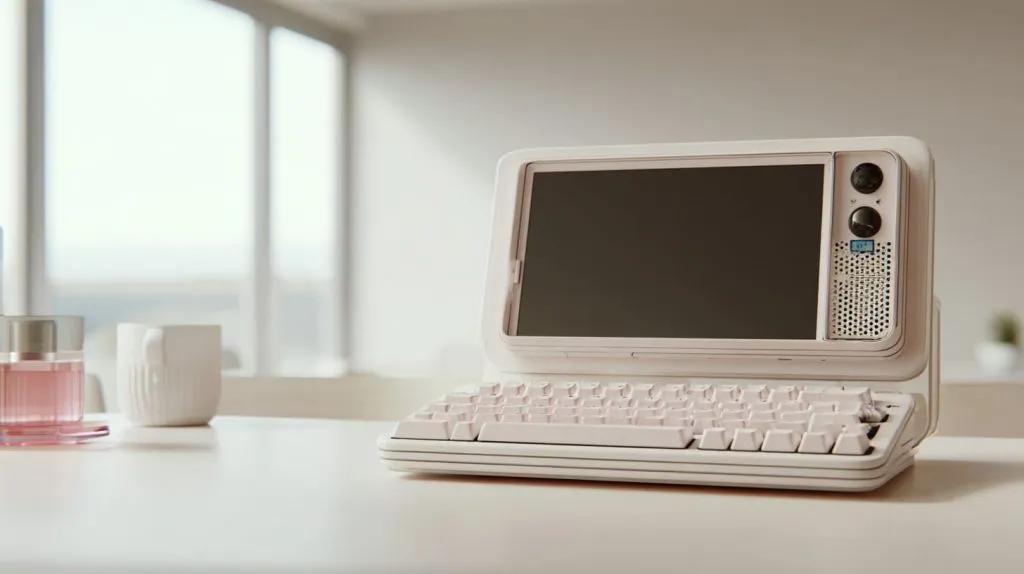
For single users at home, “enough” often means “I can browse, code, and watch videos without thinking.” For fleet buyers, “enough” means “no angry emails from site users.”
How I judge if 4GB is enough
I split use into three rough groups:
- Comfortable: coding, light browsing, single web app
- Borderline: multiple web apps, office suite in browser
- Painful: many tabs, electron apps, container stacks
The way I decide if 4GB is enough is by replaying the worst-case day for that device, not the smooth demo in front of the boss.
Is Raspberry Pi 400 RAM soldered to the board?
At some point, someone always asks, “But can’t a repair shop just change the chip?”
Yes, the RAM on the Raspberry Pi 400 is soldered directly to the PCB, and replacing it requires specialist rework skills and equipment beyond normal user repairs.
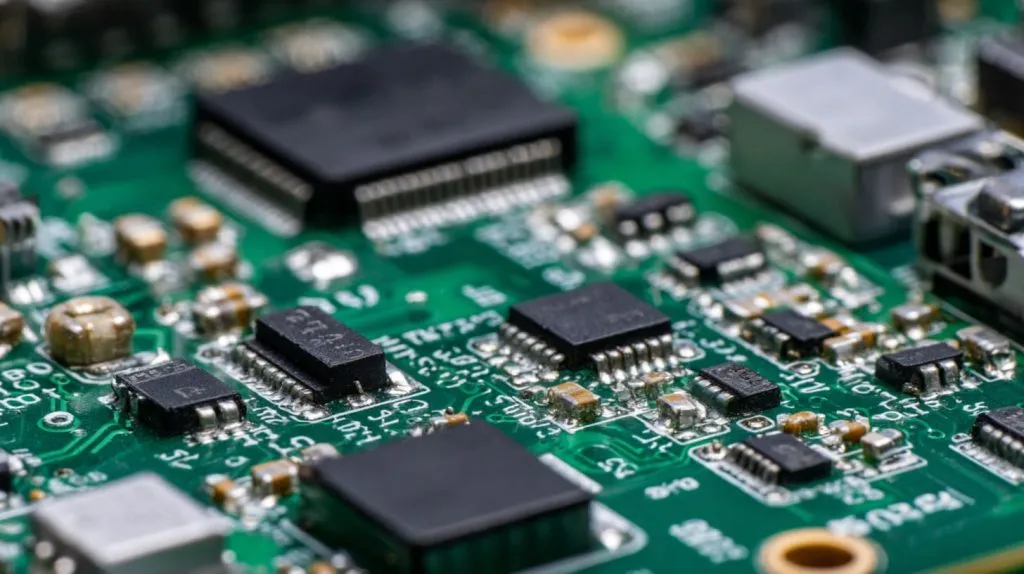
You can find heroic examples online of people doing chip swaps. I respect that skill. I also know it is not a scalable plan for my customers.
Practical advice I give clients
Instead of dreaming about chip swaps, I advise:
- Choose the right Raspberry Pi model upfront
- Protect the device with good power and cooling
- Design the software stack to be RAM-friendly
Treat the Pi 400 like a sealed appliance: you can attach things around it, but you do not perform brain surgery on the board.
Can I use virtual memory or swap to compensate for limited RAM on Raspberry Pi 400?
When people hear “no RAM upgrade,” they quickly jump to the idea of virtual memory as a rescue.
You can extend the usable memory of a Raspberry Pi 400 with swap, but swap is much slower than real RAM and can wear out SD cards if pushed too hard.
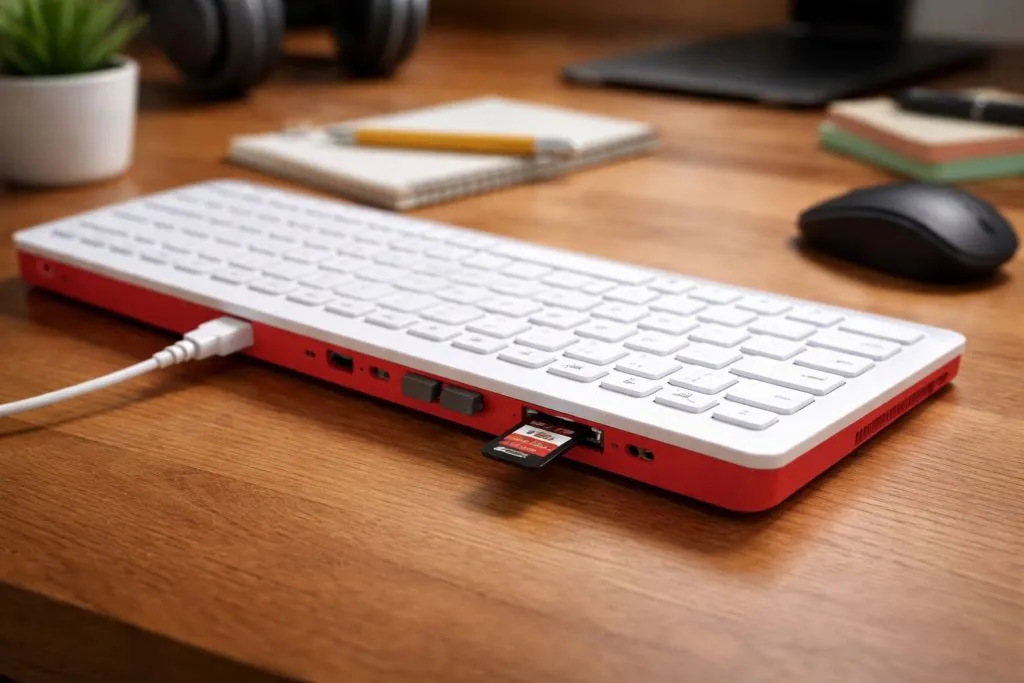
The good news is that Raspberry Pi OS already includes a swap file by default. The bad news is that swap is like an emergency lane on a highway, not a new lane.
A small “do this first” tuning checklist (real-world)
If a Pi 400 feels slow because of memory pressure, this is my usual order:
- Reduce background services (disable what you do not need)
- Limit Chromium tabs and remove heavy extensions
- Move swap to SSD (USB 3.0 SSD is much safer than SD)
- Use lighter apps (lighter editor, lighter browser when possible)
- Avoid running many always-on services on the same unit
Swap can save you from crashes. It will not turn a 4GB Pi 400 into an 8GB workstation.
Which Raspberry Pi models allow different RAM options compared to Pi 400?
Once people understand that Pi 400 is fixed at 4GB, they start looking sideways at other boards.
Unlike the fixed 4GB Raspberry Pi 400, boards like the Raspberry Pi 4 and Raspberry Pi 5 are sold in multiple RAM options (depending on the exact model and supply), so you can choose a higher-memory SKU when your workload needs it.

Quick comparison of RAM options (safe version)
| Model | RAM options (typical) | Form factor |
|---|---|---|
| Raspberry Pi 400 | 4GB fixed | Keyboard computer |
| Raspberry Pi 4 B | Multiple options | Standard board |
| Raspberry Pi 5 | Multiple options | Newer SBC with higher spec |
| Compute Modules | Fixed per SKU | For embedded carrier boards |
The pattern I watch in stock planning is simple: 4GB sells fast, but higher-memory SKUs create fewer “I am out of memory” emails.
Is Raspberry Pi 400 suitable for desktop use with only 4GB RAM?
This is where expectations can drift the most.
The Raspberry Pi 400 with 4GB RAM is suitable for light desktop use—coding, web research, email, and simple documents—but it struggles when users open many browser tabs, heavy web apps, or multiple memory-hungry tools at once.
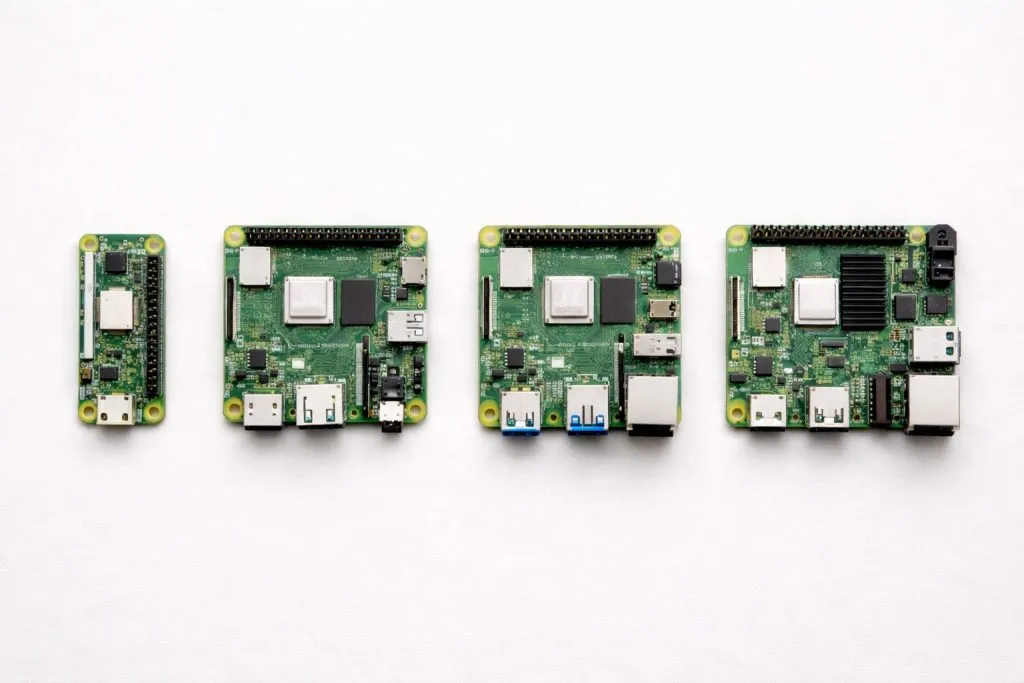
In my own tests and client deployments, the Pi 400 feels pleasant when used with discipline and frustrating when treated like a powerful office PC with unlimited RAM.
Simple tuning tips for desktop comfort
For Pi 400 desktop setups, I usually:
- Disable unnecessary startup apps
- Keep a visible system monitor widget so people see memory usage
- Educate users to close unused tabs, not just minimize them
With these small habits, a 4GB Pi 400 becomes a friendly little desktop instead of a constant “why is this so slow?” machine.
What are the best alternatives if I need more RAM than Raspberry Pi 400 offers?
Sometimes the honest answer is: “You have outgrown 4GB. It is time to move on.”
If you need more RAM than the Raspberry Pi 400 offers, the most practical alternatives are a higher-memory Raspberry Pi 4 or Pi 5 in a good case, or a small x86 mini PC when workloads become closer to full desktop usage.
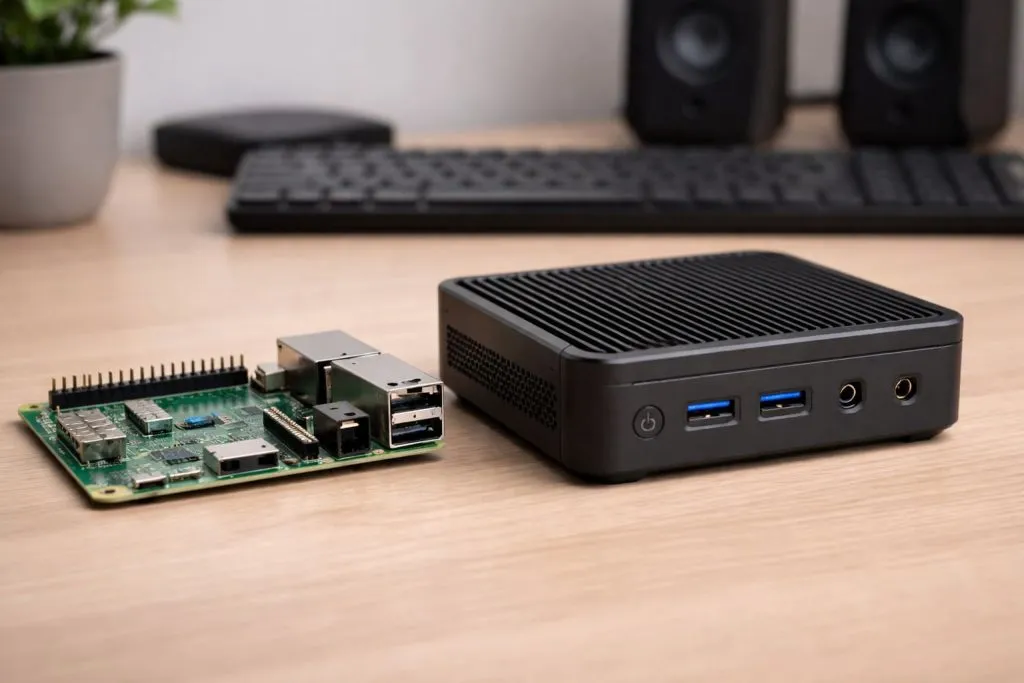
Typical upgrade paths I recommend
| Need | Recommended path |
|---|---|
| Just more RAM, same ecosystem | Raspberry Pi 4 / 5 with higher RAM |
| Many containers, databases | Higher-RAM Pi 5 + SSD storage |
| Heavy Windows-style workloads | Small x86 mini PC with 8–16GB RAM |
| Industrial / long-term use | Pi 4/5 with metal case, good cooling |
The key is to align the platform with the real workload, not with the cheapest catalog line.
Should I choose Raspberry Pi 4 or Raspberry Pi 400 for RAM-intensive projects?
For RAM-intensive projects, the Raspberry Pi 4 (or Pi 5) with higher RAM options is usually a better choice than the 4GB-only Raspberry Pi 400, especially when you expect growth in software complexity over time.
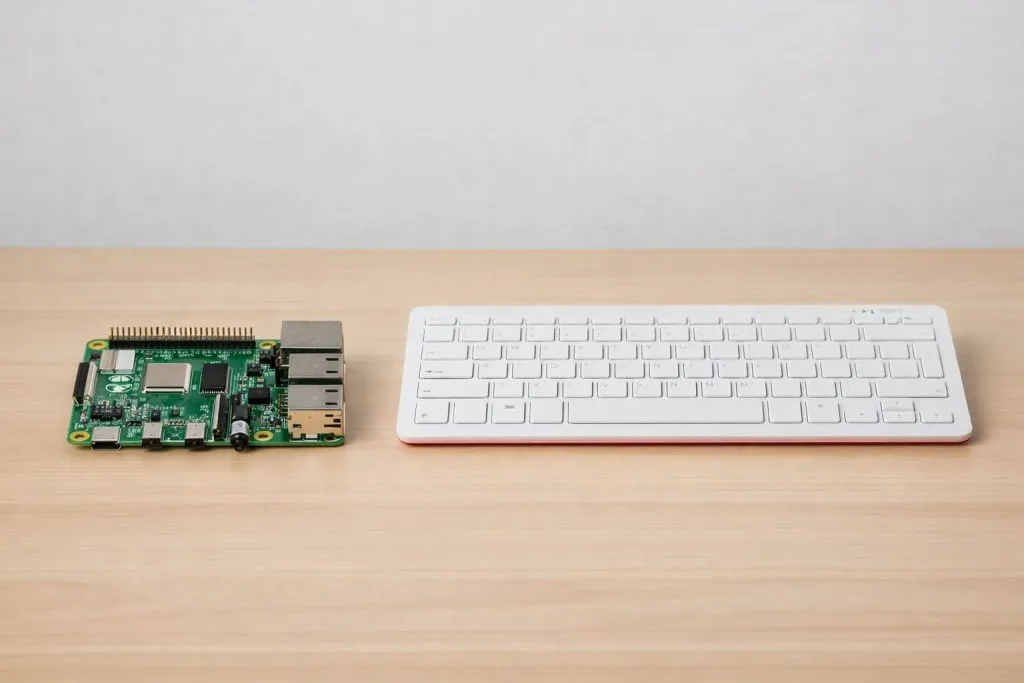
The Pi 400 shines in convenience. The Pi 4 shines in flexibility.
Side-by-side thinking
| Question | Pi 400 answer | Pi 4 answer |
|---|---|---|
| Can I pick RAM size? | No, 4GB only | Yes, higher-memory SKUs exist |
| Can I use custom enclosures? | Limited | Very flexible |
| Is it good for branding kits? | Great for “all-in-one” kits | Great for modular or OEM designs |
| Better for RAM-heavy workloads? | Only for lighter scenarios | Better suited with higher RAM SKUs |
Does adding heatsinks or better cooling improve RAM performance on Raspberry Pi 400?
Adding heatsinks or better cooling to a Raspberry Pi 400 does not increase the RAM capacity, but it can reduce thermal throttling of the CPU and GPU, keeping overall system performance more stable under load.
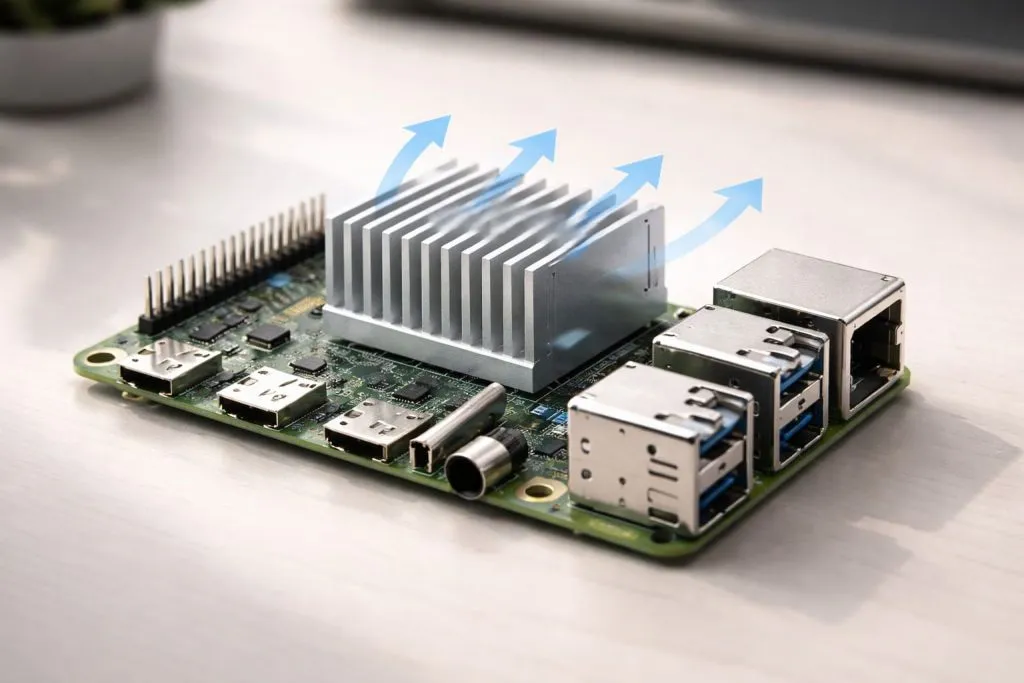
For most light workloads, stock cooling is fine. For heavier, long-running tasks (compiles, emulation, kiosk apps), I prefer to add at least a low-profile heatsink and make sure the Pi 400 can breathe on the desk.
Conclusion
I trust the 4GB Raspberry Pi 400 when the workload is honest about its limits, because I have watched it run real client projects without drama. If you want help matching boards, RAM, and custom cases to your own idea, reach out and we can design something that stays fast not only on day one, but on the day your users really push it.