Skip to content
Modern hardware moves fast, but some factories still depend on “old” DOS tools. When that software breaks, projects stall, shipments wait, and everyone starts blaming the wrong thing.
Yes—you can run MS-DOS style workloads on a Raspberry Pi by using an emulator (most commonly DOSBox variants) or a DOS-compatible OS like FreeDOS, then loading your DOS programs inside that environment.
I’ve seen buyers treat DOS like a cute hobby—until a legacy test tool or labeling program is the only thing keeping production moving. That’s when the question stops being nostalgic and becomes painfully practical.
Can I install Windows OS on Raspberry Pi?
People ask this because Windows feels “safe.” It’s familiar. It’s also not the easiest path on a Pi.
You can install Windows on some Raspberry Pi models using Windows-on-Raspberry tools, but it’s a proof-of-concept setup, not the smoothest daily driver—and it doesn’t help much for pure DOS needs.
One thing I’ve learned the hard way: when a buyer insists on Windows first, it usually means they’re trying to reduce risk—but they often add risk by choosing the most fragile stack.
What “Windows on Pi” is good for
- Testing a Windows-only workflow temporarily
- Running lightweight Windows apps (with patience)
- Learning and experimenting
What it’s usually bad for
- Stable production setups
- Fast boot + fast recovery
- “I need this to work every day”
Windows vs DOS needs
| Your real need | Better choice on Pi | Why |
|---|---|---|
| Run DOS app/game | DOSBox / DOSBox-X | Direct, simple, controlled |
| Run DOS-like CLI tools | FreeDOS (in some cases) | DOS-style behavior without Microsoft licensing |
| Run modern Windows app | Windows-on-Pi | Possible, but heavier and less predictable :contentReference[oaicite:3]{index=3} |
What is DOS like OS for Raspberry Pi?
Sometimes you don’t need “MS-DOS.” You need “DOS behavior.”
On a Raspberry Pi, the most practical DOS-like option is FreeDOS (DOS-compatible), while the easiest “DOS experience” for apps and games is DOSBox-based emulation on Raspberry Pi OS or RetroArch.
If I’m honest, I judge this choice by one boring question: “Do you need real DOS boot behavior, or do you only need the program to run?”
Option A: FreeDOS (DOS-compatible OS)
Good when:
- Your software expects DOS system calls and boot-like behavior
- You want a more “real” DOS flow
Watch-outs:
- Drivers can be a pain (sound, networking, odd storage)
- Some programs still prefer a tuned emulator
Option B: DOSBox-style environment (most common)
Good when:
- You want to run classic DOS apps/games easily
- You want quick setup, fast rollback, simple backups
Quick decision table
| Question I ask | If “Yes” | If “No” |
|---|---|---|
| Does the app require boot-time DOS behavior? | Try FreeDOS first | Use DOSBox |
| Do you need easy sound + graphics config? | Use DOSBox | FreeDOS can still work, but more setup |
| Do you need repeatable setup for many units? | DOSBox configs scale well | FreeDOS images can scale too, but driver issues vary |
How to run MS-DOS on modern hardware?
Modern CPUs don’t “speak DOS” the way old PCs did. So we translate.
On modern hardware, you usually run MS-DOS software using emulation (DOSBox family), or you run a DOS-compatible OS in a virtualized/bootable environment—then mount disk images or folders as DOS drives.
The warning sign I look for is timing: if the program is sensitive to CPU speed, it can act weird unless you control “cycles” like a dimmer switch.
The three common paths
1) Emulation (most people should do this)
- DOSBox / DOSBox-X / DOSBox-Pure style tools
- You can cap speed, tune sound, map drives
- Easy to back up and copy to another device
2) Disk-image workflow
You keep:
.imgfloppies.isoCDsC:hard disk images
This is great when you want “frozen time” consistency.
3) “Real DOS” on niche hardware
This is the museum route:
- Old x86 PC
- Real DOS boot
- Real ISA/PCI sound cards
It’s fun, but it’s not what most buyers want.
Practical checklist I use
- Do we need sound? (some factory tools don’t)
- Do we need serial/parallel ports? (this matters!)
- Do we need VGA tricks? (Mode X, odd resolutions)
- Do we need speed control? (many games do)
How can you run MS-DOS on a Raspberry Pi?
This is where the Pi shines: cheap, quiet, replaceable, and easy to clone.
The clean method is: install Raspberry Pi OS, install a DOS emulator (or RetroArch with a DOS core), map a folder as your DOS drive, then run your EXE files with a saved config.
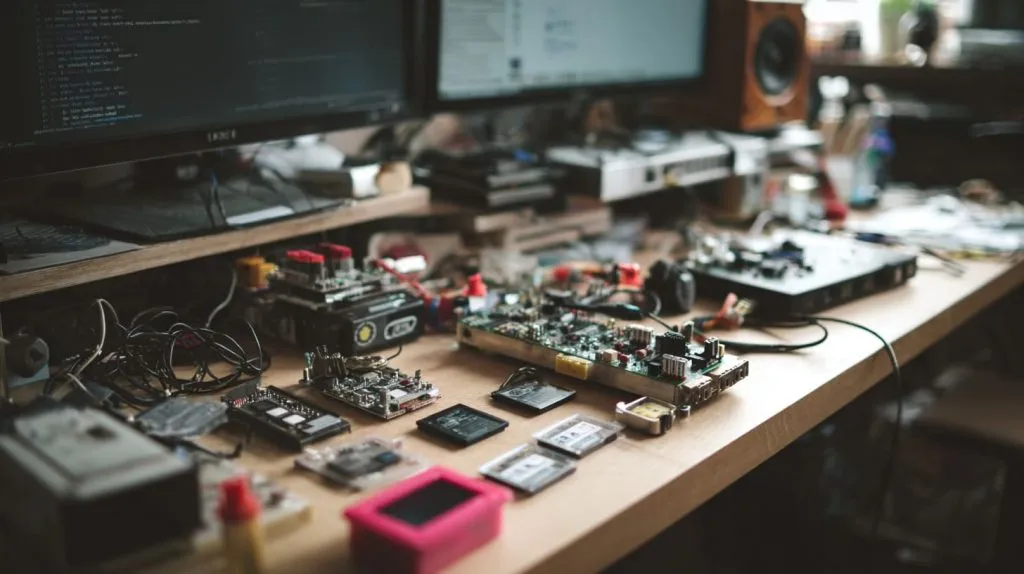
My personal “sanity rule” is simple: if I can’t rebuild the same setup in 20 minutes on a fresh SD card, I don’t call it production-ready.
Path 1: Raspberry Pi OS + DOSBox (simple and direct)
Typical flow:
- Install Raspberry Pi OS (64-bit is common on newer models)
- Install DOSBox variant (package manager or build from source)
- Create a folder like
/home/pi/dos/ - Mount it as
C:in your config - Launch your app
Many Pi users compile DOSBox for better speed on ARM.
Path 2: RetroPie / RetroArch + DOSBox-Pure (easy for games)
DOSBox Pure is designed for RetroArch and aims to be simple to use.
Good when you want:
- Controller mapping
- Fast “load a zip and go” style workflows
- Save states (for games)
Folder and drive mapping example (concept)
- Host folder:
/home/pi/dos/APP1/ - In emulator:
C:\APP1\RUNME.EXE
What I standardize for B2B buyers
| Item | My default | Why |
|---|---|---|
| Storage | USB SSD (or quality SD for light use) | Fewer corruption headaches |
| Setup | One “golden” image | Fast scaling |
| Config | One per app | Apps behave differently |
| Recovery | Keep a spare cloned card/drive | Downtime kills trust |
What emulator is best for running MS-DOS on Raspberry Pi?
“Best” depends on your target: games, Windows 3.x, or one stubborn business app.
For Raspberry Pi, I usually start with standard DOSBox (lightweight), then move to DOSBox-X when I need more features like better DOS/Windows support, or DOSBox-Pure (RetroArch) when I want simpler game handling.
The decision I make almost automatically is this: if the customer’s software is “fussy,” I pick the emulator that gives me more control—even if it’s a little heavier.
Quick comparison (Pi-focused)
| Emulator style | Best for | Trade-off |
|---|---|---|
| DOSBox (classic) | Many DOS apps, light setups | Fewer modern features |
| DOSBox-X | Features, DOS/Windows flexibility | Can be heavier; often runs under X/GUI |
| DOSBox-Pure (RetroArch core) | Simple game workflows | Less “tinker depth” than power-user builds |
Notes I keep in my own notebook
When DOSBox-X is worth it
- You want deeper config options
- You want DOS-based Windows support features
- You’re following a known Pi guide/workflow
When performance becomes the real story
Some users report performance differences depending on build type and display mode, especially on Pi setups.
So I test:
- windowed vs full screen
- different output backends
- different resolutions
Can Raspberry Pi run classic DOS games smoothly?
Most of the time, yes—if you’re realistic about which era of DOS you mean.
A Raspberry Pi can run many classic DOS games smoothly through DOSBox-style emulation, especially early-to-mid 1990s titles; late DOS games and heavier 3D-era titles may need stronger Pi models and careful cycle/output tuning.
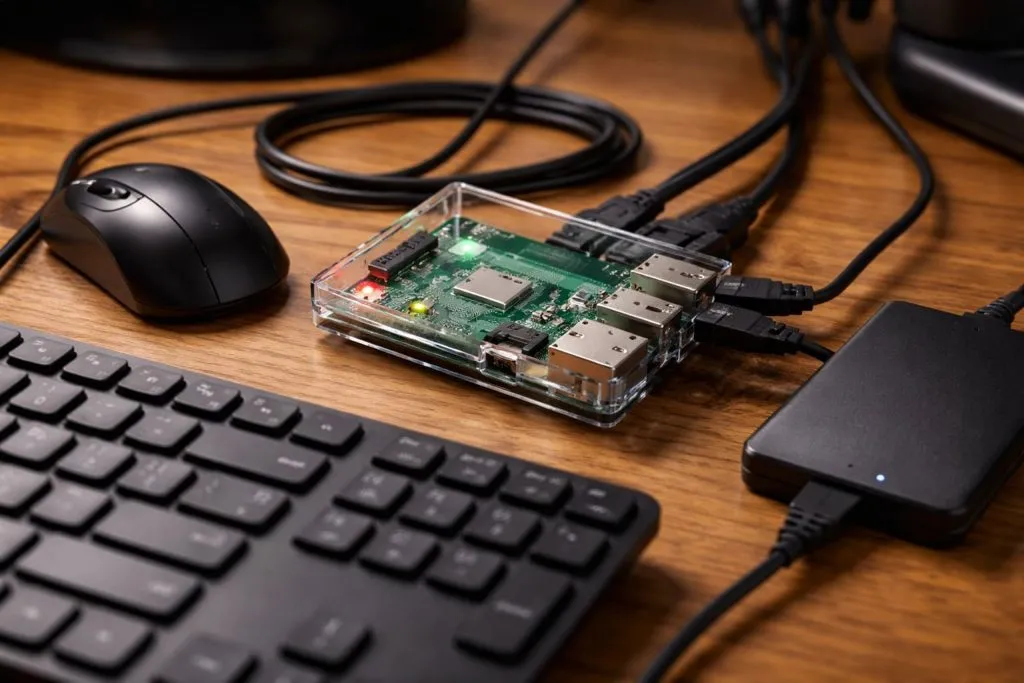
Here’s my blunt rule: if a game needs “perfect timing” and fancy sound, I treat it like a small engineering project, not a quick install.
What usually runs well
- 2D games (platformers, RPGs, strategy)
- VGA/SVGA titles that DOSBox handles cleanly
- Simple sound setups (AdLib/Sound Blaster emulation)
Where smooth can turn into “why is this stuttering?”
Display mode + scaling
Some Pi users see big speed swings based on fullscreen/window size and graphics output choices.
CPU cycles and “too fast / too slow”
- Some games break if “CPU” is too fast
- Some crawl if cycles are too low
Quick tuning table I use
| Symptom | What I try | Why |
|---|---|---|
| Audio crackle | Lower cycles a bit | Sound buffer pressure |
| Slow gameplay | Lower resolution / change output | GPU + scaling cost |
| Input lag | Disable heavy filters | Extra processing adds delay |
| Random speed | Lock cycles | Consistency beats peak FPS |
Which Raspberry Pi model is best for MS-DOS emulation?
If you want fewer compromises, buy more headroom.
For MS-DOS emulation, Pi 4 is a solid baseline, and Pi 5 is usually the best experience for demanding titles or heavier DOSBox variants; older models can work, but you’ll hit limits sooner.
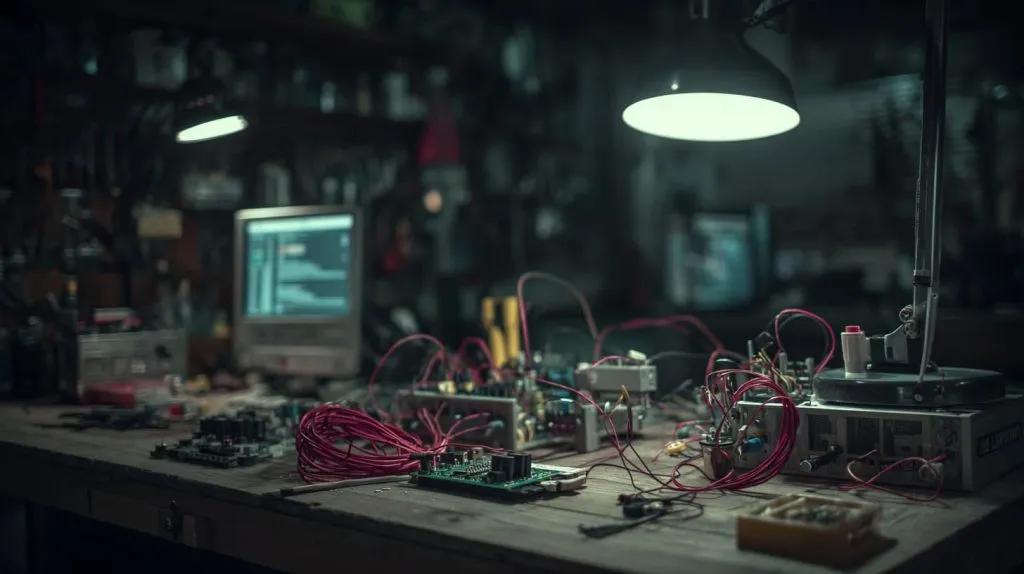
What I watch in quotes is not just the Pi price—it’s the cost of debugging. If a buyer like Davide loses a weekend chasing stutter, the “cheap” model becomes expensive.
My practical model guide
| Raspberry Pi model | My take for DOS | Who it fits |
|---|---|---|
| Pi 5 | Best headroom | Late DOS games, heavier configs |
| Pi 4 (4GB/8GB) | Great value | Most DOS apps and many games |
| Pi 3 / Pi 400 | Works with limits | Lighter titles, simpler apps |
| Pi Zero | Only for very light use | Expect compromises |
If you’re building a “re-brand kit”
For re-brand customers, I usually push three things:
- stable thermals (avoid throttling)
- stable storage (avoid corruption)
- a repeatable image you can clone fast
That matters more than chasing the last 10% FPS.
Can you use original MS-DOS software on Raspberry Pi legally?
This part is annoying, but skipping it is how people get burned.
You can use original MS-DOS software legally on a Raspberry Pi only if you have a valid license for the DOS system and for each application/game; “abandonware” isn’t a legal category, so many people choose FreeDOS or properly purchased re-releases.
My real-world filter is simple: if you plan to ship units to customers, I treat licensing like a product part number—if you can’t document it, you don’t really have it.
Two separate licenses people mix up
1) The OS (MS-DOS itself)
2) The software you run on it (games, tools, drivers)
Safer paths I often recommend
- Use FreeDOS for DOS compatibility (open-source route)
- Buy legit versions from official stores when available
- Use re-released collections where licensing is clear
Quick “B2B shipping” checklist
| Scenario | Risk level | My advice |
|---|---|---|
| Personal nostalgia at home | Lower | Use what you own |
| Internal company tool | Medium | Document licenses |
| Selling a preloaded kit | High | Use clear licensing or FreeDOS |
(I’m not a lawyer, so I treat this as practical risk control, not legal advice.)
How do you connect keyboard, mouse, and storage for MS-DOS on Raspberry Pi?
Good input and clean storage make the whole thing feel “real,” not hacky.
You connect USB keyboard and mouse normally through Raspberry Pi OS, and your DOS environment reads them through the emulator; for storage, you typically use the Pi’s SD card or a USB drive, then mount folders or disk images as DOS drives.
The mistake I see most is people obsessing over the emulator, then using a cheap SD card that silently corrupts data—then they blame DOS.
Keyboard and mouse
- USB keyboard: works out of the box in Pi OS
- USB mouse: emulator can map mouse input for many apps/games
- Gamepads: easier if you use RetroArch + DOSBox-Pure
Storage options (how I choose)
| Storage | Pros | Cons | My use case |
|---|---|---|---|
| SD card | Simple | Higher corruption risk | quick tests |
| USB SSD | Fast, stable | extra cost | “serious” setups |
| USB flash | cheap | quality varies | demos only |
Disk images vs folders
Folder mapping (easy)
- Keep files in a normal Pi folder
- Emulator mounts it as
C:
Disk images (controlled)
- Great for “frozen” systems
- Easy cloning, consistent behavior
Is Raspberry Pi a good replacement for old DOS PCs?
Sometimes yes. Sometimes it’s the wrong fight.
A Raspberry Pi is a great replacement for old DOS PCs when you want low power, easy cloning, and stable emulation; it’s a weaker fit when you need real ISA-era hardware, perfect timing, or legacy ports that your software truly depends on.
My honest way of judging it: if the old PC is “special” because of its hardware, I don’t replace it—I preserve it. If it’s only special because of the software, I emulate.
Where Pi wins
- Small size, low noise, low heat
- Easy to back up and duplicate
- Fast recovery when something breaks
Where old DOS PCs still win
- Real ISA sound cards
- Native serial/parallel edge cases
- Weird timing-sensitive apps
A simple “keep or replace” table
| If the old PC has… | I usually… | Why |
|---|---|---|
| Common DOS software | Replace with Pi | Easier maintenance |
| One-of-a-kind hardware card | Keep the old PC | Emulation can’t replace it |
| Unknown stability issues | Prototype on Pi first | Avoid surprises |
What are the limitations of running MS-DOS on Raspberry Pi?
Emulation is powerful, but it’s still a translation layer.
The main limits are timing-sensitive programs, unusual graphics/sound edge cases, hardware-specific dependencies (serial/parallel/ISA), and performance quirks tied to emulator build and display settings—so you should test the exact apps you care about, not just “a demo game.”
The most painful failures are the “almost works” ones—those are the projects that steal days, because every fix creates a new side effect.
Limitation 1: Performance can be surprisingly “UI dependent”
Some users see major slowdowns based on fullscreen, window size, or build type.
Limitation 2: Hardware-specific expectations
Some DOS software expects:
- direct port access
- real BIOS quirks
- specific sound hardware behavior
Limitation 3: Late DOS / early Windows complexity
If you’re pushing into:
- Windows 3.x on DOS
- heavier 1990s games
- more complex drivers
…you will need:
- a stronger Pi (often Pi 4/5)
- careful tuning
- a clean, repeatable config
My “don’t get surprised” test plan
| Test | Why it matters |
|---|---|
| Cold boot run | catches timing and init issues |
| 1-hour loop | catches thermal throttling and leaks |
| Fullscreen + windowed | catches display-mode performance swings |
| Real input workflow | catches key mapping pain |
| Backup/restore drill | proves you can recover fast |
Conclusion
I choose emulation because it is repeatable and easy to support for buyers like Davide. If you want a Pi-based DOS bundle or branded kit, email me and I’ll help.